WooCommerce API — what is it and what is it for? REST API in practice

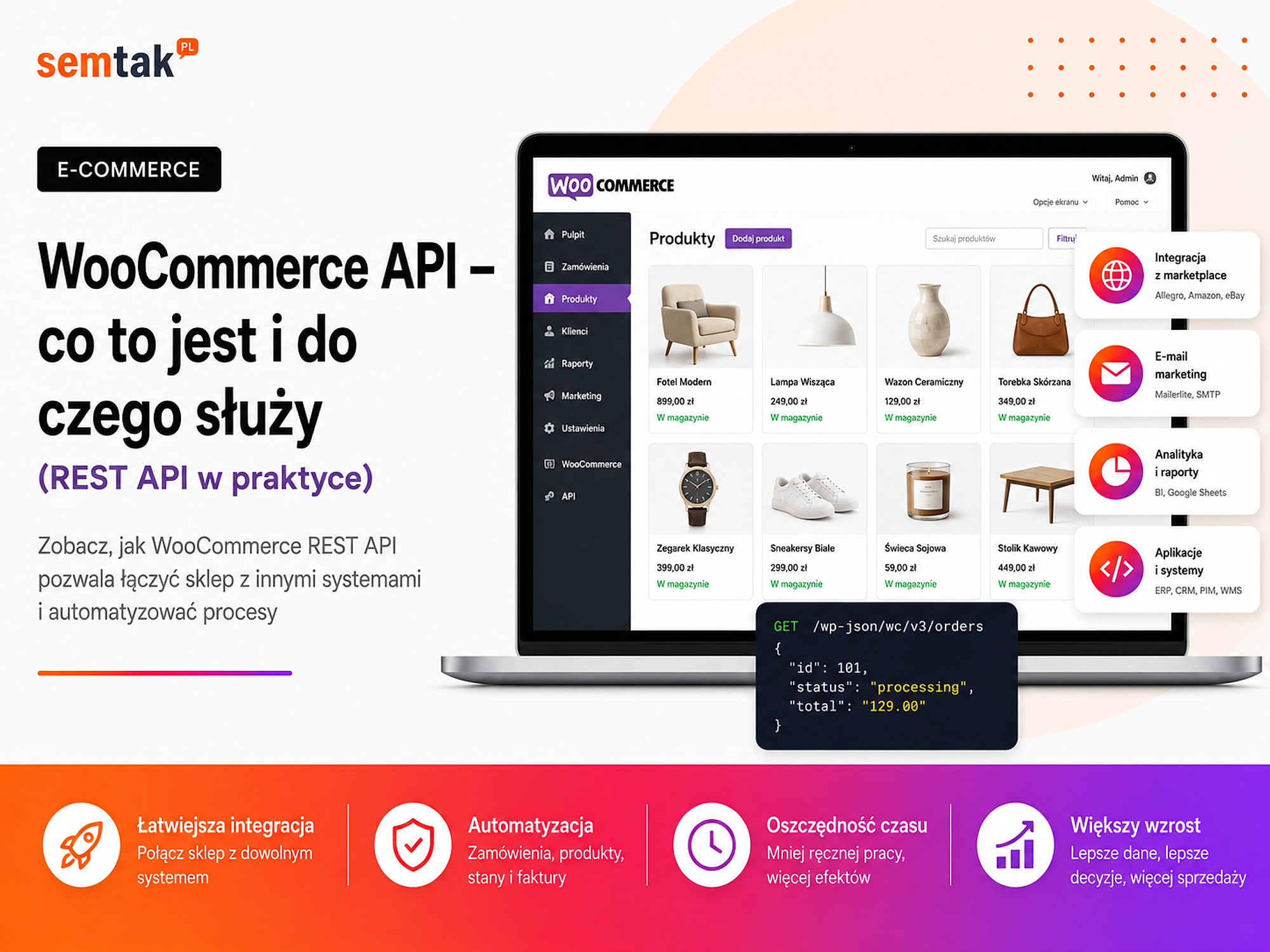
Do you want to connect your WooCommerce store with a warehouse, an accounting system, a CRM or your own application? In situations like these, the phrase "integration via API" quickly comes up.
It sounds technical, but the principle itself is simple. The WooCommerce API lets another system read data from your store and — once granted the right permissions — add or update information without logging into the WordPress dashboard by hand.
Thanks to the API, an order can automatically reach the warehouse, a product's stock level can be updated across several sales channels, and an external dashboard can pull the store's current figures.
In this guide we explain how the WooCommerce REST API works, what you can connect through it, how it differs from the Store API and webhooks, and when it is better to use a ready-made plugin instead of building your own integration.
In short
The WooCommerce API (REST API) is an interface that lets other systems — a warehouse, accounting, a CRM or your own application — read and update store data (products, orders, customers) without logging into the dashboard by hand. Access is granted through API keys with defined permissions: read only, or read and write. It is the foundation of most integrations and automations in a store.
In brief (TL;DR)
- The WooCommerce REST API lets you read, add and update store data from another system.
- Through the API you can handle, among other things, products, orders, customers, coupons, stock levels and shipping.
- New integrations use addresses starting with
/wp-json/wc/v3/. - Access to the data is protected by Consumer Key and Consumer Secret keys.
- Each key should only have the permissions that are actually needed.
- A simple plugin may be enough for a standard process. A dedicated API makes sense for unusual logic, several systems, or two-way data exchange.
Abbreviations in one place
API (Application Programming Interface) — an interface that enables communication between programs.
REST API — an orderly way of communicating over the internet: a system sends a request to a specific address and receives data or the result of an operation.
JSON — an orderly format for storing data exchanged between systems.
SKU — an internal, unique product code.
ERP — a system for managing a company: prices, stock, documents.
WMS — a system for managing the warehouse, goods receipt and picking.
CRM — a system that stores the history of contacts, purchases and customer relationships.
HTTPS — an encrypted, secure connection between systems.
Webhook — an automatic message sent by the store when a specific event occurs.
Pagination — fetching results in batches (subsequent pages).
Idempotency — sending the same event again does not create a duplicate.
What is the WooCommerce API?
The WooCommerce API is a mechanism that lets other programs communicate securely with the store and perform specific operations on its data.
API stands for Application Programming Interface, that is an interface that enables communication between programs. The simplest way to picture it is as a waiter in a restaurant:
- an external system places a specific order,
- the API passes it on to WooCommerce,
- WooCommerce performs the operation,
- the API returns the result.
The external system does not need to know how the WordPress database is built or where WooCommerce stores orders. It sends an appropriately prepared request and receives an orderly response. Example: a warehouse system asks WooCommerce about new orders, WooCommerce returns their list, the warehouse reserves the products, and once the parcel is shipped the system changes the order status in the store. The whole process can run automatically, without copying data by hand.
What does REST API mean?
A REST API is an orderly way of communicating over the internet, in which a system sends a request to a specific address and receives data or information about the operation performed.
Instead of creating a separate, closed solution for every integration, you use predictable addresses and standard types of requests. Most often you will come across four operations:
| Method | What it does | Example in a store |
|---|---|---|
GET | Reads data | Fetching a list of orders |
POST | Creates a new item | Adding a product or order |
PUT | Updates an item | Changing a price or status |
DELETE | Deletes an item | Deleting a coupon |
Data is usually transferred in JSON format — an orderly record of information that may look like this:
{
  "id": 125,
  "name": "Face cream",
  "sku": "KREM-50",
  "price": "69.00",
  "stock_quantity": 18
}
SKU is an internal, unique product code — in this example it is KREM-50. For the store owner, however, the most important thing is not what the code looks like, but what it lets you automate.
What is the WooCommerce REST API for?
The WooCommerce REST API is used above all to exchange data between the store and the systems used in sales, the warehouse, accounting, customer service and reporting.
Product synchronisation. Through the API you can fetch products, add new ones, change names and descriptions, update prices, manage SKU numbers, change stock levels, assign categories and tags, handle variants and update attributes. Example: a company runs a WooCommerce store and uses an ERP that is the main source of prices and availability. The integration fetches changes from it and updates the relevant products in WooCommerce.
Order handling. The API can fetch and change the buyer's details, the purchased products, the delivery address, the payment method, the shipping method, the order status, notes and returns. As a result, a new order can automatically reach the warehouse, accounting or the system handling shipments.
Updating stock levels. This is one of the most common reasons for implementing an integration. Suppose the same product is sold in the WooCommerce store, on a marketplace, through B2B sales reps and in a brick-and-mortar shop. Without synchronisation each place may show a different stock level. You therefore need to establish a single source of truth — the system whose data takes precedence (ERP, WMS, BaseLinker or WooCommerce).
Without a source of truth, an overwriting loop appears
1) WooCommerce sets the stock to 12 units. 2) The ERP responds with 10. 3) The store sends 12 again. 4) The systems overwrite each other's data endlessly. Technically the integration works, but the result is wrong. Set the direction of synchronisation separately for prices, stock, descriptions, statuses and customer data.
Connecting with accounting. Once an order has been paid, the data can be passed to an invoicing system. The system issues the document, saves its number and can send the information back to WooCommerce. This reduces the manual retyping of customer data, copying line items, changing statuses, sending documents and checking whether an invoice has been issued. We describe a detailed example in our guide on integrating WooCommerce with accounting and Base.
Connecting with a CRM and mailing system. A CRM stores the history of contacts, purchases and customer relationships. WooCommerce can pass to it the date of the last purchase, the number of orders, the total value of purchases, the categories bought, the customer's status and the data a sales rep needs. At the same time you have to remember about personal data protection and marketing consents — technical access alone does not mean you can use the data for any purpose.
Your own reports and dashboards. WooCommerce can be a data source for a separate management panel showing the number of orders, the value of sales, products with low stock, the most frequently returned goods, orders requiring intervention and sales by channel — without having to share the full WordPress dashboard.
Mobile apps and B2B systems. The API lets you build your own application that uses WooCommerce data: a panel for sales representatives, an app for customers, a wholesale ordering system, a product configurator, a partner panel or a B2B system with individual price lists. WooCommerce is responsible for products and orders, while the user works with a separate interface.
A headless store. The API is one of the foundations of headless architecture. WooCommerce then remains the sales engine, but the look of the store and part of the customer service is handled by a separate application. This does not mean that every store should go headless — the approach gives flexibility, but it requires maintaining several layers of the system. We cover this in more detail in the article what is headless commerce and when it pays off.
What does communication with the WooCommerce API look like?
An external system sends a request to a specific address, WooCommerce checks access, performs the operation and returns the data or an error code.
Step 1: the system sends a request. The external system sends a request to a specific address, called an endpoint. An example products endpoint: /wp-json/wc/v3/products; the orders endpoint: /wp-json/wc/v3/orders. If the system wants to fetch a single order, it adds its identifier: /wp-json/wc/v3/orders/125.
Step 2: WooCommerce checks the permissions. WooCommerce verifies whether the API key exists, whether it has not been revoked, which user it is linked to, whether it can read or change the data, and whether the request is correctly built.
Step 3: WooCommerce performs the operation. If the request is valid, WooCommerce fetches or changes the indicated data.
Step 4: the system receives a response. The response contains the data or an error code. The most common codes:
200— the request was performed correctly,201— a new item was created,400— the request contains an error,401— an authentication problem,403— insufficient permissions,404— the indicated resource was not found,500— an error on the server side.
A good integration does not assume that every response will be correct. It should handle errors, save logs and retry selected operations.
What types of API are there in WooCommerce?
In practice you will most often come across the WooCommerce REST API for managing the store and the Store API for handling the catalogue, cart and checkout on the buyer's side.
The WooCommerce REST API in the wc/v3 namespace is used mainly for administrative integrations. It can be used to manage products, orders, customers, coupons, refunds, taxes, shipping and webhooks. Access requires authentication and the appropriate permissions.
The WooCommerce Store API is used mainly for functions available on the customer side: displaying products, filtering the assortment, handling the cart, calculating shipping, applying coupons and handling checkout. Among others, the WooCommerce blocks use it. The Store API is not a replacement for the administrative REST API — it should not be used to fetch other customers' private data or to manage store settings.
| Area | REST API | Store API |
|---|---|---|
| Main use | Store management and integrations | Products, cart and customer checkout |
| Private data | Access depends on permissions | Access is restricted |
| API keys | Usually required | Public endpoints do not use classic keys |
| Changing products and settings | Yes, with the appropriate permissions | No |
| Typical user | ERP, CRM, warehouse, automation | Store frontend, shopping app |
In a headless project both solutions can work in parallel. The Store API handles the shopping part, while the protected REST API performs administrative operations on the server side.
How does the API differ from a webhook?
The API is used to fetch or change data, whereas a webhook automatically informs another system that something specific has happened in the store.
API — the system asks for data. The external system sends the request "Have any new orders appeared?" — it can do this every minute, every five minutes or once a day. Webhook — WooCommerce reports an event. WooCommerce sends a message immediately after the event: "A new order number 125 has appeared". A webhook can trigger a further process, and the external system can then fetch the full data through the REST API.
| Solution | How it works | Good use |
|---|---|---|
| API | The system asks WooCommerce for data | Fetching products, changing prices |
| Webhook | WooCommerce sends information about an event | New order, status change |
| API and webhook together | The webhook triggers a process, the API fetches or updates the data | Integrating the store with an ERP or warehouse |
A webhook also requires error handling. If the recipient's system is temporarily unavailable, the integration has to know when to resend the information.
How do you generate WooCommerce REST API keys?
REST API keys are generated in the WooCommerce settings, assigning them to a specific user and choosing the scope of access.
- Log in to the WordPress dashboard.
- Go to WooCommerce → Settings.
- Open the Advanced tab.
- Choose REST API.
- Click Add key.
- Enter a description, for example "Integration with ERP".
- Choose the WordPress user.
- Set the access level.
- Click Generate API key.
- Save the Consumer Key and Consumer Secret in a safe place.
The Consumer Key identifies the access, and the Consumer Secret is its secret part. The secret may not be visible again in the dashboard later — if it is lost, it is safer to generate a new key.
Which permissions should you choose?
| Permission | Capabilities | Example |
|---|---|---|
| Read | Fetching data | Sales dashboard |
| Write | Changing data | A specialised integration that writes data |
| Read and write | Fetching and updating | A two-way integration with an ERP |
Grant only the permissions a given system needs to work. A report that fetches sales should not have the right to change products and orders.
How do you use the WooCommerce API safely?
Treat API keys like access credentials to the store: limit their permissions, keep them on the server side and regularly remove unused accesses.
The secret never in frontend code
The store and the external system should communicate exclusively over HTTPS. The Consumer Secret MUST NOT appear in JavaScript code accessible in the browser, in a public repository, in a file shared with customers, in a screenshot, in public documentation or in a message on a general messenger channel. Perform operations that require the secret key on the server side.
Create a separate key for every integration. Do not use one key for the ERP, CRM, reports and the automation tool. Separate keys let you grant different permissions, determine which system performs an operation, disable one integration without stopping the others, and react faster to a leak.
Link the key with the right user. A key works within the permissions of the WordPress user it was assigned to. This does not always have to be the main administrator account — you can create a separate technical account and limit its capabilities.
Remove unused keys. Keys left over from tests, a change of contractor or the shutdown of a system should be revoked. During a review, check the integration name, the key owner, the scope of permissions and whether continued access is justified.
Enable error logging. An integration should record at least the time of the operation, the type of event, the product or order identifier, the system's response, the error code and the number of retries. The logs MUST NOT record full API keys, passwords or unnecessary personal data.
We write more about protecting the store in our guide on WooCommerce store security.
API, a ready-made plugin or a CSV file?
A custom API integration is not always the best solution — for a standard process a ready-made plugin or periodic file exchange may be enough.
A ready-made plugin is a good solution when you are integrating a popular service, the process is standard, the extension is regularly updated, you do not need unusual logic and the vendor provides support. Typical examples are payments, couriers, invoicing or popular mailing systems.
A custom integration via the API makes sense when no suitable plugin exists, the company system is non-standard, you have to handle your own business rules, the integration works in both directions, several systems use the same data, logs and monitoring are needed, or the store handles individual price lists or B2B processes.
Importing or exporting a file (CSV or XML) may be enough when the data changes rarely, an update once a day is acceptable, the other system has no API, or the process does not have to work instantly.
| Solution | Start-up cost | Flexibility | Data updates |
|---|---|---|---|
| Ready-made plugin | Usually lower | Limited to the plugin's features | Often automatic |
| Dedicated API | Usually higher | Very high | Can work in real time |
| CSV or XML | Low or medium | Medium | Most often periodic |
| Manual handling | Seemingly low | Low | Depends on the employee |
Manual handling may seem cheap with a few orders. At a larger scale, the cost of time and the number of mistakes grow.
What can a WooCommerce–ERP integration look like?
An ERP integration can automatically synchronise prices, stock, orders, documents and shipping information between the company system and WooCommerce.
Suppose the store sells several thousand products, and prices and stock are managed in the ERP. Without an integration, an employee exports a file, fixes the columns, imports the data into WooCommerce and then manually passes orders to the warehouse. After implementing the integration the process may look like this:
- The ERP is the source of prices and stock.
- The integration fetches the changed products.
- Products are matched by SKU or a saved identifier.
- WooCommerce receives the new prices and stock.
- A new order triggers a webhook.
- The order data reaches the ERP.
- The ERP returns its own document number.
- The number is saved with the order.
- After shipment the ERP passes the tracking number.
- WooCommerce changes the status and informs the customer.
Before you start coding, you have to establish how products are matched, what happens when an SKU is missing, how cancellations are handled, how duplicates are prevented, how many times a failed operation is retried, who receives the alert and how to resume the process manually. Simply connecting two endpoints does not yet make a safe integration.
The most common problems with the WooCommerce REST API
The most common errors concern authentication, permissions, pagination, duplicates and overwriting correct data.
401 Unauthorized error. The most common causes: an incorrect Consumer Key, an incorrect Consumer Secret, a deleted or revoked key, a key assigned to a user without the right permissions, the server not passing on the authorisation header. Do not immediately disable security measures — first check the server configuration and the authentication method.
403 Forbidden error. The key was recognised, but does not have the right to perform the operation. It may have read access only, while the system is trying to change a product. The cause may also be a firewall or a WordPress security measure.
404 Not Found error. It is worth checking the correctness of the endpoint address, the API version, whether WooCommerce is active, the permalink settings, and whether the server correctly handles /wp-json/.
500 error. This is a general server-side error. Possible causes are a plugin conflict, an error in your own code, lack of memory, exceeding the execution time, incorrect handling of custom fields or a database error. To diagnose it you need the logs of WordPress, WooCommerce, the server and the integration.
Incomplete data due to missing pagination. WooCommerce returns lists of products and orders in batches. If the system fetches only the first page, some products or orders will be missed.
Duplicate orders or documents. A duplicate can arise when the system does not receive a response and retries the operation, even though the first attempt was already performed. Idempotency is then needed — sending the same event again should not create another order, document or shipment.
Overwriting correct data. With two-way synchronisation both systems may try to change the same field — e.g. a price changed in the ERP and at the same time in WooCommerce, where one value automatically overwrites the other. The direction of synchronisation has to be written out separately for prices, stock, descriptions, statuses and customer data.
Overloading the store. Fetching thousands of products one by one can put a strain on WordPress and the database. What helps: processing data in batches, updating only changed records, a sensible schedule, task queues, caching, limiting unnecessary queries and monitoring response times. With a large number of operations, hosting and server configuration also matter.
Does the WooCommerce API improve sales?
The API alone does not acquire customers, but it can remove the errors and delays that make smooth sales handling difficult.
An integration can reduce outdated stock levels, wrong prices, delayed order fulfilment, manual document issuing, missing shipment information, the chaos between the store and the marketplace, and the time lost copying data. A well-designed integration streamlines the sales back office; a badly designed one can mass-change prices, create duplicates or overwrite correct stock. That is why e-commerce integration should cover not only the technical connection, but also a data map, tests, logs, monitoring and error-handling procedures.
What can you check on your own?
1. List the tasks done by hand. Write down what employees copy between systems every day: orders, invoices, tracking numbers, stock, prices, customer data, statuses. This is the simplest way to find processes worth automating.
2. Establish the source of truth. For each type of data, determine the main system:
| Data | Main system |
|---|---|
| Price | ERP |
| Stock level | WMS |
| Product description | WooCommerce |
| Shipment status | Courier system |
| B2B customer data | CRM |
3. Check whether a ready-made plugin exists. For popular payments, couriers and accounting systems, a ready-made extension may be enough. Check the date of the last update, compatibility with WooCommerce, the scope of synchronisation, the availability of support and the way logs are saved.
4. Check whether the other system has an API. Ask the system vendor about API documentation, webhooks, request limits, a test environment, the authentication method, the supported data and the cost of access. WooCommerce can expose its data, but the other system also has to allow receiving or sending it.
5. Review the existing keys. In the WooCommerce → Settings → Advanced → REST API panel, check which keys exist, what they are for, which users they are connected to, what permissions they have and whether they are still needed. Do not delete a key until you have established which system uses it.
6. Check the permalinks. In the WordPress permalink settings, the basic format based solely on the ?p=123 parameter should not be selected.
7. Set access rules for the contractor. Before handing over a key, establish which integration it is needed for, what scope of permissions it will receive, how long it will be active, where it will be saved and when it will be revoked.
When is it worth outsourcing this to a specialist?
A specialist's help is advisable when the integration changes store data, connects several systems, or an error in it could affect prices, stock and order fulfilment.
This applies especially when the integration:
- works in both directions,
- connects WooCommerce with an ERP or WMS,
- handles several sales channels,
- processes customers' personal data,
- updates many products,
- requires an instant reaction to events,
- uses webhooks and queues,
- has no ready-made plugin,
- handles unusual prices or B2B customers,
- causes duplicates or incorrect stock,
- is part of a headless store.
Before implementation it is worth preparing a list of systems, a map of the data being transferred, the direction of synchronisation, the rules for matching products, error scenarios, a test plan, a way of monitoring and a manual-intervention procedure. If the store is only being designed, it is worth establishing the integration requirements already at the stage of building the WooCommerce store. Adding integrations later to disorganised products and processes is usually harder.
Frequently asked questions
Is the WooCommerce REST API paid?
The basic REST API is part of WooCommerce. The cost may relate to preparing the integration, the external system, a paid plugin, the server or the later maintenance of the connection.
Do you have to install an additional API plugin?
No. The standard WooCommerce REST API is available without installing a separate, general plugin. An additional extension may be needed to handle custom fields or your own operations.
Can you change prices and stock levels through the API?
Yes. The key must have the right permissions, and the products must be correctly matched, for example by ID or a unique SKU.
Does the API give access to orders and customers?
Yes. The scope of access depends on the permissions of the key and the WordPress user the key was assigned to.
Is the WooCommerce API secure?
Yes, provided that the store uses HTTPS, the keys have limited permissions, the secret is kept on the server side and unused accesses are removed.
Can you connect WooCommerce with an ERP or CRM?
Yes, if the other system also allows data exchange through an API, webhooks, files or another integration method.
How does the API differ from a webhook?
The API is used to fetch or change data. A webhook automatically informs the other system about an event, for example a new order.
Can the REST API be used in a headless store?
Yes. However, the secret REST API keys must not be in the public frontend code. Administrative operations should be performed on the server side.
The WooCommerce API makes sense when it solves a specific problem
An API should not be implemented just because a company wants "more automation". First you have to identify a process that is too slow, prone to errors or hard to scale — then assess whether a ready-made plugin or a file import is enough, or whether a dedicated integration will be needed. The WooCommerce REST API works best when data has to flow between several systems, the process is unusual, or ready-made extensions do not handle the company's rules:
- E-commerce integrations — connecting the store with an ERP, CRM, warehouse and marketplace.
- Systems integration — dedicated connections and custom APIs.
- E-commerce automation — automating sales and back-office processes.
- Integrating WooCommerce with accounting and Base — a practical implementation example.