WooCommerce Product Structured Data — Product, Offer and Review Schema

A product in a store has a name, photos, a price, availability, a brand, variants and reviews. The customer sees this information on the product page. Google, however, has to work out on its own which part of the page is the price, which is the stock level and which is the customer rating.
Product structured data describes these elements in an organised format. Thanks to it, the search engine can better understand the offer and qualify the page for rich results that include, among other things, the price, availability and rating of the product.
The problem starts when the code shows a different price than the product page, an unavailable variant is marked as available, or several plugins create three different Product objects. Technically the page may still work, but Google and Merchant Center receive contradictory information.
This article is responsible for the technical part of product data: Product, Offer, variants, identifiers, reviews and conflicts between plugins. We cover the process of collecting and moderating reviews separately in the guide on product reviews and ratings in WooCommerce. If you are only just organising the whole visibility of your store, start with the guide WooCommerce store SEO — where to begin. You will find broader diagnostics of technology, content and structure in the article online store SEO audit — what it includes and when to commission it.
In short
Correct product structured data in WooCommerce should:
- Describe exactly the product the user sees on the page.
- Contain the current name, image and product URL.
- Pass on the actual price and the correct currency.
- Show the current availability.
- Indicate the brand, SKU and GTIN, if such identifiers exist.
- Distinguish a simple product from variants.
- Connect variants using
ProductGroupwhen the store's construction requires it. - Pass on reviews and the average rating only when they are visible on the page.
- Match the data in the Google Merchant Center feed.
- Be generated by one consistent system, not several competing plugins.
- Update after a change of price, promotion, variant or stock level.
- Pass the rich results test without critical errors.
Structured data increases the possibility of displaying a rich result, but it does not guarantee that Google will show the price, stars or availability for every query.
In short (TL;DR)
Productdescribes the product, whileOfferpresents a specific sales offer.AggregateOffershows the price range of many offers, but does not always describe well the variant bought directly in the store.Reviewdescribes a single review, whileAggregateRatingdescribes the average rating of a product.ProductGrouphelps connect variants that differ by colour, size, material or another feature.- Price, currency and availability must match on the page, in the schema, during purchase and in Merchant Center.
- Do not invent GTIN codes. Add them only when they have actually been assigned to the product.
- WooCommerce generates basic data automatically, but the theme and plugins may create duplicates.
- Correct code gives you the possibility of a rich result, not a guarantee that it will be displayed.
- First fix the product data in WooCommerce, and only then correct the schema code itself.
What is product structured data?
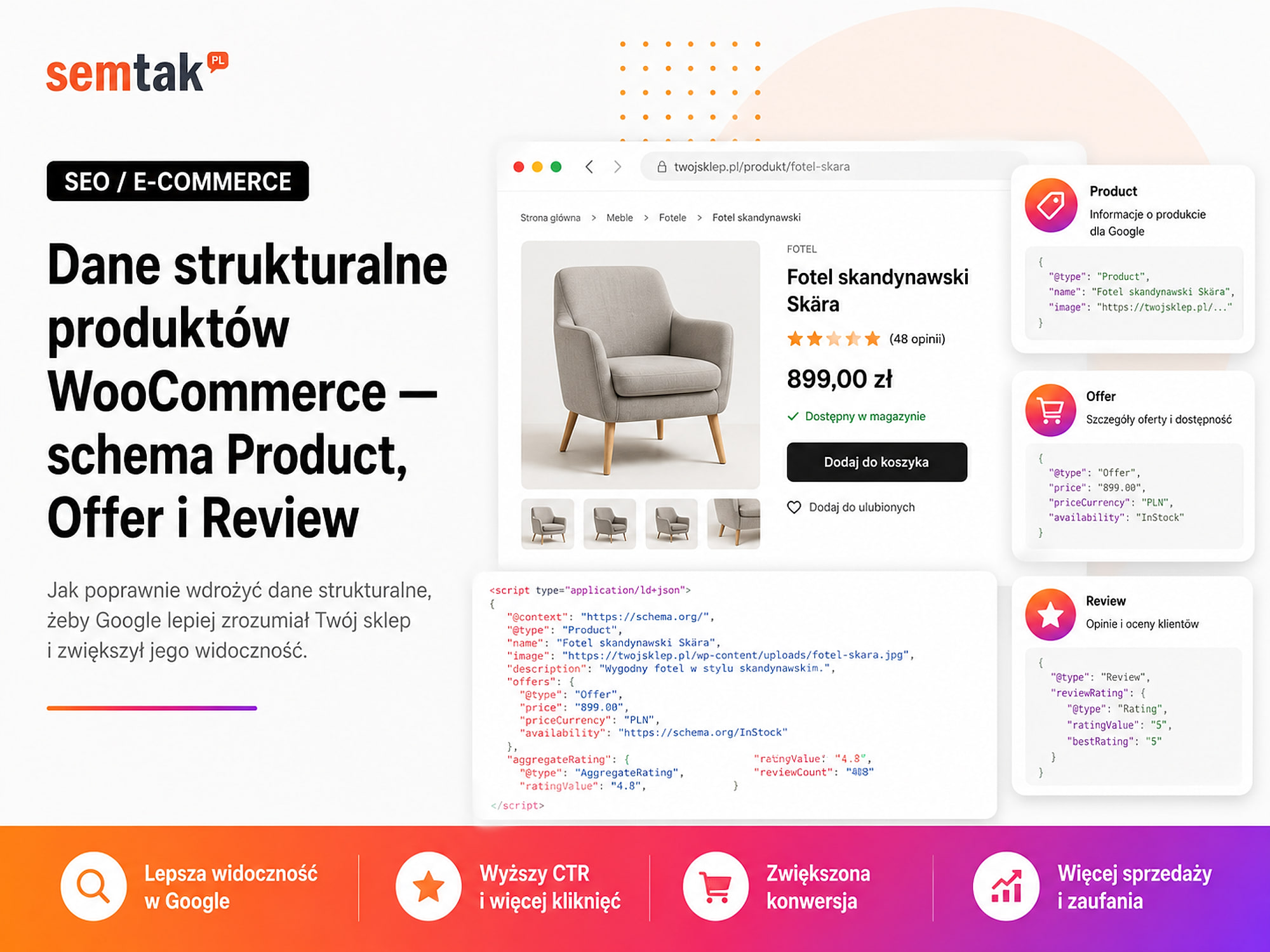
Structured data is information saved in the page code in a format that the search engine can understand. The customer sees on the page: "Varius adjustable desk — £999 — Available — Colour: natural oak — Rating: 4.7 based on 38 reviews". In the code you can pass on the same information in an organised form:
{
  "@type": "Product",
  "name": "Varius adjustable desk",
  "offers": {
    "@type": "Offer",
    "price": 999,
    "priceCurrency": "GBP",
    "availability": "https://schema.org/InStock"
  }
}
Schema is not a separate description intended solely for Google — it should reflect what actually appears on the page. If the customer sees a price of £999 and the code shows £899, the data is inconsistent.
What are Schema.org, JSON-LD and a rich result?
These terms are often used together, but they mean different things.
| Term | What does it mean in plain words? |
|---|---|
| Schema.org | A vocabulary of types and properties used to describe content |
| Structured data | Information saved according to an agreed schema |
| JSON-LD | A format for saving structured data in the page code |
Product | A type describing a product |
Offer | A type describing a sales offer |
| Rich result | An enhanced result in Google, e.g. with a price or rating |
| Merchant listing | A product result related to an offer that can be purchased |
| Product snippet | A text result containing additional data about the product |
Google supports several formats of structured data, but in practice JSON-LD is most commonly used. The example code is usually placed in a <script type="application/ld+json">…</script> section — it is not visible as plain text on the page, but the information described in it should be visible to the customer.
What can structured data change in Google's results?
Correct product data can increase the possibility of showing, among other things, the price, currency, availability, rating, number of reviews, product condition, shipping and returns information, variants and product photos.
A product may appear in different places and forms: in a regular text result, in product results, in Google Images, in Google Lens, in product panels or in free product listings. This does not mean that implementing the schema will automatically add all of these elements. Google itself decides whether to show a rich result, which elements to display, for which query, on which device and in which location. Structured data increases the readability of the information for the search engine — it is not a command that forces a specific appearance of the result.
Product snippet vs merchant listing — what is the difference?
Google distinguishes two main uses of product data.
Product snippet is most often a regular text result enriched with product information — it may contain the price, availability, rating and number of reviews. This type can also be used on pages where the product is described but not necessarily sold directly: a product review on a portal, a comparison of models or a manufacturer's page without the option to buy.
Merchant listing concerns a page where the customer can buy the product — in a WooCommerce store this is usually the right model. Beyond the basic product data, it may include a specific sales offer, price, availability, shipping, returns, product condition, variants and membership or promotional prices. If you run a store, do not limit yourself only to reviews and a general price range — the product should have a real Offer matching the purchase conditions visible on the page.
The most important schema types for a product
| Type | What does it describe? | Example |
|---|---|---|
Product | The product itself | Varius desk |
Offer | A specific seller's offer | Price £999, product available |
AggregateOffer | A combined range of many offers | Price from £999 to £1,499 |
ProductGroup | A family of variants | Desk in several colours and sizes |
Review | A single review | A specific customer's opinion |
Rating | The rating in a specific review | 5 out of 5 |
AggregateRating | The average rating of the product | 4.7 based on 38 ratings |
Brand | The product's brand | Brand X |
Organization | The seller or company | Store name |
OfferShippingDetails | The shipping conditions of the offer | Cost and delivery time |
MerchantReturnPolicy | The return rules | Return within a set period |
Not every product needs all of the elements. The code should match the actual sales model.
Product — what describes the product?
The Product object identifies the product on the page. It most often contains the name, photos, description, URL, brand, SKU, GTIN, MPN, colour, material, size, offer, reviews and average rating. An example base:
{
  "@context": "https://schema.org/",
  "@type": "Product",
  "name": "Varius adjustable desk 120 × 65 cm",
  "description": "A desk with electric height adjustment and an oak top.",
  "image": [
    "https://store.co.uk/wp-content/uploads/varius-desk-1.webp",
    "https://store.co.uk/wp-content/uploads/varius-desk-2.webp"
  ],
  "sku": "VARIUS-120-OAK",
  "brand": {
    "@type": "Brand",
    "name": "Example brand"
  }
}
The Product alone does not yet describe the purchase conditions. That is what Offer is for.
What product information is worth passing on?
name should match the product name visible on the page. Do not insert into the schema a different, artificially expanded name just to add more phrases — if the page shows "Varius desk 120 cm", the code should not suddenly read "Best cheap electric adjustable desk for the office promotion".
description should match the actual product. It does not have to contain the full page description — it can be a shorter, specific summary: what the product is, its main features and what it is for.
image — the URLs should lead to photos available to Google, showing this product, of appropriate quality, not blocked in robots.txt and not requiring a login. Do not use a category photo or the store logo as the main product photo.
url should point to the correct product page address. If the product has several variants under different URLs, each address must be correctly linked to a specific variant.
brand should match the actual manufacturer or brand of the product. Do not automatically enter the store name as the brand of every product if you sell goods from other manufacturers.
sku is the product's internal stock identifier (e.g. VARIUS-120-OAK-BLACK). In a store with variants, each variant can have its own SKU.
gtin is the global trade identifier. Depending on its length, it may appear as gtin8, gtin12, gtin13 or gtin14. The EAN-13 code, passed as gtin13, is commonly encountered. Do not invent a GTIN code if the product does not have one — a false identifier is worse than no identifier, because it may link the product to the wrong goods.
mpn is the part number assigned by the manufacturer. It can be useful when the product has no GTIN, the manufacturer uses its own model designation, or the same product is sold in many stores. The MPN should not be automatically replaced by the store's SKU if they are two different identifiers.
Offer — price, currency and availability
Offer describes a specific sales offer for the product. The most important information is the price, currency, availability, offer URL, product condition, seller, shipping and returns. Example:
{
  "@type": "Offer",
  "url": "https://store.co.uk/varius-desk-120/",
  "price": 999,
  "priceCurrency": "GBP",
  "availability": "https://schema.org/InStock",
  "itemCondition": "https://schema.org/NewCondition"
}
price should be the current price at which the customer can buy the product. Do not enter the pre-discount price as the current one, the net price if the customer sees gross, the price of the cheapest variant when a more expensive variant is open, an amount without mandatory surcharges, or a price visible only after logging in if the code suggests a public offer.
priceCurrency should be written as a three-letter code (GBP, EUR, USD, PLN, CZK). Do not use the spelling £, UK or "British pound".
availability should match the real possibility of purchase.
| Value | Meaning |
|---|---|
InStock | Product available |
OutOfStock | Product unavailable |
BackOrder | Product available to order |
PreOrder | You can place an order before the release |
LimitedAvailability | Limited availability |
Discontinued | Product withdrawn |
SoldOut | Product sold out |
Do not mark a product as InStock if it cannot be added to the cart, no variant is available, sales have ended, or the product serves only a catalogue function.
itemCondition — the most commonly encountered values are NewCondition, UsedCondition and RefurbishedCondition. If the store sells only new products, the parameter can be generated automatically; for used or refurbished products, the condition must match the description on the page.
Example of complete schema for a simple product
The example below is illustrative. It should be adapted to the data of a specific product and the way the store works.
<script type="application/ld+json">
{
  "@context": "https://schema.org/",
  "@type": "Product",
  "@id": "https://store.co.uk/varius-desk-120/#product",
  "name": "Varius adjustable desk 120 × 65 cm",
  "url": "https://store.co.uk/varius-desk-120/",
  "description": "A desk with electric height adjustment, an oak top and a memory of three positions.",
  "image": [
    "https://store.co.uk/wp-content/uploads/varius-desk-120-front.webp",
    "https://store.co.uk/wp-content/uploads/varius-desk-120-detail.webp"
  ],
  "sku": "VARIUS-120-OAK-BLACK",
  "gtin13": "5901234567890",
  "brand": {
    "@type": "Brand",
    "name": "Example brand"
  },
  "offers": {
    "@type": "Offer",
    "url": "https://store.co.uk/varius-desk-120/",
    "price": 999,
    "priceCurrency": "GBP",
    "availability": "https://schema.org/InStock",
    "itemCondition": "https://schema.org/NewCondition",
    "seller": {
      "@type": "Organization",
      "name": "Example store"
    }
  },
  "aggregateRating": {
    "@type": "AggregateRating",
    "ratingValue": 4.7,
    "ratingCount": 38
  }
}
</script>
Important: do not copy the example GTIN, do not enter the example rating, do not hard-code the price, do not declare availability independently of stock, and do not add reviews that are not on the page. The data should be generated dynamically based on WooCommerce.
Offer or AggregateOffer?
This is a frequent problem in stores with variants.
Offer describes a specific offer ("black chair, standard size, price £399, available"). For a store page where the customer can buy a specific product, Offer is usually the most precise.
AggregateOffer describes a range of many offers:
{
  "@type": "AggregateOffer",
  "lowPrice": 999,
  "highPrice": 1499,
  "priceCurrency": "GBP",
  "offerCount": 8
}
It may make sense when the page shows several offers from different sellers, several prices for a product or a range of variant prices.
Why can a price range alone be a problem? Let us assume that the desk has variants:
| Variant | Price |
|---|---|
| 120 cm, black frame | £999 |
| 140 cm, black frame | £1,299 |
| 160 cm, white frame | £1,499 |
WooCommerce may initially show "£999–£1,499", but the Merchant Center feed sends each variant separately. If an ad leads to the £1,499 variant while the page code shows only a range starting from £999, Google may have trouble confirming the price of the specific variant. In such a case you need to check whether the URL opens the right variant, whether the variant is selected straight away, whether the visible price matches the feed, whether the schema describes the specific version and whether each variant has its own identifier. You should not automatically change AggregateOffer to Offer without analysing the construction of the product page.
Variant products and ProductGroup
A variant product is a product available in several versions — colours, sizes, materials, capacities, patterns or configurations. Each combination may have a different price, its own SKU, a separate GTIN, different availability, its own photo and a different delivery time. If the schema describes only the parent product and the price range, Google may not receive the full data of the specific variants.
What is ProductGroup for? It connects products that are versions of the same family. The most important properties: productGroupID (the identifier of the group or parent product), variesBy (the features distinguishing the variants), hasVariant (the variants belonging to the group) and isVariantOf (a variant's reference to the group). A simplified example:
{
  "@context": "https://schema.org/",
  "@type": "ProductGroup",
  "name": "Varius adjustable desk",
  "productGroupID": "VARIUS",
  "variesBy": [
    "https://schema.org/color",
    "https://schema.org/size",
    "https://schema.org/material"
  ],
  "hasVariant": [
    {
      "@type": "Product",
      "name": "Varius desk 120 cm — oak, black frame",
      "sku": "VARIUS-120-OAK-BLACK",
      "color": "Natural oak / black",
      "size": "120 × 65 cm",
      "offers": {
        "@type": "Offer",
        "price": 999,
        "priceCurrency": "GBP",
        "availability": "https://schema.org/InStock"
      }
    },
    {
      "@type": "Product",
      "name": "Varius desk 160 cm — oak, white frame",
      "sku": "VARIUS-160-OAK-WHITE",
      "color": "Natural oak / white",
      "size": "160 × 80 cm",
      "offers": {
        "@type": "Offer",
        "price": 1499,
        "priceCurrency": "GBP",
        "availability": "https://schema.org/BackOrder"
      }
    }
  ]
}
One address for all variants. In this model the customer chooses the variant on a single product page. You need to check whether, after a variant change, the price, availability, photo, SKU, GTIN, URL or variant parameter and the data passed to the cart are updated. The schema should reflect the variants available on the page or correctly describe the currently selected version.
A separate address for each variant. In this model, each variant has its own URL (e.g. /varius-desk-120-oak-black/, /varius-desk-160-oak-white/). Each page should describe a specific variant: its own price, availability, SKU, GTIN, the correct photo and the right canonical. A variant can reference the group through isVariantOf.
When does implementing variants require development work? Most often when WooCommerce returns only a price range, each variant has its own GTIN, the feed sends variants separately, the selected variant does not change the URL, the schema does not update the price, the plugin shows a different availability than stock, some variants are unavailable, each variant has a separate SEO page, or Google reports a price or availability discrepancy.
Review and AggregateRating
Review data is part of the product markup, but it has its own rules.
Review describes a single review — it may contain the author, content, date and rating:
{
  "@type": "Review",
  "author": {
    "@type": "Person",
    "name": "Anna"
  },
  "datePublished": "2026-05-20",
  "reviewBody": "The desk is stable and changes height quietly.",
  "reviewRating": {
    "@type": "Rating",
    "ratingValue": 5,
    "bestRating": 5,
    "worstRating": 1
  }
}
AggregateRating describes the combined average of the ratings:
{
  "@type": "AggregateRating",
  "ratingValue": 4.7,
  "ratingCount": 38
}
The most important rule: the ratings must be visible to the customer. If the code contains an average of 4.9 and a count of 127 ratings, the user should be able to find the same average and number of ratings on the page. Do not assign the store rating to every product, reviews from the Google Business Profile to a specific product, reviews of another variant without a clear method of aggregation, or a fictitious number of reviews. We cover the full topic of collecting, moderating and verifying reviews in the guide product reviews and ratings in WooCommerce — SEO, stars and UGC.
Structured data and Google Merchant Center
The schema on the page and the product feed are two separate sources of information.
Structured data on the page is read by Google when it visits the product page — it describes, among other things, the product, price, availability, identifiers, variant and reviews.
The Merchant Center feed sends product data directly to Google. It can be updated by an XML file, a WooCommerce integration, an API or an external product system. In a larger store, the feed gives more control over the update frequency, variants, availability, Shopping campaigns and free product listings. Structured data does not replace the feed, and the feed does not exempt you from organising the page.
| Place | What needs to be compared? |
|---|---|
| Product page | The price and availability visible to the customer |
| Structured data | price, priceCurrency, availability |
| Merchant Center feed | Price, currency, availability and variant |
| Cart or checkout | The final price and the possibility of purchase |
Example of an error: product page £199, schema £179, feed £199, cart £199. Google may consider the data inconsistent, even if the customer ultimately pays the right amount.
Where do the differences come from? The most common causes: the cache stores an old price, a promotion ended only in one system, the feed updates once a day, the schema uses the regular price instead of the promotional one, the variant is not correctly selected, JavaScript code updates the price with a delay, the stock integration has not refreshed availability, prices depend on currency/country/customer group, or a B2B plugin shows the net price while the schema shows gross. If you run product campaigns, also see the guide product advertising in Google — Shopping and Performance Max.
Regular price, promotional price and the lowest price
A store may show at the same time the regular price, the promotional price, the lowest price within a set period, the price for logged-in customers, the wholesale price and the variant price. The schema should not accidentally pick the first number found on the page.
The current sale price. The price field should match the price at which the customer can currently buy the product. If the regular price is £499 and the promotional one is £399, the active offer price is £399.
B2B prices. If the store shows a gross price for the consumer, a net price for the company, a discount after logging in or an individual price list, you need to establish which offer is publicly available and how the customer's choice works. You cannot pass on a single price to all users without analysis.
Configurable products. If the final price depends on the dimension, material, number of elements, chosen add-on, engraving or the customer's design, a simple Offer may not be enough to describe all scenarios. The data must match a real, purchasable configuration, not a theoretical base price hidden from the customer.
Shipping and returns in structured data
Product data may be supplemented with information about the shipping cost, country of delivery, preparation time, transport time and return rules.
You do not always have to duplicate the full policy for every product. If the rules are the same for most of the offer, you can describe them at the company level. If a specific product has different conditions — furniture transport, no standard return for a personalised product, pallet shipping or an extended fulfilment time — you can prepare an exception at the offer level. First, however, take care of the basics: the correct price, currency, availability, identifiers and variants. Extensive shipping information will not fix an incorrect product price.
How does WooCommerce generate structured data?
WooCommerce generates basic product data automatically — it may include, among other things, the product name, photo, description, SKU, offer, price, availability and ratings. The final code, however, also depends on the WooCommerce version, the theme, the SEO plugin, the review plugin, the Merchant Center integration, the variant system, pricing plugins and developer modifications. That is why simply saying "WooCommerce has schema" does not yet mean that the data is complete and correct.
The most common problem: several Product objects
On a single page the following may operate at the same time: schema generated by WooCommerce, schema from the SEO plugin, schema from the theme, data from the review plugin, data from a product integration and manually added JSON-LD. The result may be several Product objects passing on contradictory information — e.g. the first object: price £999 / InStock / rating 4.7; the second object: price £1,299 / OutOfStock / no rating; the third object: price £999–£1,499 / InStock / rating 5.0. Each fragment of code may be syntactically correct, but together they pass on contradictory information.
Are two Product objects always an error? Not always. Several objects can be justified when the page actually describes several products, a product and its variants, a set or a family of products. The problem occurs when several systems describe the same product in different ways.
How to find the source of the duplication?
Disabling plugins on a live store should not be the first step. A safer process:
- Open the page source code.
- Search for
application/ld+json. - Find all occurrences of
"@type":"Product"or"@type": "Product". - Compare the data.
- Check the classes, comments and structure of the script.
- Determine which plugin or theme generates the given block.
- Run a test on a staging environment, that is a working copy of the store invisible to customers.
- Disable only the unnecessary schema source.
- Check the product page again.
Do not remove all of the WooCommerce schema just because the test shows a warning. First establish whether another plugin takes over the full scope of the data.
Errors vs warnings in Google's tests
The data test may show errors, warnings and valid items.
An error most often means that an element required for a given type of rich result is missing — e.g. no price, no currency, an incorrect value format or no product name.
A warning means that recommended information is missing, but the object may still qualify for the result — e.g. no brand, GTIN, reviews or shipping information. Not every warning has to be removed at all costs. If the product has no GTIN, do not create a false code just to make the message disappear. First check whether the field really applies to the product, whether the data exists, whether it can be filled in reliably and whether it matters for the store.
Quick recap: five mistakes that are easy to miss
The list below does not replace the earlier analysis. It gathers problems that often only reveal themselves in a more complex store configuration.
1. The price appears only after JavaScript runs. The first page code does not contain the current price, and the script fetches it only after a moment or after a variant is chosen. You need to check whether Google receives the right value after the page is rendered, that is after the necessary scripts have run.
2. The cache stores an ended promotion. The customer already sees the regular price, but the schema or the chosen version of the page still passes on the promotional price. The problem may concern the page cache, the object cache, the CDN, the browser memory or a separate feed cache.
3. The price depends on the type of user. The store shows a different amount to a retail customer, a company, a logged-in partner or a recipient from another country. The schema must match the offer publicly available in the given context, not a random price taken from one price list.
4. A configurator is described like a simple product. The page shows a price "from £1,000", but the actual configuration requires mandatory surcharges. The code should not present the base price as the full product price if the customer cannot buy such a configuration.
5. A withdrawn product still has an active Offer. The product is archival or cannot be bought, but the schema still shows InStock and a current sales offer. You then need to adjust the availability, remove the offer or correctly handle the page of the withdrawn product.
How to implement structured data without chaos?
Step 1. Establish the source of truth. First determine where the name, price, availability, brand, SKU, GTIN, variant and reviews come from. In most stores the source should be WooCommerce or a parent PIM or ERP system synchronising the data with WooCommerce. Do not fix the schema manually if an integration will overwrite the product price in an hour.
Step 2. Check the basic product data. Before working on the code, see whether WooCommerce has correct names, prices, variants, stock levels, SKUs, brands, identifiers, photos and reviews. The schema will not fix a disorganised catalogue.
Step 3. Identify all schema generators: WooCommerce, the SEO plugin, the theme, the review plugin, the Merchant Center integration, an additional schema plugin, your own code. Establish which system is to be responsible for the product data.
Step 4. Choose representative products. Do not test only one simple product. Check at least a simple product, a promotional one, an unavailable one, a variant one, one with reviews, one without a GTIN, one with different variant prices and one in another language version.
Step 5. Compare the visible data with the code. For each product, prepare a simple table:
| Element | Page | Schema | Merchant Center |
|---|---|---|---|
| Name | Varius desk 120 | Varius desk 120 | Varius desk 120 |
| Price | £999 | 999 GBP | 999 GBP |
| Availability | Available | InStock | in_stock |
| SKU | VARIUS-120 | VARIUS-120 | VARIUS-120 |
| GTIN | 590… | 590… | 590… |
Every difference requires an explanation.
Step 6. Fix the source, not the symptom. If the schema shows the wrong price, the problem may not be in the code itself. Check the product metadata, the cache, the synchronisation, the promotion schedule, the tax settings, the chosen variant, B2B prices and the currency converter.
Step 7. Test on a staging environment — a working copy of the store on which you can check a change without risk to customers and orders. Schema changes may affect all products; an error in the template will be replicated across thousands of pages, so before publishing, check a simple product, variants, promotions, lack of stock, reviews, different currencies and language versions.
Step 8. Publish part of the changes. With a large store, it is not always worth modifying the whole catalogue at once. You can start with one category, selected products or some of the variants, and then check the rich results test, Search Console, Merchant Center, error logs and the store's operation.
Step 9. Monitor the data after implementation. The schema may be correct on the day of publication, but break after a WooCommerce update, a theme change, the installation of a new plugin, a tax change, an ERP integration, the launch of a promotion or a modification of variants. That is why product data requires regular checking.
Is Google reporting a price or availability discrepancy, or several Product objects?
As part of technical SEO we can check WooCommerce, the JSON-LD code, variants, plugins and the consistency of the data with Merchant Center. The result is a list of specific conflicts and a safe implementation plan, not just turning off the message in the test.
How to test product structured data?
The tools below answer different questions. One does not replace the others.
The rich results test lets you check, among other things, whether Google detects Product, whether there are critical errors, which properties are read and whether the page can qualify for a product result. The test does not, however, confirm that Google will show a rich result, that Merchant Center will accept the product, that the price is commercially correct or that the variant has been correctly linked.
The Schema.org validator can show a wider range of Schema.org data, including data that Google does not use in a specific result. It is helpful when analysing syntax, relationships between objects, custom extensions and types not supported by Google's test.
The URL inspection in Search Console shows how Google sees a specific page — you can check the page's availability, the possibility of indexing, the rendered code (that is the page after the scripts have run), the detected structured data and the date of the last visit.
Product reports in Search Console. Depending on the implementation, separate reports related to product snippets, seller information and product data errors may appear. The report shows patterns of problems, but not always the full list of all addresses.
Google Merchant Center. Check the tabs concerning products requiring attention, price discrepancies, availability discrepancies, missing identifiers, variant errors and image problems. Merchant Center may detect a problem that the test of a single address does not show.
What can you check yourself?
The checklist below focuses on the behaviour of a real product. It does not replace the tool-based analysis described in the previous section.
1. Test a promotional product. Make sure the page shows the current sale price, the cart shows the same amount, the end of the promotion updates the data and the old price does not remain in the cache.
2. Test several variants. Choose the cheapest, the most expensive, an unavailable one and one in a different colour. Check whether, after the change, the price, SKU, availability, photo and the variant address or parameter are updated.
3. Verify the GTIN at the source. Compare the code with the packaging, the manufacturer's documentation, the supplier's product database and the PIM or ERP system. Make sure the same GTIN is not assigned to several different variants.
4. Check an unavailable product. See whether it can still be added to the cart, whether the message on the page is correct, whether all variants are actually unavailable and whether the product is supposed to return to sale.
5. Check a withdrawn product. If the product will not return, make sure the page does not present an active offer and does not suggest availability. Consider leaving a useful information page, pointing to a successor, the correct response code and a logical redirect.
6. Compare the reviews with the product page. The average rating and their number should match what the user can see. Also check whether a deleted review stops being counted, a new review updates the average, and the reviews concern the right product.
7. Open the photos in private mode. Check whether the photo addresses work without a login, do not return an error, show the right product and do not lead to a very low-quality thumbnail.
8. Change the language, currency or customer type. If the store serves several markets or B2B, check whether, after the change, the currency is correct, the price matches the given user, the variant stays the same, and the address leads to the right language version.
9. Clear the cache after a price change. Change a test price on the working environment, clear the cache and check whether all places are updated at the same time.
When is it worth commissioning this to a specialist?
Technical help is justified when Search Console shows product errors on a large number of pages, Merchant Center rejects products, or several plugins generate Product data.
Consider support when Search Console shows product errors on a large number of pages, Merchant Center rejects products because of price or availability, several plugins generate Product data, the store has hundreds of variants, each variant has a separate GTIN and price, the schema does not update after a variant change, the store uses B2B prices, prices depend on currency or location, an integration with ERP or PIM operates, the data is generated only by JavaScript, the store has been migrated from another platform, reviews are imported, product data differs between the page and the feed, the theme overrides standard WooCommerce functions, or the problem concerns thousands of product pages.
In such cases you need to combine SEO analysis, WooCommerce code, the product structure, the Merchant Center feed, the price source, the stock integration, the cache and variant tests. Simply installing another schema plugin often increases the number of conflicts instead of removing them.
Frequently asked questions
What is product structured data?
It is information saved in the page code that describes the product, price, availability, brand, identifiers, variants and reviews in an organised form.
Does WooCommerce automatically add Product schema?
WooCommerce generates basic product data automatically. Its final scope, however, may be changed by the theme, the SEO plugin, the review plugin or your own code.
What is the difference between Product and Offer?
Product describes the product itself, while Offer describes the possibility of buying it: the price, currency, availability, condition and seller.
What is the difference between Offer and AggregateOffer?
Offer describes a specific offer. AggregateOffer presents a price range or many offers. In a store selling a specific variant, precise Offer data is often needed.
Does every product have to have a GTIN?
No. A GTIN should be added if it has actually been assigned to the product. You must not create a fictitious code just to remove a warning.
How to mark product variants?
Variants can be linked through ProductGroup , productGroupID , hasVariant , isVariantOf and variesBy . Each variant should have the correct price, availability and identifiers.
Does correct schema guarantee stars and a price in Google?
No. Correct data increases the possibility of displaying a rich result, but Google itself decides whether and in what form to show it.
Why does Google show a different price than the store?
The most common causes are an old cache, a delayed Merchant Center feed, an incorrect variant price, an ended promotion or several plugins generating different data.
Do the data in Merchant Center and the schema have to be identical?
The price, currency, availability, variant and basic identifiers should be consistent with the product page and the feed. Discrepancies may lead to errors or rejection of products.
Can the store rating be added as the AggregateRating of every product?
No. A product rating must concern a specific item. A general company or delivery rating should not be assigned to all product pages.
One offer described consistently in four places
WooCommerce product structured data should not be a separate, manually maintained description of the store. It must result from real product data: the current price, the correct currency, real availability, a specific variant, the correct SKU and GTIN, visible reviews and the purchase conditions.
The most important rule
The product page, the schema, the cart and Merchant Center must describe the same offer. If each system shows something different, adding another JSON-LD property will not solve the problem — first you need to establish one source of data, remove the conflicts between plugins and check how variants are handled.
As part of technical SEO we can analyse WooCommerce product data, the Product and Offer code, variants, reviews and consistency with Merchant Center. You will receive a list of problematic addresses, the source of each conflict and an implementation plan without adding another layer of inconsistent schema.