WooCommerce Store Security — How to Secure a WordPress Shop

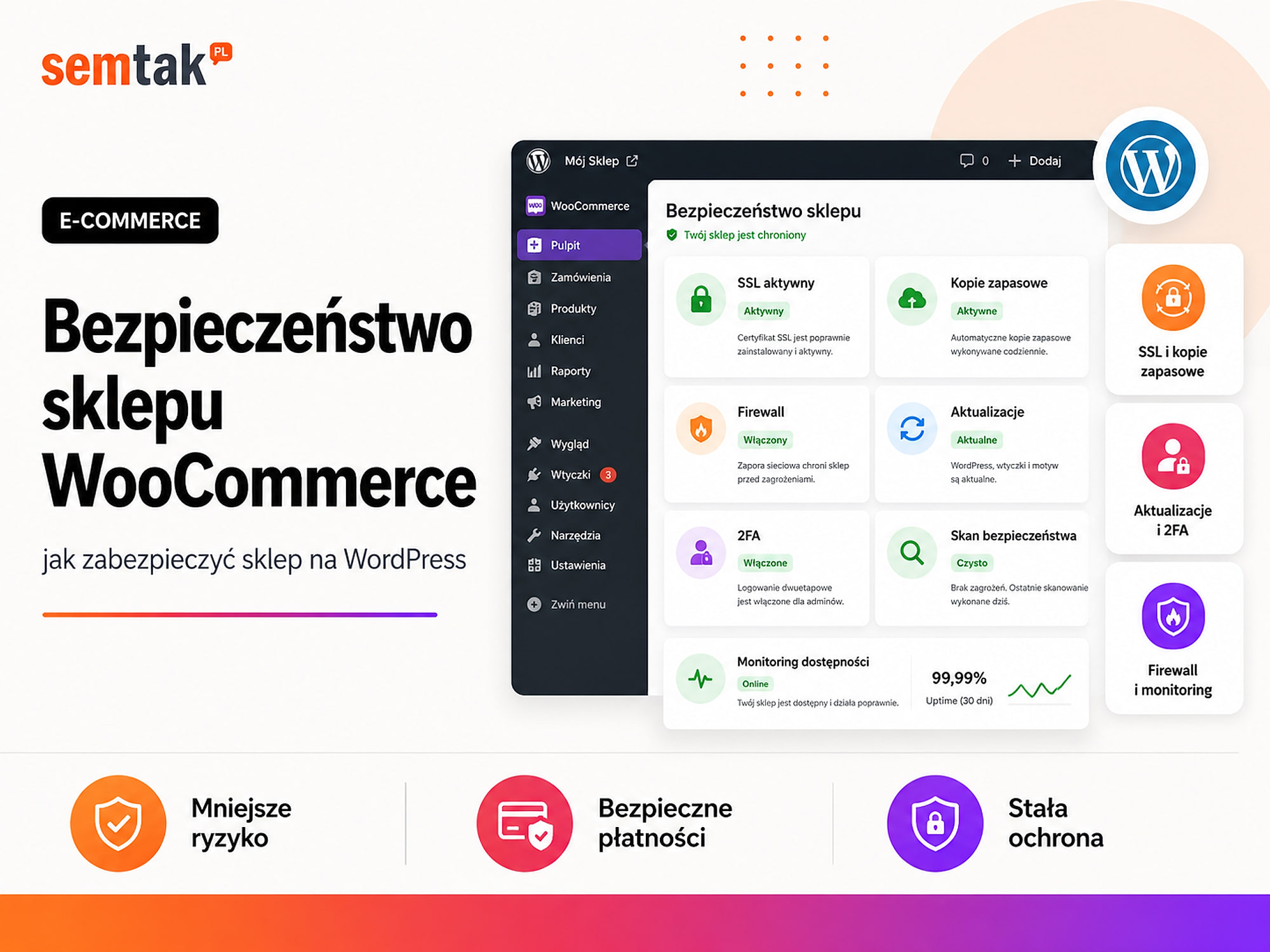
A WooCommerce store holds orders, customer data, delivery addresses, payment information and access to integrations with other systems. A breach can therefore mean not only a website that no longer works, but also lost sales, fake orders, a data leak or a swapped-out payment form.
The most common mistake is reducing security to a single plugin. The owner installs a firewall, sees a green message and assumes the shop is secure. Meanwhile an out-of-date extension is still running on the server, administrators share a single password, and the backup sits on the very same hosting account.
WooCommerce security is a process. It covers updates, user accounts, the server, payments, backups, monitoring and a plan of action in case of an incident. In this guide we will show you how to secure a WordPress shop step by step — without building a "fortress" that blocks customers, payments and integrations.
In short
Start with automatic backups stored off the server, updates to WordPress and all extensions, and enabling 2FA for administrators. Then limit user permissions, check your hosting, configure a WAF firewall, monitoring and alerts. A security plugin alone is not enough if the shop runs on abandoned extensions and nobody is watching the logs.
In brief (TL;DR)
- Regularly update WordPress, WooCommerce, the theme and all active extensions.
- Test larger updates on a staging copy of the shop.
- Every administrator should have a separate account, a unique password and 2FA enabled.
- Run automatic backups of the database and files and store them off the shop's server.
- Use HTTPS and reputable payment providers, and never store card data on your own server.
- A WAF, login limits and monitoring help to stop attacks, but they do not replace updates.
- Keep an eye on logins, plugin changes, new administrators and payment errors.
- Prepare an emergency procedure before the shop is attacked.
Is WooCommerce secure?
WooCommerce can be a secure foundation for a shop — the risk usually arises in the surrounding environment, not in the engine itself.
WordPress and WooCommerce themselves are developed regularly, and security issues that are discovered get fixed in updates. The risk arises in everything around the shop: out-of-date plugins, an abandoned theme, weak or shared passwords, unnecessary administrator accounts, a poorly secured server, untested custom code, pirated extensions, a lack of backups, misconfigured payments and no monitoring. So you can run the latest WooCommerce and still operate an insecure shop.
On the other hand, a shop does not automatically become secure just because a few protective plugins have been installed. Too many overlapping safeguards can block the REST API, webhooks, payments, background tasks or the traffic of real customers. The goal is not to switch on every possible lock — the goal is to reduce risk without breaking sales.
What actually needs protecting in a WooCommerce shop?
Shop security covers more than just WordPress files.
| Area | What can be compromised? | Impact on the business |
|---|---|---|
| WordPress admin | Administrator account | Changes to content, plugins, payments and users |
| Orders | Customer data and purchase history | Data leak, loss of trust, legal problems |
| Payments | Provider configuration and checkout | Payment swap or missing confirmations |
| Shop files | Theme, plugins, custom code | Malicious code, redirects, spam |
| Database | Products, accounts, orders | Data loss or modification |
| Integrations | API keys and webhooks | Access to your ERP, warehouse, accounting or marketplace |
| Password reset messages and confirmations | Account takeover or missing order information | |
| Server | Hosting account, SSH, database, backups | Takeover of the entire environment |
| Domain and DNS | Registrar panel | Redirecting traffic and email to a foreign server |
Good shop protection should cover each of these levels.
The most common threats to a WooCommerce shop
Most incidents come from login attacks, vulnerabilities in extensions, malicious code, payment fraud and phishing aimed at administrators.
Attacks on the login panel. Bots automatically try popular usernames and passwords — they do not need to know anything about your company, they scan thousands of sites at once. The risk grows when the password is short, the same password is used across several services, several employees share one account, there is no 2FA, there is no login attempt limit, or a former employee's account is still active.
A vulnerability in a plugin or theme. Every plugin increases the attack surface — this does not mean you should avoid all extensions, but you do need to control where they come from, how they are updated and whether you really need them. Particularly dangerous are add-ons from random sites, pirated versions of paid plugins, extensions that have not been updated for a long time, old plugins kept "just in case", code installed by a contractor without documentation, and add-ons with access to orders and payments.
Malicious code in shop files. After a site is taken over, an attacker can add a hidden administrator account, a redirect to another site, code that steals data, spam subpages, a script impersonating the payment form, or a backdoor that lets them return after the shop has been "cleaned". That is why simply removing a visible message or a suspicious plugin may not be enough.
Fake orders and payment fraud. Not every incident is a classic break-in — a shop can be attacked through automated testing of stolen cards, mass cash-on-delivery orders, fake customer accounts, coupon abuse, attempts to get a refund after receiving the goods, orders from suspicious locations and bots overloading the checkout. These problems require not just a firewall, but also anti-fraud rules and control over the order process.
Phishing aimed at administrators. The owner may receive a message that looks like information from WooCommerce, a payment provider, a courier, the hosting company, WordPress, Google or the domain registrar — pushing them to download an "urgent update", log in via a fake form, install a plugin, enter a 2FA code or open an infected attachment. Even a well-secured server will not help if the administrator installs the malicious file themselves.
How to secure a WooCommerce shop step by step
Step 1. Make a list of accounts, plugins and integrations. You cannot secure things that nobody remembers any more. Prepare a list of WordPress administrators, hosting accounts, SSH and SFTP accounts, database access, payment provider accounts, shipping system accounts, WooCommerce REST API keys, webhooks, integrations with ERP/marketplace/accounting, active and inactive plugins, themes, and services that use the shop's email account. For each access point, establish who uses it, whether it is still needed, what permissions it has, when the password was last changed, whether it has 2FA and who can recover the account.
| Access | Person responsible | Scope | 2FA | Decision |
|---|---|---|---|---|
| WordPress — administrator | Owner | Full | Yes | Keep |
| WordPress — old agency | Inactive contractor | Full | No | Remove |
| Payment provider | Accounting | Reports | Yes | Keep |
| REST API — old integrator | Unknown | Read and write | None | Revoke |
| SFTP — former employee | Former employee | Full | None | Remove |
Even at this stage you will often find accounts and keys that should be removed.
Step 2. Update WordPress, WooCommerce, the theme and plugins. Updates often fix security bugs, compatibility and stability. Regularly check the WordPress core, WooCommerce, the parent and child theme, all active plugins, payment extensions, courier integrations, your own modules, the PHP version and the server software. Do not put off updates for months just because the shop "works for now". An update can, however, affect the cart, checkout, variations, emails, payments, the warehouse integration, invoices, the product feed and B2B prices — which is why you need a staging copy (a test copy of the shop that is unavailable to customers):
Backup
      ↓
Update on staging
      ↓
Test product, cart and checkout
      ↓
Test payments and messages
      ↓
Update the production shop
      ↓
Test again
With a critical vulnerability you sometimes have to act faster, but you should still take a backup and at least run a basic test after the update. More about the technical environment in our guide WooCommerce hosting — how to choose a server.
Step 3. Remove unused and abandoned extensions. Deactivating a plugin does not always solve the problem — its files may still be on the server. Remove extensions that are not used, duplicate the function of another plugin, come from an untrusted source, no longer receive updates, have been replaced by your own code, were used for a one-off migration, or were installed by a previous contractor and nobody knows what they are for. Before removing anything, check whether the plugin stores important data. When evaluating a plugin before installation, check the developer, the date of the last update, compatibility with your version of WordPress and WooCommerce, the documentation, how it responds to reports, ongoing development, and what permissions it requires (access to orders, files, payments). Sometimes a few lines of tested code are safer than an extensive plugin with dozens of unnecessary features — such code also has to be documented and updated.
Step 4. Secure administrator accounts. Every person should have their own account — do not use a shared login such as admin@company.com for the owner, the agency, accounting and the warehouse. Separate accounts let you establish who made a change, revoke one person's access, assign different roles, detect suspicious logins and avoid passing one password around. The password should be long, unique, random and not used in other services — use a password manager instead of a "clever" password with the year tacked on.
2FA and the principle of least privilege
2FA (two-factor authentication) requires a second confirmation in addition to the password — a code from an app, a hardware key, and so on. Enable it for administrators of WordPress, hosting, the domain and DNS, the payment provider, the main email inbox, Google, Cloudflare and integration accounts. Save the recovery codes somewhere other than the device you log in with. Also apply the principle of least privilege: a warehouse worker does not need access to plugin installation, a content editor does not need to manage users, and accounting should not be able to change the theme — everyone gets only the access they need to do their job.
| Person | Recommended role or access |
|---|---|
| Technical owner | Administrator |
| Shop manager | Administrator or a role matched to the scope |
| Person handling orders | Shop Manager |
| Content editor | Editor |
| Warehouse | Access to orders and stock only |
| Accounting | Reports or an accounting integration |
| Advertising agency | Advertising tools, without full WordPress access if not needed |
Step 5. Secure the domain, hosting and server. You can secure WordPress well and still lose the shop through a takeover of the domain or hosting panel. Domain registrar account: enable 2FA, a strong password, a domain transfer lock, change notifications and up-to-date contact details; check who is the formal owner (the domain should not be registered to a former contractor's private account). Hosting should offer current PHP versions, backups, fast restores, account isolation, monitoring, malware protection, access over SFTP/SSH, staging, logs and support that responds to incidents — do not use plain FTP if encrypted SFTP is available. File permissions: do not give all files full write access just so an update will work — fix permission problems on the side of the file owner and server configuration. Separate the shops from each other: if you have a dozen sites on one account, a break-in to an old blog can endanger your working shop. It is worth leaving the detailed infrastructure configuration to the person responsible for the server — if your shop needs its own environment, see VPS configuration for WordPress and WooCommerce.
Step 6. Enforce HTTPS across the whole shop. HTTPS encrypts the connection between the customer's browser and the shop — it protects login data, checkout data, the cart contents, contact details and the user session. The certificate should work across the entire domain, not just on the payment page. Check that every address redirects from HTTP to HTTPS, that there is no mixed content, that the certificate is renewed automatically, that the www and non-www variants work correctly, and that webhooks and the API use HTTPS. Mixed content is a situation where a page runs over HTTPS but loads an image, script or other file over insecure HTTP. The SSL certificate alone does not protect the shop against a break-in — it secures the transmission of data, but it does not fix a vulnerable plugin or a weak password. More: what an SSL certificate is and what it does not protect.
Step 7. Take care of payment security. In a standard WooCommerce setup, full card data should go directly to the payment provider, not to the shop database. The site may store customer data, order information, the name of the payment method, the transaction identifier, the payment token and the last digits of the card and its type (depending on the provider).
Never store full card data on your own server
The following should not be stored: the full card number, the CVC/CVV code, or any data that would allow you to charge the card yourself outside the provider's secure mechanism. Use the providers' official or trusted plugins, current integrations, signed webhooks (if the provider supports them), separate test and production accounts, restricted API keys and a provider panel with 2FA. After every major update, test: a paid order, a declined payment, an interrupted payment, the customer's return, a webhook changing the status, a refund and the confirmation message.
More on choosing and implementing gateways in our guide payments in WooCommerce — Przelewy24, PayU and Tpay.
Step 8. Deploy a WAF and bot protection. A WAF (Web Application Firewall) analyses the traffic reaching the shop and can stop suspicious requests before they reach WordPress — limiting attempts to exploit known vulnerabilities, automated scanning, login attacks, suspicious file uploads, form abuse, some API attacks and an excessive number of requests. A WAF can run on the server, in a WordPress plugin or in front of the server (for example in a CDN service). Rate limiting restricts the number of requests within a given period — useful for the login panel, password reset, registration, forms, selected API endpoints and a checkout being attacked by bots. Do not set aggressive limits for the whole shop without testing — you could block the payment provider, a courier, Google, the ERP integration, users on a shared company network or real customers during a promotion.
A WAF and a plugin do NOT replace updates
A firewall can stop many attack attempts, but it should not be the only protection for a vulnerable plugin — if a safe update is available, it should be deployed. Layered security (WAF + updates + 2FA + backup) works together; no single layer is enough on its own.
Step 9. Secure logins without breaking integrations. Changing the /wp-admin/ address can limit some automated attempts, but it does not replace 2FA, updates or a login limit. The most important things are strong passwords, 2FA, an attempt limit, login alerts, removing unnecessary administrators and controlling active sessions. XML-RPC is an older mechanism for communicating with WordPress — if none of the integrations you use needs it, you can consider restricting or disabling it, but first check the mobile app, Jetpack, publishing tools and older integrations. REST API — do not disable the whole API just because a scanner flagged it as "visible"; WooCommerce, mobile apps and integrations need it to fetch orders, synchronise products, update stock and communicate with the ERP. Instead of disabling the whole API: remove unused keys, give them minimal permissions, restrict access on the integration side, monitor requests, rotate keys after changing a contractor and never send secrets by ordinary email.
Step 10. Prepare proper backups. A backup does not prevent an attack, but it lets you get back up and running faster after a break-in, a broken update, a server failure, accidental data deletion, an integration error, file encryption or database corruption. A good backup covers the database, the WordPress files, the theme and custom code, the plugins, the media directory, the configuration files and any additional files needed by integrations.
| Type of shop | Example frequency |
|---|---|
| Small shop with a few orders a week | Once a day |
| Active shop with daily sales | Several database backups a day |
| Large shop with continuous sales | Frequent or incremental backups |
| Files and media | Less often than the database if they change more slowly |
| Before an update | An extra on-demand backup |
An off-server backup + a tested restore
A backup stored only on the same server can disappear along with it. Keep copies in external cloud storage, on a separate server or in a location not accessible from the WordPress account — an attacker who has taken over the panel should not be able to delete all the backups with a single click. A backup is only useful when you can actually restore it: test whether the file is not corrupted, whether the database imports, whether the shop starts up, whether logins, orders, payments and integrations work, and how long a full restore takes. Do not wait until the day of the break-in to run your first test.
Step 11. Enable monitoring and activity logs. Without monitoring you might learn about a problem from a customer who saw a redirect to a suspicious site. Monitor site availability, certificate validity, server errors, file changes, malicious code detection, new administrator accounts, failed logins, plugin installation and activation, payment setting changes, overdue WooCommerce tasks, checkout operation and the delivery of transactional messages. An activity log can record who logged in, who changed a product, who installed a plugin, who changed a user role, who edited the payment configuration and from which IP the change was made — the log itself does not stop an attack, but it helps you quickly establish what happened. Do not, however, keep logs forever (they may contain user data) — set a retention period and define who has access.
Step 12. Limit fake orders and abuse. WooCommerce security also covers protecting the sales process: a CAPTCHA or anti-bot mechanism on selected forms, a limit on login and registration attempts, control of cash-on-delivery orders, verification of suspicious addresses, blocking mass coupon attempts, anti-fraud rules, checking country/IP/address consistency, limiting very low-value transactions and additional verification of risky orders. Do not automatically block all foreign orders or customers using a VPN — the rules should flag risk, not replace sensible judgement.
Step 13. Check the security of the shop's email. Taking over the main inbox can allow password resets for WordPress, hosting, the domain, the payment provider, Google, Cloudflare and accounting systems. The mailbox used to manage the shop should have a unique password, 2FA, control of active sessions, an up-to-date recovery email and alerts about new logins. Separate the addresses: one for contacting customers, one for system administration and one for receiving technical alerts — that way the public contact@company.com does not have to double as the main login for every service.
Step 14. Prepare a plan of action after a break-in. The incident plan should exist before the problem. Write down who decides to take the shop offline, who has access to hosting and the domain, where the backups are, who contacts the payment provider, who analyses the logs, who informs customers, who assesses a possible data breach, how to launch an emergency page and how to check whether the shop is clean again.
What to do when a WooCommerce shop has been hacked
Act methodically: preserve the evidence, restrict access, change all credentials, establish the point of entry and only then restore the shop.
1. Do not delete everything in a panic. First preserve the evidence and logs — chaotic file deletion can make it harder to establish how the break-in happened.
2. Restrict access. Enable maintenance mode, block suspicious accounts, log out active sessions, restrict traffic to the panel, temporarily stop the checkout and inform the payment provider. If there is a risk of a payment swap, halt sales until the shop has been checked.
3. Change the credentials. Administrator passwords, the hosting password, SFTP and SSH, the database passwords, the WordPress security keys, the REST API keys, the webhook secrets, the credentials for external services and the email mailbox passwords. Changing only the WordPress password may not be enough.
4. Establish the point of entry. Check the server logs, administrator logins, file modification dates, new accounts, vulnerable plugins, uploaded files, Cron tasks, API keys, DNS changes and the payment configuration.
5. Do not restore a backup without closing the vulnerability
Restoring a backup only makes sense if you know it comes from before the break-in, the cause will be removed after the restore, the components will be updated, and all access credentials changed. Restoring an old copy without closing the vulnerability can lead to a fresh break-in within minutes — the attacker will use the very same backdoor.
6. Check the data and orders. Verify new users, changes to customer data, orders from the period of the incident, the payment configuration, the payee accounts, the webhooks, the contents of email messages, the redirects and the JavaScript files in the checkout.
7. Assess a possible data breach. If there is any possibility of access to personal data, consult the situation with the person responsible for data protection or a lawyer. Do not assume that the absence of visible changes means there was no leak — the scope of further action should follow from the nature of the incident and the findings of someone with the relevant legal competence.
8. Monitor the shop after the restore. For the next few days, carefully check logins, file changes, background tasks, network traffic, new accounts, payments, email messages and server load. A backdoor that was left behind may only reveal itself after some time.
What not to do when securing WooCommerce
The most damage is done by: several firewalls at once, thoughtlessly disabling features, piracy and one account for everyone.
Do not install several firewalls at once. Two or three extensive security plugins can duplicate scanning, load the server, block each other's requests, cause false alerts and make it harder to find the source of a problem. Choose one main protection system and configure it correctly.
Do not disable the REST API, XML-RPC or WP-Cron without checking
Thoughtlessly disabling the REST API, XML-RPC, WP-Cron, webhooks, AJAX requests or access for bots can stop apps, payments, integrations and WooCommerce tasks from working. WP-Cron runs scheduled background tasks (queues, data cleanup, sending messages, part of the synchronisation) — disabling it without a proper replacement makes the shop look normal while important processes stop running.
Do not hide the problem just by changing the login address. It may reduce spam in the logs, but it does not secure a vulnerable plugin or a compromised account.
Do not store the backup only inside WordPress. An attacker with administrator access can delete the plugin and its copies.
Do not download pirated plugins. A "free" version of a paid add-on can contain a hidden administrator account, an external script, a backdoor, code that steals data or a mechanism that redirects traffic. Saving on the licence can end with losing the whole shop.
Do not share one account with all contractors. After the cooperation ends, you have no idea who still knows the password — every contractor should have their own, time-limited access.
Do you need a security plugin?
A security plugin helps, but it does not replace hosting, updates, off-server backups or user control.
A plugin can help protect logins, scan files, detect changes, block suspicious traffic, log activity, send alerts and enforce 2FA. It will not, however, replace secure hosting, updates, off-server backups, correct permissions, a WAF running in front of the server, user control, payment tests and a response procedure. Do not choose a plugin based on the number of features alone — check whether its settings clash with the checkout, the REST API, the WooCommerce app, the warehouse integration, payments, webhooks and background tasks.
How to prioritise your security work?
If the shop has practically no protection, start with the order below.
| Priority | Action | Why first? |
|---|---|---|
| 1 | Off-server backups | They let you recover the shop after a failure or attack |
| 2 | Updates | They remove known bugs and vulnerabilities |
| 3 | 2FA and separate accounts | They limit panel takeover |
| 4 | Removing unnecessary plugins and access | It reduces the attack surface |
| 5 | Secure hosting and HTTPS | They protect the environment and the transmission |
| 6 | WAF and rate limiting | They limit bots and automated attacks |
| 7 | Monitoring and logs | They let you detect an incident faster |
| 8 | Emergency procedure | It shortens the reaction time and the downtime |
Do not start with small cosmetic changes if the shop has no tested backup and no up-to-date plugins.
How often should you check shop security?
Automate some of the checks daily, and do the rest weekly, monthly and after every major change.
Daily (automatically): shop availability, server errors, certificate status, backup operation, malicious code detection, an unusual number of logins, WooCommerce task failures.
Once a week: available updates, overdue tasks, administrator logins, new accounts, payment errors, checkout errors, the state of the backups.
Once a month: the list of users, the list of API keys, active integrations, unused plugins, change logs, server space usage, scan results, the ability to restore a backup.
After every major change: take a backup, check the shop on staging, test a purchase, verify payments, check the messages, review the logs.
What can you check yourself?
You will detect most basic vulnerabilities without a specialist by going through the list below.
- Log in to WordPress and check the number of administrators.
- Remove or block the accounts of people who should not have access.
- Enable 2FA for administrators.
- Check for updates to WordPress, WooCommerce, the theme and the plugins.
- Remove inactive extensions you do not need.
- Verify whether the plugins you use are still being developed.
- Check that the shop uses HTTPS on every subpage.
- Place a test order and payment.
- Check where the backups are.
- Make sure at least one copy is stored off the server.
- Ask for a test restore of a backup.
- Check the SFTP, SSH, hosting and domain accounts.
- Enable 2FA in the domain, hosting and payment panels.
- Review the WooCommerce REST API keys.
- Remove keys belonging to old integrations.
- Check whether the shop has a WAF or server-side protection.
- Inspect the logs of failed logins.
- Check that nobody has recently added a new administrator.
- Verify that password reset messages reach the correct mailbox.
- Write down who is responsible for responding to a failure or break-in.
If the answer to several of these questions is "I don't know", the shop needs at least a basic technical review.
When is it worth hiring a specialist to secure the shop?
Doing it yourself may be enough for a small shop; with regular sales and integrations, it is better to combine security with maintenance.
You can manage on your own when the shop is small, has few extensions, does not use extensive integrations, you have experience with WordPress, you can restore a backup and you know how to test the checkout after an update. It is worth considering a specialist's help when the shop generates regular sales, every hour of downtime means a loss, it runs on many integrations, it has several thousand products, it uses B2B prices, it has not been updated for months, it has abandoned or modified plugins, nobody knows who has access, the backup has never been restored, suspicious accounts or files appear, the shop has already been hacked, the payment provider has reported a problem, or you need monitoring and a fast response.
In such a case it is worth combining security with regular maintenance — a one-off "hardening" will not help for long if afterwards nobody installs updates, reviews the logs and tests the backups. At SEMTAK we provide WordPress and WooCommerce technical maintenance, covering, among other things, updates, backups, monitoring, security and incident response.
Frequently asked questions
Is WooCommerce secure?
Yes, WooCommerce can be a secure shop platform as long as WordPress, the theme and the plugins are up to date, the accounts are protected and the server is correctly configured. The biggest risk usually comes from a neglected environment, not from WooCommerce itself.
What is the best way to secure a WooCommerce shop?
Start with updates, off-server backups, separate administrator accounts and 2FA. Then check hosting, HTTPS, the WAF, logs, payments and API keys.
Is a security plugin enough?
No. A plugin can scan files, secure logins and block some attacks, but it will not replace updates, secure hosting, backups and user control.
How often should you back up the shop?
An active shop should have a database backup at least once a day, and more often with a higher number of orders. The copies should also be stored off the server and tested regularly.
Do you need to enable 2FA for customers?
The most important thing is 2FA for administrators, hosting, the domain, email and the payment provider. 2FA for customers can be useful in selected shops, but it should not make purchasing unnecessarily difficult.
Does changing the login address secure WordPress?
It can limit some automated attempts, but it is not the main safeguard. 2FA, strong passwords, updates, a login limit and monitoring are more important.
Does Cloudflare protect WooCommerce against a break-in?
Cloudflare can provide a WAF, bot protection, rate limiting and protection against some attacks. It does not, however, fix vulnerable plugins and does not replace backups or updates.
What should you do after a break-in to the shop?
Restrict access, stop payments if they may have been compromised, preserve the logs, change all access credentials, remove the cause of the break-in and restore the shop from a clean backup. Then check the orders, users, integrations and a possible data breach.
WooCommerce security is a process, not a one-off plugin
A shop can be secure today and vulnerable a few months from now if it stops receiving updates, new integrations appear and former employees' accounts remain active.
The most important elements are up-to-date software, limited permissions, 2FA, secure hosting, trusted payments, off-server backups, a WAF, monitoring and a response plan. If you do not know whether the backups can be restored, who has access to the panel or whether the current safeguards are blocking integrations, we can carry out a review of the shop and put its protection in order according to the real risk — without installing random plugins and without making purchasing harder for customers:
- WordPress and WooCommerce technical maintenance — updates, backups, monitoring and incident response.
- WordPress and WooCommerce servers and VPS configuration — a secure shop environment.
- WooCommerce hosting, payments in WooCommerce and migrating a shop without losing rankings — related guides.