Store migration without losing Google rankings — a checklist


Migrating a store is not just about moving products from one panel to another. Along with the store you have to move URLs, content, customers, orders, images, SEO data, analytics, payments, delivery and the integrations used in day-to-day sales.
The biggest problem appears when the new store works technically, but Google sees thousands of new addresses, old pages return 404 errors, categories have lost their descriptions, and products have incorrect canonicals. A customer can still place an order, but traffic from the search engine starts to fall.
You cannot honestly guarantee that positions will not change even for a moment. You can, however, greatly reduce the risk if the migration is treated as a technical-SEO project rather than a quick product import carried out on launch day.
In this guide we show what to check before the migration, how to prepare a 301 redirect map, what data to move, what to test before publishing and how to monitor the store after changing platform.
In short
Migrating a store without losing rankings is not only about moving products — it means preserving URLs, content, SEO data and 301 redirects from the old addresses to the new ones. The biggest drops come from thousands of 404 errors, a missing redirect map and changed category addresses. The key is an old→new URL map prepared in advance, tests on a staging environment and indexing monitoring after the move.
In a nutshell (TL;DR)
- If the current URLs are good, it is usually worth keeping them.
- Every important old address should lead to the corresponding new page.
- Before the migration, record data on traffic, sales, positions and the most important pages.
- Besides products you have to move SEO content, customers, orders, analytics, the product feed and integrations.
- Before publishing, complete a full test order, including payment, delivery and synchronisation.
- After launch, keep an eye on 404 errors, indexing, conversions, Merchant Center and the integrations.
- For a large store, prepare a separate switch-over plan and the ability to roll back to the previous version.
What exactly is a store migration?
A store migration is moving the entire sales process to a new environment, not just copying the product catalogue.
The change may involve moving from Shoper, Shopify, IdoSell, PrestaShop or Magento to WooCommerce, changing the domain, rebuilding an existing WooCommerce store, changing hosting or server, changing the category structure and URLs, merging several stores into one, splitting off a B2B panel, launching a new language version, moving to a headless architecture or changing the system that handles the warehouse, products or orders. Each of these scenarios carries a different level of risk.
| Type of change | Example | Risk for SEO |
|---|---|---|
| Change of hosting | Same domain and addresses, new server | Low to medium |
| Change of design | New theme, same URL structure | Medium |
| Change of platform | Shoper → WooCommerce | Medium to high |
| Change of structure | New categories and product addresses | High |
| Change of domain | store-a.com → store-b.com | High |
| Several changes at once | New domain, platform, content and structure | Very high |
The safest migration
Change only what really has to change. If you simultaneously move the store, change the domain, remove half the categories and rewrite all the content, it becomes much harder afterwards to pin down the cause of any drop.
Why can a store lose rankings after migration?
Drops most often result from Google being unable to correctly connect the old pages with their new equivalents.
Over the years the old store built up a history: it appeared for specific phrases, earned external links, accumulated content and reviews, developed internal linking, built the visibility of categories and products, and was regularly visited by Google's robots.
Suppose an old category worked at the address store.com/category/face-creams/. After the migration the new version is located at store.com/cosmetics/face-care/creams/. If the old URL starts returning a 404 error, Google does not have to automatically recognise that the new page is its equivalent. A correct redirect is needed.
The most common sources of problems:
- missing 301 redirects;
- redirects to unrelated pages;
- removal of valuable categories;
- loss of descriptions and meta data;
- incorrect canonicals;
- a new XML sitemap containing wrong addresses;
- loss of internal linking;
- missing product structured data;
- unavailable images;
- server errors;
- a slower store;
- incorrect language versions;
- pages returning code 200 despite lacking the proper content.
Does a drop in traffic always follow a migration?
Not every migration causes a drop, but after a larger change visibility may fluctuate for some time.
Google has to revisit the old addresses, see the redirects, move on to the new pages, process their content, update the index and assign the earlier signals to the new addresses. A small change in visibility over a few days does not necessarily mean an error.
A reason to react quickly is a situation in which the number of 404 errors rises sharply, important pages disappear from the index, redirects lead to random places, new categories have no earlier content, a large group of products returns errors, Google points to different canonicals than the store, or traffic falls across an entire type of page (for example all categories). Without data gathered before the migration, however, it is hard to determine whether the drop results from the technical change, seasonality, a decline in demand or competitors' actions.
The migration glossary in 60 seconds
The following terms come up in almost every larger store migration.
| Term | What it means in plain language |
|---|---|
| URL | The address of a specific page, category or product |
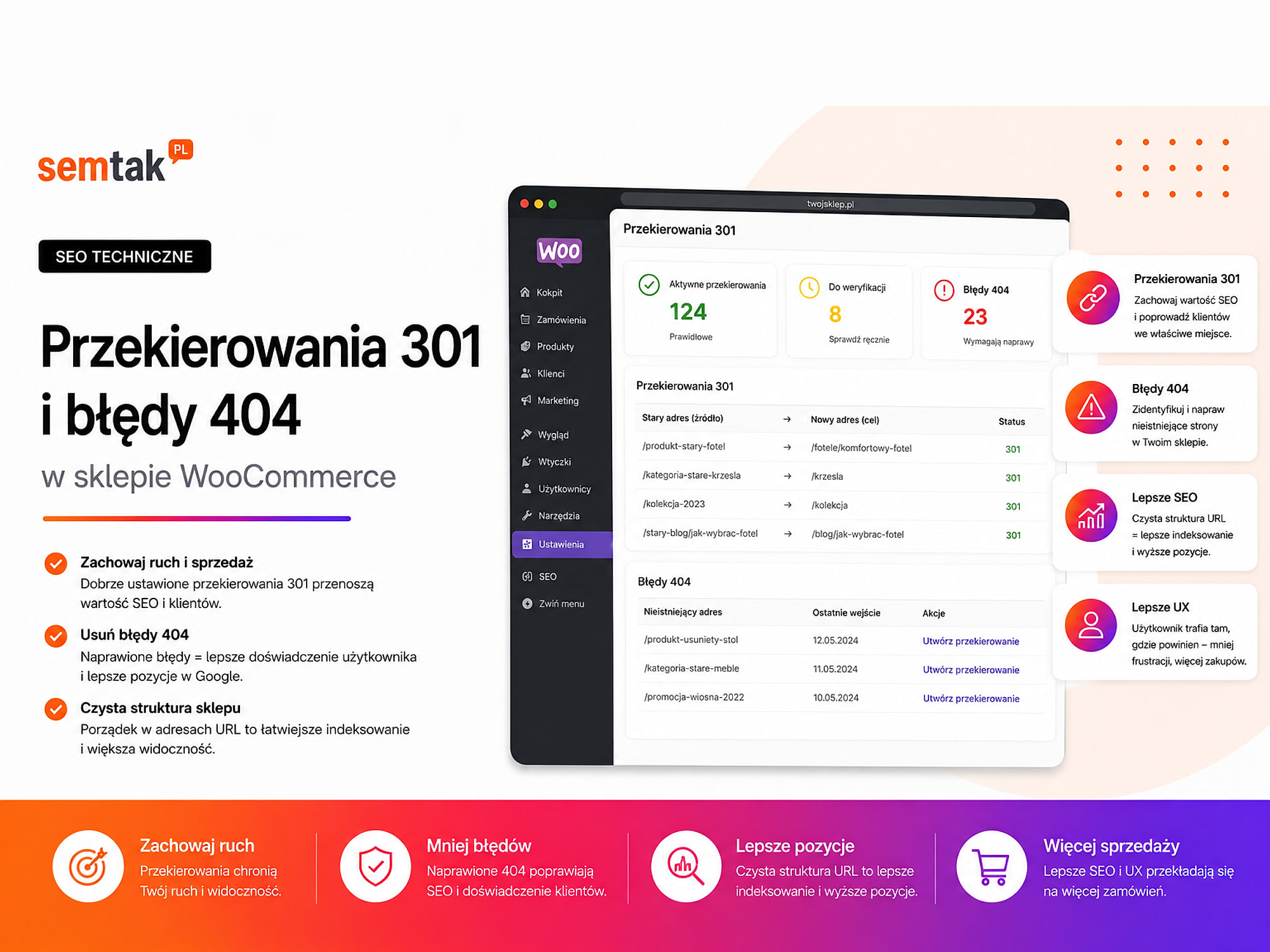
| 301 redirect | Information that a page has been permanently moved to a new address |
| URL map | A table showing where each old address should lead |
| Canonical | An indication of the preferred version of a page when similar content appears at several addresses |
| XML sitemap | A file with a list of addresses passed to the search engine |
| Crawl | An automated pass of a tool over the store's addresses |
| Staging | A working version of the store used for testing before publication |
| DNS | Settings that point the domain to the right server |
| 404 error | Information that there is no page at a given address |
| Soft 404 | A page that looks deleted but technically returns code 200 |
| Robots.txt | A file containing instructions on how robots should visit the store |
| ERP | A system for managing the company, e.g. prices, stock, invoices and orders |
| PIM | A database of product information, e.g. descriptions, parameters and images |
| CRM | A system storing information about customers and commercial contacts |
| BaseLinker | A system that helps manage orders and integrations between sales channels |
| Hreflang | A tag telling Google which language or country a page was prepared for |
| PageRank | One of the signals describing the importance of a page, resulting among other things from the links leading to it |
You do not have to configure all of these elements yourself. It is worth knowing, however, what they are responsible for, so you can oversee the work of the contractor.
What needs to be checked before a store migration?
Before work begins, you have to inventory your SEO visibility, sales data and all the elements needed to handle orders.
Do not start by importing products. First establish what is in the current store and what cannot be lost.
1. Prepare a full list of URLs. The list should cover the home page, categories and subcategories, products, brands and manufacturers, blog posts, guides, information pages, terms and conditions, promotion pages, campaign landing pages, PDF files, images that bring in visits from Google Images, indexed filter pages and existing redirects. It is worth gathering the addresses from several sources: a crawl of the store, Google Search Console, XML sitemaps, Google Analytics, the platform export, the external links report, ad campaigns and the Google Merchant Center feed. A crawl alone may not find an orphaned page that no internal link leads to but which still generates visits from Google.
2. Record your results before the migration. Prepare a baseline report:
| Area | What is worth recording |
|---|---|
| Google Search Console | Clicks, impressions, phrases and landing pages |
| Google Analytics | Sessions, revenue, purchases and traffic sources |
| Indexing | The number of indexed and excluded pages |
| Positions | The most important phrases and the addresses associated with them |
| Sales | Orders, revenue and average basket value |
| Performance | The results for categories, products and the checkout |
| Errors | 404 and 500 errors, canonicals and sitemap problems |
| Merchant Center | The state of the data source and disapproved products |
| Ads | Active campaigns and their landing pages |
The aim is not to create a report running to several hundred pages. You need a point of reference against which to compare the new store.
3. Identify the most important pages. Not all addresses have the same value. Priority goes to pages that generate sales, have many organic visits, hold high positions, have external links, are used in ads, are responsible for the main product groups, are frequently shared with customers or appear in Google Images. In the migration map, mark them as high-priority addresses and test them separately.
4. Make a copy of the data. Before starting the import, make a copy of the database, images and files, products, customers, order history, coupons, reviews, tax settings, delivery methods, payment configuration, message templates and the data needed by the integrations. The copy must be restorable — a single file saved on the same server is not yet a safe contingency plan.
How do you prepare a 301 redirect map?
The redirect map should connect every important old address with the new page that best corresponds to it.
The simplest form is a spreadsheet:
| Old URL | New URL | Decision | Priority |
|---|---|---|---|
/face-creams/ | /face-care/creams/ | 301 | High |
/product/aloe-cream/ | /aloe-cream-50-ml/ | 301 | High |
/spring-promotion-2023/ | No equivalent | 404 or 410 | Low |
/blog/how-to-choose-a-cream/ | The same address | Keep | Medium |
Rule 1: keep the address if there is no reason to change it. Changing platform does not mean that all URLs have to be different. If an old category has a readable address and generates traffic, it is often safest to recreate it in the new store.
Rule 2: redirect to the closest equivalent. An old product should lead to the same product at the new address, its current variant, a very similar replacement, or the appropriate category if the product and its replacement no longer exist. Do not point the whole catalogue automatically to the home page — a product, a guide and a category have different meanings and should lead to related places.
Rule 3: avoid chains. Bad: old URL → older URL → new category → target category. Good: old URL → target category. Each extra step makes the configuration harder to maintain later and lengthens the path to the right page.
Rule 4: do not create loops. A loop looks like this: address A → address B → address A. In that case neither the customer nor the robot reaches the target page.
Rule 5: do not redirect without a connection. If a guide on skincare leads to a category of garden lamps, the redirect does not help the user. When there is no sensible equivalent, a correct 404 or 410 response may be better than a random redirect.
The most common redirect mistake
Do not redirect the whole catalogue to the home page. It is one of the quickest ways to lose rankings — Google treats mass redirects to the home page as "soft 404s" and does not transfer the signals. Every product, guide and category should reach a related equivalent.
Does a 301 redirect cause a loss of "SEO power"?
A correctly executed 301 redirect can transfer the signals of the old address, but it will not replace the content and topical relevance of the new page.
Suppose the old category contained an extensive description, answers to frequent questions, links to subcategories, popular products as well as reviews and guides. After the migration it leads to an empty list of a few products. Technically the redirect works, but the new page may answer the user's query less well. That is why, besides the 301, you have to preserve the page's purpose, topic, important content, H1, internal linking, products, structured data and a correct canonical.
What store data needs to be moved?
The migration should cover the data needed both for sales and for further customer service.
The product catalogue. It is not enough to check whether a product has appeared in the new panel. The most common problems concern muddled variants, incorrect promotional prices, outdated stock, missing attributes, images assigned to the wrong products, lost SKUs, incorrect tax rates and missing related products. For a variable product, check each combination separately, for example colour, size, image, price and availability.
Customers and accounts. You have to establish whether accounts will be transferred, whether the current passwords can be kept, whether the customer will have to set a new password, whether delivery and invoice addresses will be preserved, whether purchase history will be moved, whether B2B customers will keep their roles and individual prices, and whether marketing consents have the correct source. Passwords cannot always be moved between different platforms — in that case you have to prepare a secure process for setting them and a clear message for customers.
Orders. Order history may be needed for handling returns, complaints, repeat purchases, accounting, customer contact and sales analysis. Check whether the numbers, dates, statuses, products, payments, delivery data, invoices and the link to the customer account have been preserved. If the ERP or BaseLinker uses specific identifiers, changing their format may affect synchronisation.
Reviews and ratings. After the migration, check the content of the reviews, the rating, the date, the link to the product, the moderation status and the verified-purchase mark. A review assigned to the wrong product is worse than no review at all.
What needs to be preserved in a store's SEO?
Every important type of page should retain its function, topic and technical signals after the migration.
Categories. For categories, compare the URL, H1, description, meta title, meta description, canonical, pagination, links to subcategories, products, navigation and the rules for indexing filters. Categories often attract more traffic than individual products — they should not be removed just because the new menu is meant to look different.
Products. For products, check the address, name, description, price, availability, variants, images, reviews, canonical, Product and Offer data, the link to the category and the server response code.
Blog and guides. Move the content, authors, dates, images, addresses, internal linking, title and description, attachments and article data. A guide may still attract customers even if it is not visible in the store's main menu.
Language versions. In a multilingual store, check the separate addresses for each language, the hreflang tags, the canonicals, the language switcher, currencies, XML sitemaps and the availability of products in specific markets. Hreflang tells Google which language or country a given version of the page was prepared for — an incorrect setting may mean that a British user sees the German version in the results, or the other way round.
How do you secure the test environment?
The working version should not end up in Google's results, but the safeguards applied have to be removed from the production version.
Good practice is to secure the staging site with a password, an IP-address restriction, the noindex directive and by disabling public XML sitemaps.
robots.txt does not protect staging
robots.txt alone does not protect data from people who know the test version's address — it does not replace a password or an access restriction. And the other way round: before publishing, run a separate test that the safeguards have gone from production: 1) check that noindex has been removed, 2) verify robots.txt, 3) check the canonicals, 4) confirm the page is accessible to robots, 5) launch the proper XML sitemap.
What should you test before launching the store?
The tests must cover the whole order, not just the look of the home page and the product card.
Catalogue test. Check categories and subcategories, the search, filtering, sorting, variants, unavailable products, promotions, coupons, images, related products and the mobile version.
Basket and checkout test. Run the most important scenarios:
- purchase without an account;
- purchase after logging in;
- a simple and a variable product;
- applying a coupon;
- paid and free delivery;
- choosing a pick-up point;
- payment by BLIK, card and bank transfer;
- an interrupted payment;
- retrying a payment;
- purchase with an invoice;
- a foreign order, if the store handles one.
Do not end the test at the "Thank you" screen. The order should also appear in the panel, reduce the stock level, reach the ERP or BaseLinker, trigger the e-mails, save the correct payment status and be recorded in analytics.
E-mail test. Check the order confirmation, the payment status, the change of order status, the password reset, account registration, the message to the administrator, how the message looks on a phone, the sender name and address, and delivery to the inbox. If the domain or mail server changes, you also have to verify the sending configuration and domain authentication.
Integrations test. Test, among others, the ERP, BaseLinker, the warehouse, invoicing, couriers, parcel lockers, marketplaces, the CRM, the review system, marketing automation as well as complaints and returns.
How do you keep order continuity during the migration?
You have to plan the transfer of the data created between the first import and the launch of the new store.
Building and testing may take several weeks. During that time the old store still takes orders, registrations, reviews, price changes, stock updates and new products. That is why data migration is often carried out in stages:
- a full import to staging;
- tests and fixes;
- setting the publication window;
- a final export of new data;
- importing the differences;
- switching traffic over;
- a fresh check of the synchronisation.
For a larger store, you have to establish in advance what will happen to an order placed exactly during the switch-over. Possible solutions are a brief disabling of the ability to place orders, a queue synchronising transactions, a repeated differential import or a manual check of orders from the switch-over period.
What should you do about analytics and conversions?
Measurement should work from the very first visit and the very first order in the new store.
Check the configuration of Google Analytics 4, Google Tag Manager, Google Ads, the consent mechanism, e-commerce events, forms, clicks on the phone number and e-mail address as well as any other advertising pixels. The most important sales events are product view, add to basket, begin checkout, choose delivery, choose payment and purchase. For the purchase event, verify the transaction identifier, value, currency, products, discount and shipping cost. After publication, place a test order and check it in the store panel, the ERP, the advertising system and the GA4 real-time report.
What should you check in Google Merchant Center and ads?
Changing product addresses can stop product campaigns, even if the store itself works correctly.
After the migration, verify the product addresses in the data source, the image addresses, prices, availability, product identifiers, variants, landing pages, disapproved products and the feed update schedule. Also update the links in Google Ads campaigns, the landing pages of text ads, sitelinks, remarketing campaigns, newsletters, social media profiles, industry directories and price comparison sites.
What does migration launch day look like?
Launch day should have an agreed order of actions, the people responsible and a plan for returning to the previous version.
Before the switch-over: make a fresh copy, halt unnecessary changes to the catalogue, run a final synchronisation, check the SSL certificate, prepare the redirects, verify the domain and DNS settings, confirm access to hosting, establish who is responsible for the store, SEO and integrations, and define the conditions for returning to the old store.
During the switch-over: publish the new store, launch the redirects, remove the indexing blocks, check robots.txt, enable the proper XML sitemap, run an order test, check payment and delivery, verify the e-mails, check the integrations, test the most important old addresses and check the server responses.
After the switch-over: run a control crawl, check the home page, categories and products, verify the canonicals, submit the XML sitemap, check the real-time report, verify a purchase in Google Ads, check Merchant Center, review the error logs and watch the server load.
Do you have to use the Change of Address tool in Search Console?
The Change of Address tool serves mainly to move an entire site to another domain or subdomain (for example oldstore.com → newstore.com).
Do not use it when only the platform changes, the domain stays the same, you are rebuilding the paths within the same domain, you are changing hosting, you are moving from HTTP to HTTPS or you are changing the version from www to non-www. In such situations the basis is proper redirects, canonicals, XML sitemaps and monitoring.
How long should 301 redirects be kept?
It is worth keeping redirects for at least a year, and in many stores it is best to leave them in place permanently.
Old addresses may still be in the search results, on partners' pages, in messages, in customers' bookmarks, on social media profiles, in PDF files, in browser history and in company systems. At the same time it is worth updating your own internal linking — the menu, banners, articles, ads and feeds should lead directly to the new addresses rather than rely on a redirect.
What should you monitor after the migration?
The most intensive checking starts at the moment of publication and should continue even after the store has been re-indexed.
The first 24–72 hours. Check orders, payments, deliveries, integrations, server errors, the old addresses, analytics, e-mails, Merchant Center and the infrastructure load.
The first 2–4 weeks. Monitor 404 errors, indexing, the canonicals chosen by Google, clicks and impressions, landing pages, the XML sitemap, structured data, conversions and the most important categories.
The following 1–3 months. Compare traffic before and after the migration, revenue from the search engine, the visibility of categories and products, the number of indexed pages, performance, technical errors, the behaviour of mobile users and the operation of the old redirects. In a store with tens of thousands of addresses the process may take longer than in a small catalogue.
How do you tell normal fluctuation from a badly executed migration?
Normal fluctuation is temporary and is not accompanied by mass technical errors. A badly executed migration leaves clear traces.
| Situation | Likely assessment |
|---|---|
| A small position change over a few days | May be normal |
| Old URLs lead directly to their equivalents | A good sign |
| New pages appear gradually in the index | A normal process |
| Thousands of important addresses return 404 | A migration error |
| A large group of addresses leads to an unrelated page | A redirect map error |
| New categories cannot be indexed | A critical error |
| Traffic fell only on pages that were not moved | A problem with the migration scope |
| Orders do not reach the ERP | An integration problem |
| Purchases are in the store but not in GA4 | An analytics problem |
| Products were disapproved in Merchant Center | A feed or data problem |
Example: migrating a cosmetics store
A single ill-considered category change can affect dozens of products, links and phrases.
A cosmetics store is moving from a subscription platform to WooCommerce. It has products, brand categories, guides and extensive filters. On the old platform the category /face-care/moisturising-creams/ is in use. In the new project someone changes it to /cosmetics/creams/. At the same time they do not move the category description, they change the H1, they remove the links leading from the guides, they do not create a redirect, they give the products new URLs and they allow many filter combinations to be indexed.
Technically the store works. A customer can place an order. From an SEO point of view, however, a new, weaker structure has been created that has not been connected to the old one. The correct process should include:
- assessing whether the category URL really has to change;
- moving the valuable content;
- implementing the redirect;
- updating the internal linking;
- checking the filters;
- updating the XML sitemap;
- testing the canonical;
- monitoring the page after publication.
The most common store migration mistakes
Most problems stem from a lack of inventory, testing or clear responsibility for the individual stages.
No address map. Redirects are created only after publication, on the basis of the errors that appear. That means reacting after part of the traffic has been lost.
Changing too many things at once. A new domain, platform, design, structure and content in a single rollout increase the risk and make it harder to find the cause of a problem.
Loss of category descriptions. A product import does not always cover the extra content, headings, meta data and linking placed on category pages.
Non-working variants. The product exists, but the customer cannot choose a size, colour or the right combination.
No final import. The first export was done several weeks earlier, so the new store lacks the most recent customers, reviews or orders.
Unchecked analytics. Sales work, but the company loses data continuity and cannot assess its campaigns.
An outdated product feed. Merchant Center still uses the old addresses, images or prices.
Switching off the old environment too early. The old system may still be needed to recover missing data, compare settings or review logs.
Online store migration checklist
The list below orders the migration according to four stages: preparation, testing, publication and monitoring.
Before the migration:
- a full crawl of the old store;
- an export of addresses from Search Console;
- a list of important pages from GA4;
- a report on traffic, positions and sales;
- a copy of the database and files;
- an export of products, customers and orders;
- a list of integrations;
- a list of payment and delivery methods;
- a list of active campaigns;
- an export of the product feed;
- an old URL → new URL map;
- a content transfer plan;
- a plan for migrating accounts and passwords;
- a final synchronisation plan;
- a contingency rollback plan.
On the test environment:
- products and variants are correct;
- prices and stock match;
- categories have the right content;
- images are assigned to products;
- the search and filters work;
- the basket calculates the order correctly;
- payments go through;
- deliveries are charged correctly;
- coupons work;
- e-mails are sent;
- orders reach the integrations;
- analytics records the events;
- the canonicals are correct;
- structured data is present;
- staging is protected against indexing.
On launch day:
- a current copy has been made;
- the final data import has been carried out;
- the redirects have been deployed;
noindexhas been removed;- robots.txt has been checked;
- the proper XML sitemap has been launched;
- a test order has been placed;
- payment has been tested;
- delivery has been tested;
- the ERP or BaseLinker has been checked;
- GA4 has been checked;
- Google Ads has been checked;
- Merchant Center has been checked;
- the most important old URLs have been tested.
After publication:
- the sitemap has been submitted in Search Console;
- the most important addresses have been verified;
- 404 and 500 errors have been checked;
- traffic and sales have been compared;
- indexing has been controlled;
- the canonicals have been checked;
- structured data has been checked;
- ads and profiles have been updated;
- a control crawl has been run;
- a report has been prepared after 30, 60 and 90 days.
What can you check yourself?
A store owner can carry out a basic check without access to the code or the server configuration.
1. Open a few old addresses. They should lead directly to the corresponding new pages.
2. Check the XML sitemap. It should contain current addresses from the new version of the store.
3. Verify the store's visibility. Make sure the production version does not have the indexing block switched on.
4. Place a real test order. Check the basket, payment, delivery, message and order panel.
5. Check the integrations. The order should appear in the system the company uses.
6. Open the GA4 real-time report. Check the visit, the add to basket and the purchase.
7. Check Merchant Center. Products should lead to working pages with the correct price.
8. Compare the main categories. Check the URL, H1, description, products and meta title.
9. Watch Search Console. Pay attention to errors, excluded pages and sitemap problems.
When is it worth commissioning a specialist for the migration?
A specialist's help is especially needed when an error could affect SEO, orders and the company's integrations all at once.
It is worth commissioning an analysis if:
- the domain is changing;
- the store gets a large share of sales from Google;
- you are moving from Shoper, Shopify, IdoSell, PrestaShop or Magento;
- the catalogue contains thousands of products;
- there are extensive variants or bundles;
- the store has several language versions;
- individual B2B price lists are in use;
- the store is connected to an ERP;
- orders go to BaseLinker;
- you run Google Shopping campaigns;
- the current version has many redirects;
- the category architecture is changing;
- customers and order history have to be moved;
- you do not have full access to the old platform.
For a project covering the development of the whole platform, the support of a WooCommerce agency that combines development work, integrations and SEO can be useful, rather than splitting responsibility between several independent contractors.
Frequently asked questions
Can a store migration be carried out without a drop in rankings?
You can greatly reduce the risk, but you should not guarantee a complete absence of short fluctuations. The most important things are correct redirects, preserving content, store availability and monitoring.
Do you have to change the URLs during a migration?
No. If the current addresses are correct and generate traffic, it is worth considering keeping them. Changing platform does not automatically require rebuilding the whole structure.
Do all old addresses have to be redirected?
Redirect above all the pages that have equivalents, traffic, positions or links. An address with no value and no sensible equivalent may return a correct 404 or 410 error.
Can all products be redirected to the home page?
That is not a good solution. An old product should lead to the new product, a suitable replacement or a related category.
How long do 301 redirects have to be kept?
It is worth keeping them for at least a year, and in many cases indefinitely. Old addresses may still appear in links, messages and customers' bookmarks.
How long does it take to move positions to new addresses?
There is no single timeframe. It depends, among other things, on the number of URLs, how often Google visits, the quality of the redirects and the store's performance.
Is it possible to move customers and their passwords?
Customers can usually be moved. Keeping passwords depends on the source platform and the way they are stored. Sometimes users have to set new passwords.
Is the Change of Address tool in Search Console always needed?
No. It is used mainly when moving an entire site to another domain or subdomain. It is not needed when changing platform on the same domain.
Planning a store migration?
A migration can be a good moment to change platform, tidy up the categories and improve the way orders are handled. It is not worth losing in the process the visibility the store has built up over several years. If you are planning to move from Shoper, Shopify, PrestaShop, IdoSell, Magento or an old WooCommerce, we will first check the addresses, traffic, product data and integrations, and on that basis prepare a redirect map and a plan for a controlled launch:
- Migration to WordPress and WooCommerce — the core scope of the service.
- SEO audit — it will point to the addresses and content that need special protection.
- WooCommerce agency — development, integrations and SEO in a single team.
- WooCommerce or Shopify — when the migration is also a change of platform.