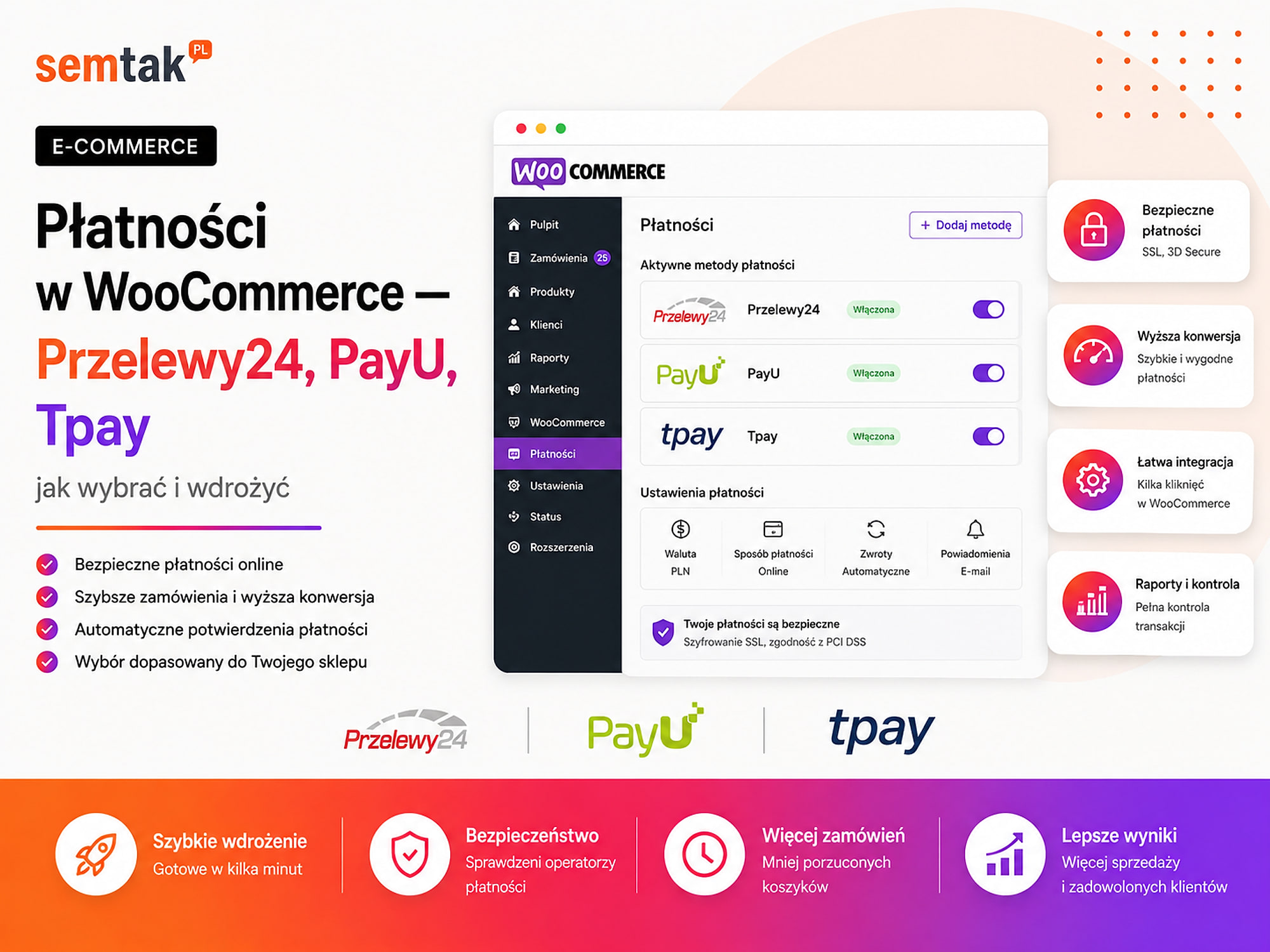
WooCommerce Payments — Przelewy24, PayU, Tpay (how to choose and set them up)

A customer has added products to the basket, entered their details and wants to pay with BLIK. After clicking the button, the page takes a long time to load, an error appears, or the order is saved as unpaid even though the money has been taken.
At this stage it no longer matters how much work you put into your advertising, SEO and product page. If the customer cannot pay, the sale is lost.
In Polish WooCommerce shops you will most often come across integrations with Przelewy24, PayU and Tpay. Each of these operators supports the popular payment methods, but the differences show up in the details: how BLIK and the banks are presented, instalments, deferred payments, currencies, the block checkout, and the technical capabilities of the plugin. International gateways such as Stripe and PayPal follow the same logic and can be added alongside them if you also sell abroad.
In this guide we show you how to compare operators, work out the real cost, set up the payment gateway and test the whole process before you start selling.
In short
Przelewy24, PayU and Tpay support the same things in Poland (BLIK, fast bank transfers, cards, instalments); they differ in their fees, contract terms, payout times and quality of support. The right choice depends on your turnover and industry — compare the fees and the formal requirements, not just the logo. What matters most is correct implementation: the payment must change the order status and work flawlessly on a phone, because a broken checkout means lost sales.
In a nutshell (TL;DR)
- Przelewy24, PayU and Tpay support the basic methods a Polish shop needs: BLIK, fast bank transfers and cards.
- Do not choose an operator on the percentage fee alone. Also check the fixed fee, payouts, refunds and any extra terms.
- The availability of instalments, deferred payments, wallets and recurring payments depends on the operator, the module and the contract you sign.
- Use the official, regularly updated plugin.
- Before installing, check that the module is compatible with WooCommerce Blocks, HPOS, subscriptions and the currency you use.
- Implementation does not end with pasting in the keys. You have to test statuses, notifications, stock, refunds and analytics.
- After testing in the sandbox, run a real transaction for a small amount.
All the abbreviations in one place
POS — a payment point assigned in the operator's panel to a shop, a currency or a way of handling transactions.
HPOS (High-Performance Order Storage) — storing WooCommerce orders in separate tables; the payment plugin must be compatible with it.
Sandbox — a test environment that lets you check the integration without sending real money.
Tokenisation — storing a secure token that replaces the card number; the shop does not keep full payment data.
3D Secure — an extra card-payment confirmation, for example in the bank's app.
CVV — the short security code, usually on the back of the card.
Chargeback — a reverse charge when a customer disputes a card transaction with their bank.
WAF — a firewall that filters incoming traffic; set up incorrectly, it can block the operator's notification.
ERP — a system for running a business, e.g. prices, stock and invoices.
BaseLinker — a system for managing orders and integrations with shops, couriers and marketplaces.
What is a payment gateway in WooCommerce?
A payment gateway connects your WooCommerce shop to the operator that handles BLIK, a transfer, a card or another method chosen by the customer.
WooCommerce saves the order, calculates the basket value and stores the status information. It does not, however, carry out the transfer between the customer and the shop on its own. The actual processing of the payment is handled by the operator, for example Przelewy24, PayU or Tpay (or an international gateway such as Stripe or PayPal). The simplified process looks like this:
Customer → WooCommerce checkout → payment operator → bank or BLIK → operator → WooCommerce
After a successful payment, the operator sends the shop a message confirming that the transaction has gone through. WooCommerce should then change the order status, for example from "Pending payment" to "Processing". If this return communication does not work, the customer can pay but the order will still look unpaid.
What payment methods should a Polish shop have?
The basics are BLIK, fast bank transfers and cards, but the right set depends on the basket value and the type of customers.
The most commonly implemented methods are BLIK, fast bank transfers, payment cards, Apple Pay and Google Pay, deferred payments, instalments, the option to retry a payment, and recurring payments for subscriptions. This does not mean the checkout should show a dozen similar items — if a customer sees a long list of operators, banks, cards and wallets, the choice can become harder. The methods should be grouped and arranged in a logical order.
An example set for a B2C shop: BLIK, fast transfer, card, Apple Pay or Google Pay, and a deferred payment for more expensive purchases.
An example set for a shop with a high basket value: BLIK, fast transfer, card, instalments, deferred payment and a traditional bank transfer as an additional method.
An example set for a B2B shop: fast transfer, card, traditional transfer, business financing and an individual payment term for approved contractors. In B2B e-commerce, some payments may be handled outside the usual gateway, for example on the basis of a trade credit limit or an invoice with a payment term.
Przelewy24, PayU or Tpay — the key differences
Each of the three operators can handle a standard shop well. The choice depends on the specific methods, the contract and the module's compatibility with your checkout.
| Area | Przelewy24 | PayU | Tpay |
|---|---|---|---|
| Official WooCommerce integration | Yes | Yes | Yes |
| BLIK | Yes | Yes | Yes |
| Fast transfers | Yes | Yes | Yes |
| Cards | Yes | Yes | Yes |
| Google Pay | Available in the current integration | Available in the current module | Available in the current integration |
| Apple Pay | Available in the current integration | Depends on the offer and configuration | Depends on the offer and configuration |
| Instalments | Available | Available | Available |
| Deferred payments | Depends on the offer | Several methods depending on the configuration | Includes BLIK Pay Later, among others |
| On-site payments | BLIK, cards and selected wallets | Card form, Google Pay and selected methods | BLIK, cards, banks and selected methods |
| Recurring payments | Available with the right configuration | Need to be verified for the process | Available in selected configurations |
| Multiple currencies | Available | Depends on the configuration of the payment points | Requires checking the account and module terms |
| WooCommerce Blocks | Check version compatibility | Supported by the current module | Supported by the current module |
| HPOS | Check version compatibility | Check the module's current declaration | Supported by the current module |
| Main advantage | A wide set of on-site methods | Extensive financing methods | Control over the layout of methods and Blocks integration |
The availability of a specific feature may depend on the contract you sign, your industry, the currency, the order value, the services you activate, the module version, the account type and additional verification by the operator. That is why you should not choose an operator on the basis of a table in an article — ask for a current offer and test the module on a copy of your shop.
When should you choose Przelewy24?
Przelewy24 is worth considering when you want a wide set of methods and payments displayed directly in the shop.
The current WooCommerce integration can support, among other things, BLIK inside the shop, BLIK One Click, Google Pay and Apple Pay, card payment, Click to Pay, recurring payments, multiple currencies, an instalment simulator or calculator, and presenting selected methods directly in the checkout. Przelewy24 may suit a shop that has a large number of mobile customers, wants to limit redirects away from the checkout, sells products in several currencies, needs recurring payments, or wants to present instalments earlier than on the operator's page.
What to pay attention to before choosing an operator? This list applies not only to Przelewy24 but to all gateways: which methods will be activated on your account, which currencies are available, whether the module supports the checkout you use, whether it works with HPOS, whether it handles subscriptions, how payouts are settled, how refunds are carried out, whether there are extra fees, what the technical support looks like, whether the operator requires additional server settings, and how the methods appear on a phone. The mere presence of a feature in the module does not mean it will automatically be available under every contract.
When should you choose PayU?
It is worth looking at PayU when instalments, deferred payments and separate ways of presenting cards, BLIK and banks matter to you.
The current official module can offer, as separate methods, among other things the standard PayU payment page, a list of banks in the checkout, card payment on the operator's page, a secure card form, BLIK, Google Pay, instalments, Klarna, Twisto, Twisto Pay in 3, PayPo and PragmaPay for business customers. Availability depends on the configuration of the payment point (POS). PayU may suit a shop that sells higher-value products, wants to give instalments a prominent place, needs several deferred-payment methods, wants to show a financing widget on the product page, needs separate financing for business customers, or uses several payment points.
What to watch out for with PayU? Do not enable several methods that carry out almost the same process at once. For example: PayU Standard opens the operator's general page, while the list of banks shows the available methods earlier, in the checkout — enabling both without thinking it through can duplicate the options. The same goes for cards: you can redirect the customer to the PayU form or display a secure form within the shop. You should choose the solution that fits your checkout, rather than turning on every option at once.
When should you choose Tpay?
Tpay is worth considering when you want to control the order of the methods, want on-site payments and need support for the new WooCommerce checkout.
The current integration can support, among other things, BLIK, BLIK Pay Later, cards, Google Pay, instalments, online transfers, a list of banks in the shop, limiting methods to specific delivery options, your own order of tiles, WooCommerce Blocks and HPOS. Tpay may suit a shop that uses the block checkout, wants to set the order of the methods itself, needs different payments for different delivery options, wants to show banks directly in the shop, or needs BLIK payments without going to the operator's panel.
What to watch out for with Tpay? Check above all whether access to the API you need has been activated on the account, whether the shop operates in a supported currency, whether the notification settings allow statuses to be updated correctly, whether the on-site methods you have chosen are active, and whether you are using the current module rather than an older integration.
Which gateway will be best for a small shop?
A small shop does not need the operator with the most features. It needs a stable payment and a transparent contract.
Check above all the percentage fee, the fixed fee, the activation cost, any subscription, the cost of withdrawing funds, the payout frequency, the refund rules, the availability of BLIK, cards and transfers, the quality of the module and the way you can contact technical support.
| Element | Offer 1 | Offer 2 |
|---|---|---|
| Percentage fee | Lower | Higher |
| Fixed fee | Higher | Lower |
| Subscription | None | Yes |
| Payout | Charged | Included |
| Refunds | Extra terms | Extra terms |
| Support | Form | Phone and e-mail |
You cannot point to the better offer without knowing the average basket value, the number of transactions, the monthly turnover, the number of refunds, the payout frequency and the level of support you need. With a basket worth £8, the fixed fee can matter a lot. With a basket of £200, the percentage fee matters more.
How do you work out an operator's real cost?
Compare the total monthly cost, not just the percentage shown in the largest font in the offer.
We do not give specific fees, because they depend on the contract, the industry, the turnover and the current promotion. Compare the rates that apply in offers prepared specifically for your company. A simplified formula:
cost = turnover × percentage fee + number of transactions × fixed fee + subscription + payouts + other fees
An illustrative example: monthly online turnover of £20,000, 500 payments, a difference between offers of 0.2 of a percentage point. The calculation: £20,000 × 0.2% = £40 per month. On top of this you need to add the fixed fees, the subscription, the payouts and the refund rules.
Table for comparing offers:
| Cost element | Przelewy24 | PayU | Tpay |
|---|---|---|---|
| BLIK | |||
| Online transfer | |||
| Card | |||
| Apple Pay / Google Pay | |||
| Deferred payment | |||
| Instalments | |||
| Fixed fee | |||
| Subscription | |||
| Activation | |||
| Withdrawal of funds | |||
| Refund | |||
| Chargeback | |||
| Minimum contract period |
Is it worth negotiating the fee?
Yes, especially when the shop has a sales history and can show its expected number of transactions.
Prepare your monthly turnover, the average basket value, the number of transactions, the share of BLIK, cards and transfers, the number of refunds, the industry, the planned growth, the currencies you support and the terms of your current operator. Ask not only about the percentage but also about payouts, refunds, foreign cards, instalments, contact with an account manager, the notice period, additional payment points, the test environment and technical support.
How do you set up payments in WooCommerce step by step?
Correct implementation consists of registration, technical configuration, testing and checking the order statuses.
Step 1: choose an operator and open an account. The operator has to verify the company and the shop. Prepare, among other things, the company details, a bank account, the domain, the terms and conditions, the privacy policy, the returns and complaints rules, the contact details and information about the products you sell. The operator may check who is running the sales, what is being sold, how a customer can get in touch, on what terms they can withdraw from a purchase, and whether the buying process works.
Step 2: check the technical requirements. Before installing the module, check the WordPress version, the WooCommerce version, the PHP version, the type of checkout, HPOS support, the shop currency, subscription plugins, multi-currency plugins, the theme, and any modifications to the basket and checkout. WooCommerce can use a classic shortcode-based checkout or a checkout built from blocks — a module that works in the classic checkout does not necessarily work in the block version.
Step 3: make a backup and prepare a staging site. Do not install a new gateway directly on a live shop if you can test it on a copy. Before making changes, back up the database, back up the files, prepare a staging site, save the current configuration and prepare a way to roll back quickly.
Step 4: download the official plugin
Use the module provided by the operator, indicated in its documentation, downloaded from the official repository and updated regularly. Before installing, check the date of the last update, the supported WooCommerce versions, the change history, the technical requirements, any known limitations and the support channel. A random plugin with a similar name may be old, incompatible or unsafe.
Step 5: enter the access details. Depending on the operator, you may need a merchant ID, a POS ID, an API key, a CRC key, a client ID, a client secret, an MD5 key or an RSA key. You do not need to understand the technical workings of each field — treat this data like an administrator password and do not send it in an ordinary message to random people.
Step 6: configure the payment notifications. The operator has to tell WooCommerce the result of the transaction. The mechanism may be called a webhook, a callback, a status URL, a notification URL or an IPN. In practice all of these terms describe a similar process: the operator's server sends the shop a message about a status change.
This is the most important part of the implementation
If the server-to-server communication does not work: the customer pays, the operator confirms the transaction, the money goes into settlement, and WooCommerce still shows "Pending payment". The order status must NOT depend solely on whether the customer returns to the "Thank you for your order" page. The server notification (webhook) is essential — test it separately and check it in the logs.
Step 7: set up the order statuses. An example process:
| Situation | WooCommerce status |
|---|---|
| Order created, no payment | Pending payment |
| Payment started | Pending or on hold |
| Payment confirmed | Processing |
| Digital product only | Completed, if the process allows it |
| Payment failed | Failed |
| Order cancelled | Cancelled |
| Full refund of the payment | Refunded |
Do not automatically set the status to "Completed" for a physical product just because it has been paid for. Payment does not yet mean dispatch.
Step 8: set up stock reservation. You need to decide how long a product stays reserved for a customer who has started a payment. Too long a reservation can block stock; too short a one can mean a customer starts to pay, the stock goes back into inventory, someone else buys the last item, and the first payment is confirmed later. Single items, tickets, limited collections, low-stock products and short promotions need particular attention.
Step 9: configure the appearance of the checkout. Do not show every available method just because it can be enabled. An example order: 1) BLIK, 2) fast transfer, 3) card or wallet, 4) instalments and deferred payments, 5) traditional transfer. The names should be understandable — instead of "Operator XYZ — standard channel", "BLIK and fast online transfer" is better. You can still put the operator's name in the description or next to the logo.
Step 10: turn on test mode. In the sandbox, verify the status change, the return to the shop, the error message, cancellation, a delayed notification, a refund, the behaviour of the stock and how the logs work. The sandbox does not always reproduce all production conditions, so do not end your testing at this stage.
Step 11: run a real transaction. After going live, make a payment for a small amount and check the charge on the account, the status in the operator's panel, the status in WooCommerce, the message to the customer, the message to the administrator, the change in stock, the transfer to the ERP or BaseLinker, the purchase in GA4, the purchase in Google Ads, and carrying out a refund.
How do you test BLIK correctly?
BLIK has to be tested on a phone and in scenarios that do not end in immediate success.
Check above all: entering a correct code, entering an incorrect code, rejecting the transaction in the bank's app, no confirmation, a timeout, closing the page before returning, retrying the payment, a delayed status change, BLIK One Click (if it has been activated) and how it behaves on a weaker connection.
The most important BLIK test
Check whether the order changes status even when the customer does NOT return to the shop after paying (closes the tab, loses signal, switches apps). This is the most common real scenario — and the most common cause of "paid but pending" orders.
What about card payments?
Card data should be handled by the operator's secure form, not saved directly by WooCommerce.
The form can run on the operator's page, in a secured frame, as a tokenised form, or via Apple Pay or Google Pay. The shop should not save the full card number, the CVV code or any authentication data itself. Also check how 3D Secure works, debit and credit cards, a rejected transaction, an expired session, a foreign card, and full and partial refunds. We go into the security details in our guide to WooCommerce shop security.
Is it worth implementing Apple Pay and Google Pay?
Yes, if the operator and the customer's device allow the wallet to be used without complicating the checkout.
Wallets can speed up payment, because the customer does not have to enter card data by hand. Before implementing them, check the operator's requirements, domain verification, how they work on supported devices, their behaviour on a phone, correct reporting in analytics, and hiding the method on devices that do not support it. Do not show an Apple Pay button to a customer who cannot use it.
When should you implement instalments and deferred payments?
Instalments and deferred payments matter most when the price of a product can block a one-off purchase.
Examples: furniture, electronics, home equipment, sports gear, more expensive bundles, courses and business purchases. It is worth showing the financing option earlier than in the checkout — on the product page, next to the price, in the basket, on the category page or in an instalment calculator. Do not, however, promise financing to every customer; the final decision is made by the provider of the given method.
How do you implement recurring payments and subscriptions?
An ordinary card payment does not automatically mean subscription support. You need tokenisation and several systems to be compatible.
Before implementing them, check whether the operator supports recurring payments, whether the service has been activated on the account, whether the gateway works with WooCommerce Subscriptions, how the customer changes their card, what happens when a card expires, how payment retries work, what happens after several errors, how to cancel a subscription, how to carry out a refund and whether the amount can be changed. In this case, testing the first payment is not enough — you also need to check the automatic renewal.
The most common mistakes when implementing WooCommerce payments
The most serious problems involve out-of-date modules, statuses, cache and blocked notifications.
A random or out-of-date plugin. The module comes from an unknown source or has not been developed for a long time. Possible consequences: no compatibility with the new WooCommerce, no WooCommerce Blocks, incorrect statuses, security problems and conflicts with the checkout.
No test of the communication with the operator. The integration is judged only on the basis of redirecting the customer. You have to check the server notification described in step 6 and the record in the logs.
Incorrect order statuses. A failed payment can block a retry, or an unpaid order can go into processing. The status flow should be set before publication.
A conflict with the cache. The basket, the checkout or the notification address gets cached. The cache should exclude, among other things, the basket, the checkout, the customer account, the payment pages, the callback addresses and dynamic session data.
The firewall blocks the operator. A WAF, Cloudflare or server protection may reject the transaction notification. A firewall protects the shop, but set up incorrectly it can also block the operator's legitimate message.
An update without testing. WooCommerce, PHP or the payment module gets updated without a backup and a control order. Payments can stop working even though the checkout looks fine. Updates and tests can be carried out as part of WordPress and WooCommerce maintenance.
How do you check whether payments are working correctly?
Do not judge the integration on the operator's logo appearing alone. Check the whole cycle of the order and the money.
| Stage | What to check? |
|---|---|
| Checkout | The method is visible and can be selected |
| Going to the operator | The amount, currency and order number are correct |
| Authorisation | The payment can be approved or rejected |
| Customer return | The shop shows an understandable message |
| Notification | WooCommerce receives the status regardless of the customer's return |
| Order | The status changes in line with the process |
| Stock | The level is reduced or released |
| Messages | The customer and the team receive the right e-mails |
| Integration | The order reaches the ERP or BaseLinker |
| Analytics | The purchase is visible in GA4 and the ads |
| Settlement | The transaction is in the operator's panel |
| Refund | All or part of the payment can be refunded correctly |
WooCommerce payment implementation checklist
Before choosing an operator:
- I know my monthly online turnover;
- I know the average order value;
- I know the number of transactions;
- I know which currencies are needed;
- I know whether I need instalments;
- I know whether I need deferred payments;
- I know whether the shop will handle subscriptions;
- I have compared the full fees;
- I have checked the payout frequency;
- I have checked the refund terms;
- I have checked the availability of support.
Before installing the plugin:
- I have backed up the database and the files;
- I have prepared a staging site;
- I have checked the WooCommerce version;
- I have checked the PHP version;
- I have established the type of checkout;
- I have checked HPOS compatibility;
- I have checked compatibility with the multi-currency plugin;
- I have checked subscription support;
- I have downloaded the module from the official source.
During configuration:
- I have entered the correct API data;
- I have separated the test data from the production data;
- I have configured the notifications;
- I have set clear names for the methods;
- I have set the order of the payments;
- I have configured the statuses;
- I have set the stock reservation;
- I have excluded the checkout and callbacks from the cache;
- I have checked the firewall rules;
- I have turned on the logs for the duration of the tests.
Tests:
- a successful BLIK payment;
- a rejected or unfinished payment;
- a fast transfer;
- a card;
- Apple Pay or Google Pay;
- a payment on a phone;
- the customer not returning to the shop;
- a delayed notification;
- a payment retry;
- a partial refund;
- a full refund;
- the order reaches the integration;
- the purchase is visible in GA4;
- a real production transaction has been carried out.
What can you check yourself?
A shop owner can carry out a basic payment check without editing any code.
1. Place an order on a phone. Judge whether the most popular method is easy to find.
2. Abandon the payment. Check whether the customer can go back to the order and try again.
3. Check the status after a successful transaction. The order should not stay marked as unpaid.
4. Compare the amounts. WooCommerce, the operator's panel and the bank must show the same value.
5. Check the e-mails. The customer should not receive contradictory messages.
6. Carry out a refund. Check whether the status and the amount have been recorded correctly.
7. Review the pending orders. A sudden rise in them may signal a technical problem or an unclear checkout.
8. Check the module version. Make sure the plugin is being updated.
9. Review the WooCommerce logs. Recurring API or notification errors need to be investigated.
10. Compare the purchases with GA4. The analytics data should not differ significantly from the actual orders.
When is it worth having a specialist handle the implementation?
Technical help is needed when the payment connects with a non-standard checkout, subscriptions or other company systems.
It is worth commissioning the implementation if:
- the shop is already selling and cannot afford downtime;
- you use the block checkout;
- you have non-standard order fields;
- payments depend on the delivery method;
- you sell in several currencies;
- you are implementing instalments or deferred payments;
- you offer subscriptions;
- the shop is connected to an ERP or BaseLinker;
- several plugins change the statuses;
- the operator cannot send a notification;
- paid orders remain pending;
- you are changing operator on a live shop.
A specialist should check not only the module settings but also the statuses, callbacks, cache, firewall, logs, stock, integrations, analytics, refunds and behaviour on a phone.
Frequently asked questions
Which payment gateway is best for WooCommerce?
There is no single best operator. Compare the full costs, the available methods, the currencies, the instalments, the payouts and the module's compatibility with your checkout.
Do Przelewy24, PayU and Tpay support BLIK?
Yes. Each of these operators supports BLIK, but the way it is presented and the additional features depend on the module and the account configuration.
Can you have two payment operators in WooCommerce?
Yes. A second operator can act as a fallback or handle a specific method. It is not worth showing the customer two almost identical lists of payments, though.
Is installing the plugin enough to accept payments?
No. You need an active account, access details, correct notifications, status configuration and tests.
Why does a paid order have the status "Pending payment"?
Most often WooCommerce has not received a notification from the operator. The cause may be an incorrect configuration, a firewall, the cache, an API problem or a plugin conflict.
Do payments have to be tested after an update?
After a major update to WooCommerce, PHP, the checkout or the payment module, it is worth carrying out a full control order.
Can the shop store customers' card data?
A standard WooCommerce shop should not store full card data itself. It should use the operator's secure form and tokenisation.
Should BLIK, card and transfer be separate methods?
It depends on the module and the checkout design. Separate tiles can speed up the choice, but too many options make a decision harder.
Do you want to set up payments in WooCommerce correctly?
Simply installing the Przelewy24, PayU or Tpay module can take a few minutes. Correctly setting up the statuses, notifications, stock, refunds and analytics, however, requires checking the whole buying process:
- WooCommerce store development — payments implemented and tested from day one.
- WordPress and WooCommerce maintenance — when paid orders have the wrong statuses or notifications are blocked.
- WooCommerce shop security — cards, tokenisation and data protection.
- What is WooCommerce — the basics of the platform in plain language.