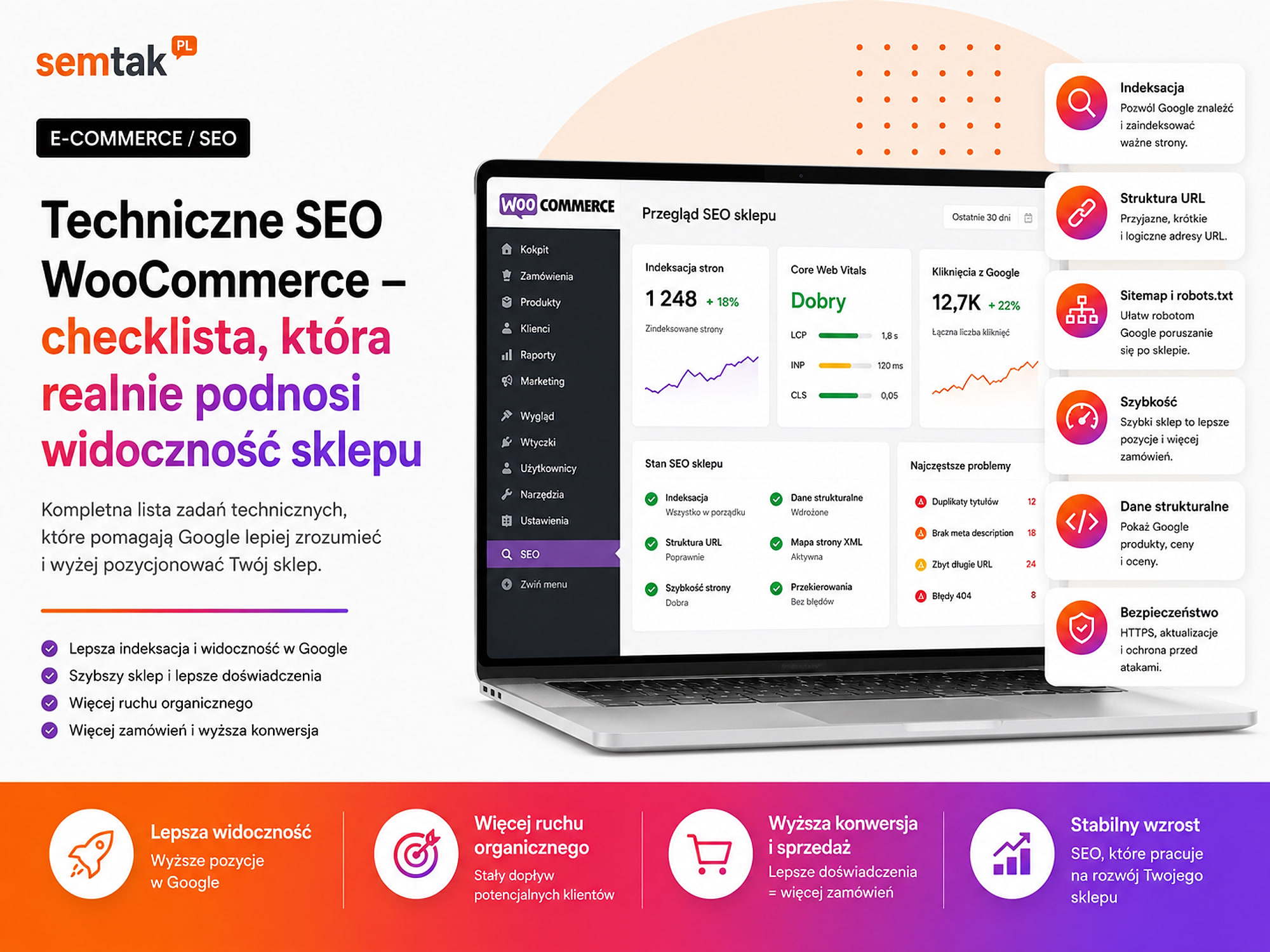
WooCommerce Technical SEO — a checklist that genuinely boosts your store's visibility

A WooCommerce store can have good products, sensible prices and a nice design, yet still be poorly visible in Google. Often the problem doesn't lie in the product descriptions themselves, but in technical matters: indexing, filters, speed, category structure, duplicates or errors in product data.
The worst part is that many of these problems aren't visible straight away. The store works, a customer can place an order, the WordPress dashboard opens, so everything looks "reasonably fine". It's only in Google Search Console, or after an audit, that you can see Google isn't indexing important subpages, is wasting time on worthless addresses, or is skipping products that should be driving sales.
This guide covers the technical foundations of SEO for WooCommerce. If you're looking for a full service that covers strategy, technology, content and growing your visibility, the right place is WooCommerce store SEO. This article is a checklist: it will help you understand what to check and where problems might be hiding.
In short
WooCommerce technical SEO is about tidying up whatever is blocking your store in Google: controlling the indexing of filters and tags, speed (Core Web Vitals), clean URLs, Product structured data and a well-thought-out category architecture. You first remove the technical errors — duplicates generated by filters, slow loading, chaos in indexing — because without that, content and links won't work. This checklist walks you through the areas one by one, from the audit to performance.
In a nutshell (TL;DR)
- WooCommerce technical SEO starts by checking whether Google sees the right pages: categories, products and important guides.
- The most common problems are incorrect indexing, duplicate URLs, badly configured filters, slow loading and incorrect canonicals.
- Google Search Console shows which pages are indexed, excluded or have technical problems.
- A WooCommerce store should have a logical category structure, clean URLs, correct structured data and a smoothly working mobile version.
- Product filters are convenient for the user, but without control they can create thousands of addresses that Google shouldn't be indexing.
- For a larger store, manual checking isn't enough. That's when it's worth carrying out a technical WooCommerce SEO audit.
Which keyword should lead to which type of page?
In e-commerce SEO it's important not to mix up user intent. Someone typing "WooCommerce positioning" may be looking for an agency. Someone typing "WooCommerce technical SEO checklist" is more likely looking for a guide and a list of things to check.
That's why this article shouldn't replace the service page. It should support it.
| User keyword | Best type of page | Role in the SEO strategy |
|---|---|---|
| WooCommerce positioning | service page | sales and acquiring the client |
| online store positioning | service page / money page | main e-commerce SEO offer |
| WooCommerce technical SEO | how-to article | education and entering the funnel |
| WooCommerce SEO checklist | article / checklist | practical help for the store owner |
| WooCommerce SEO audit | service page or supporting article | diagnosing technical problems |
| WooCommerce filters SEO | technical article | specialist topic, good for the blog |
| WooCommerce speed | technical article / technical maintenance | SEO and UX support |
A simple rule: the money page sells the service, while the article explains the problem and leads to the service when the store needs specialist help.
Why does WooCommerce technical SEO matter so much?
WooCommerce runs on WordPress. That's a big advantage, because a store can easily be expanded, edited and connected to many tools. But this flexibility has another side too.
Every plugin, filter, product variant, tag, URL parameter or automatically generated subpage can create an additional address that Google tries to visit.
For a small store this isn't always a problem. If you have 50 products and a few categories, technical errors can often be found quickly. But for a store with 3,000 products and filters by colour, size, brand and price, the situation changes completely.
| Store element | What can happen |
|---|---|
| Product filters | They create hundreds or thousands of URLs |
| Product variants | They can generate similar content |
| Product tags | They often create thin, low-value subpages |
| Pagination | It can make access to products harder |
| Sorting parameters | They create duplicates of the same category |
| Slow hosting | It reduces user comfort and makes the work of Google's bots harder |
WooCommerce technical SEO is about helping Google understand the store: what is important, what should go into the index, and what isn't worth showing in search results.
The checklist below walks you through the most important technical areas. You don't have to implement everything at once. Start with indexing, category structure, filters and speed, because these elements are the ones that most often block a store's visibility.
Indexing, crawling and the sitemap
1. Indexing — does Google see the right subpages?
Indexing means that Google has added a given page to its database and can show it in search results. In a WooCommerce store, the index should primarily include important product categories, products with sales potential, blog guides that support categories, well-prepared brand pages and selected sales landing pages.
The index usually should not include:
- cart, customer account, checkout,
- internal search results,
- random product tags,
- addresses with sorting,
- addresses with filter parameters that have no SEO value,
- duplicate categories and products.
What to check in Google Search Console?
Go into Google Search Console and check the indexing report. Pay attention to messages such as: "Crawled — currently not indexed", "Discovered — currently not indexed", "Duplicate, Google chose different canonical than user", "Page with redirect", "Not found (404)", "Excluded by 'noindex' tag".
Not every message means an error. The problem begins when Google rejects pages that are important to the business. If Google isn't indexing 20 old product tags, that may be normal. But if it isn't indexing the main "garden furniture" category, you need to check the cause.
| Symptom in Google Search Console | Possible cause | Where to check |
|---|---|---|
| Discovered — currently not indexed | Google knows the address but didn't consider it important enough | "Pages" report and URL inspection |
| Crawled — currently not indexed | The content may be too similar, weak or poorly linked | URL inspection, internal linking |
| Duplicate, Google chose different canonical than user | A problem with the canonical or duplicate content | Page source, SEO plugin, URL inspection |
| Excluded by 'noindex' tag | The page has, deliberately or by accident, an indexing block | Page code, SEO settings, robots meta |
| Not found (404) | A product, category or post has been deleted | 404 report, list of redirects |
| Page with redirect | Google sees a URL that leads somewhere else | 301 redirect map |
| Alternate page with proper canonical tag | Google treats a different version as the main one | Canonical, address structure, URL parameters |
Practical takeaway: don't just look at the number of errors. Check whether the problem affects pages that are meant to earn money or support sales.
2. Crawl budget — isn't Google wasting time on worthless addresses?
Crawl budget is a simplified name for the resources Google allocates to visiting your site. In small stores this usually isn't a big topic. In larger WooCommerce stores it matters. If a store has 500 products, but filters, sorting and parameters create 50,000 URLs, Google can waste time on pages that have no value whatsoever.
Typical problematic addresses in WooCommerce:
?orderby=price?orderby=popularity?filter_colour=black?filter_size=xl?min_price=100&max_price=300?add-to-cart=123
Some filters can make SEO sense. For example, a separate, well-prepared "black dining chairs" page can be valuable. But random filter combinations like "black + velvet + price £30–£50 + sorted by popularity" usually shouldn't end up in the index.
3. The XML sitemap — does it contain only the addresses you need?
The XML sitemap is a file that tells Google which addresses are important. In WordPress it's usually generated by an SEO plugin, e.g. Rank Math, Yoast SEO or another similar tool. The problem is that the sitemap often contains too much.
The sitemap should not include cart, customer account or checkout pages, valueless tags, empty categories, test pages, drafts, attachments or subpages with thin content. It should include important products, categories, subcategories, blog posts, information pages and landing pages that are meant to work for SEO.
After making changes, it's worth submitting the sitemap in Google Search Console and checking whether Google reads it correctly.
4. Robots.txt and noindex — are you blocking too much or too little?
The robots.txt file tells bots where they may look. The noindex tag says that a given page shouldn't go into the index. These are two different mechanisms. And this is where mistakes happen easily.
| Mechanism | What it does |
|---|---|
| robots.txt | Restricts the bot's access to specific paths |
| noindex | Allows the page to be visited but says not to index it |
| canonical | Points to the main version of a page |
| 301 redirect | Moves the user and the bot to a different address |
Note: don't block inrobots.txtthe pages that are meant to havenoindex. Google may then not visit the page and won't see thenoindextag.
Practical takeaway: before you block a particular type of address, decide whether you want to restrict the visiting of the page itself, or only its indexing.
Store structure and URLs
5. Canonicals — does Google know which version of the page is the main one?
The canonical tag tells Google: "this is the main version of this page". In WooCommerce, canonicals are especially important, because the same product or category may be available under different addresses.
| Situation | Possible effect |
|---|---|
| A product available in several categories | Google sees similar addresses |
| A category with sorting | A duplicate of the product list is created |
| Filters generate URLs | Google sees many versions of the same category |
| Campaign parameters in the URL | They can create technical duplicates |
What should be set up correctly? A product should point its canonical to its main version. A category with sorting should usually point its canonical to the main category. Addresses with parameters shouldn't compete with the basic category page. Pagination pages should be handled logically, without accidentally pointing everything to the first page if that makes access to products harder.
If canonicals are set up incorrectly, Google may choose a different page from the one you want to position.
6. Category structure — does the store have a logical layout?
The category structure tells Google and the user how the store is organised. A good product category isn't just a list of products. It should have a clear name, a friendly URL, a description that helps choose a product, logical subcategories, links to related categories, correct title and meta description, as well as products that match the category's intent.
Example of a weak structure: /product-category/other/, /shop/products/promotions-2/, /category/uncategorised/ and several similar categories with the same range of goods.
Example of a better structure:
/chairs//chairs/dining-chairs//chairs/upholstered-chairs//chairs/wooden-chairs//chairs/swivel-chairs/
Such a structure is clear. The user knows where they are. Google also finds it easier to understand the relationships between categories. You'll find more on category layout in the guide category architecture in a WooCommerce store. For larger stores it's worth combining this part with the store SEO audit service, because errors in the category structure often affect the whole of your visibility.
7. URLs — are they short and understandable?
A URL doesn't have to be perfect, but it should be simple. A good address: /chairs/dining-chairs/. A weaker address: /product-category/shop/home-and-garden/promotions/dining-chairs-2024-final/.
In WooCommerce, default elements such as /product/, /product-category/, random endings, old slugs after name changes and duplicates with numbers, e.g. chairs-2, often remain. You don't always have to remove the default fragments at all costs. It's more important that addresses are stable, readable and don't create duplicates.
Note: don't change slugs on a store that has traffic from Google without a 301 redirect map. An accidental change of addresses can reduce the visibility of important categories and products.
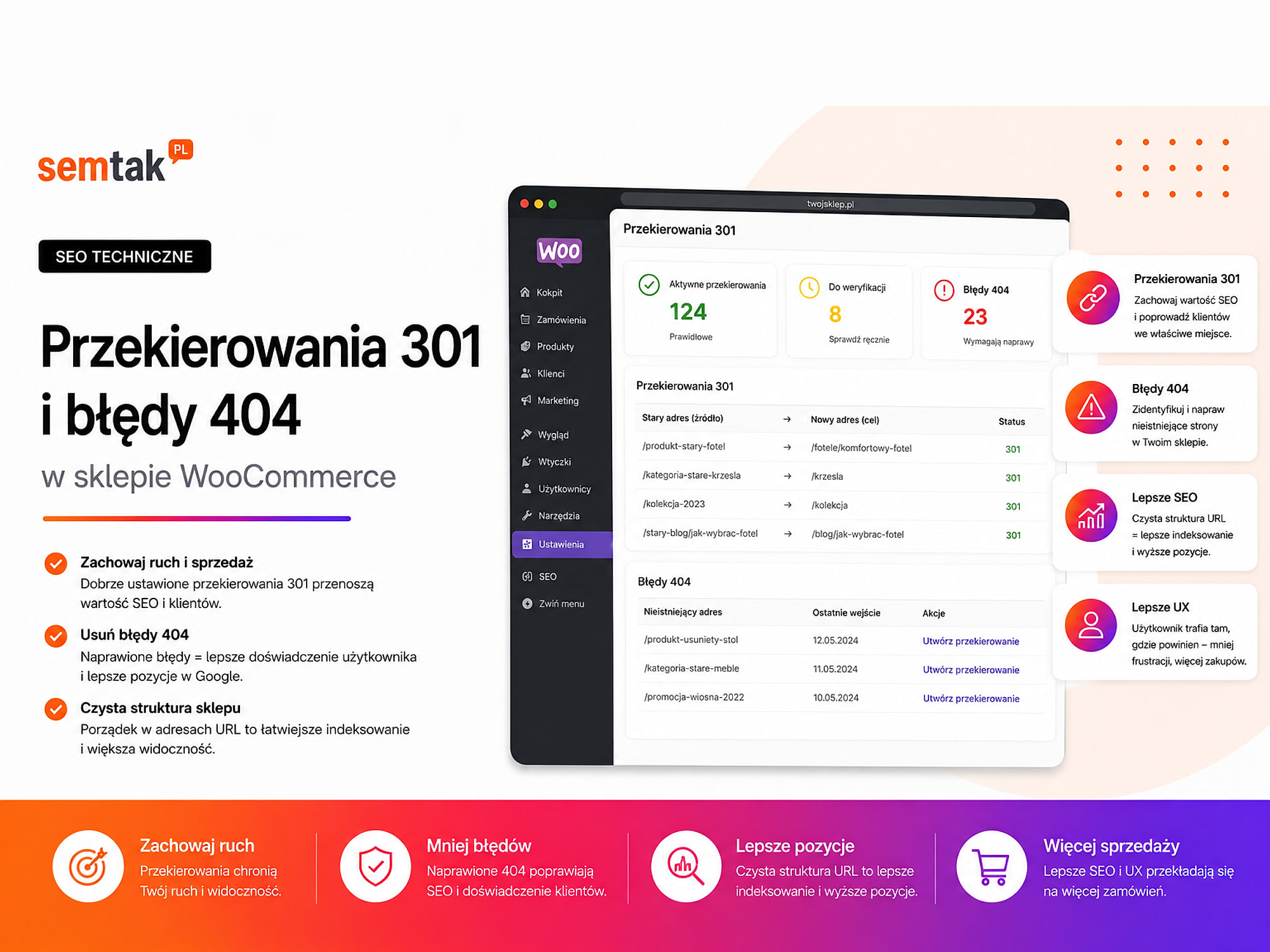
8. 301 redirects — do old addresses lead to the right place?
A 301 redirect tells Google and the user that a given page has been moved permanently. In WooCommerce stores, addresses change frequently: a product disappears from the range, a category gets merged with another, a product's name changes, the store undergoes a migration, or you change the URL structure.
If an old address leads nowhere, the user hits a 404 error. For a single product this isn't always a disaster. But with hundreds of errors it becomes a mess.
| Situation | What to do |
|---|---|
| A product is withdrawn but there's a similar replacement | Redirect to the similar product |
| A product is withdrawn with no replacement | Consider redirecting to the category |
| A category has changed its name | Set up a 301 to the new address |
| An old blog post has been deleted | Redirect to the most closely related guide |
| An error with a technical parameter | Check whether it needs to be handled differently |
A redirect shouldn't lead "just anywhere". If a deleted product was an office chair, don't redirect it to the homepage. That's a poor signal for the user and the search engine. How to do this across a whole store is described in the guide migrating a store without losing rankings.
9. Breadcrumbs — can the user and Google see the path?
Breadcrumbs show the path to the current page, e.g. Home → Chairs → Dining chairs → Roma upholstered chair. For the user this is convenient, because they can quickly return to the category. For Google it's an additional signal of the store's structure.
In WooCommerce, breadcrumbs should be visible on products and categories, consistent with the actual structure, marked up with structured data and aligned with internal linking. The problem begins when a product belongs to several categories and the breadcrumbs show a random path. In that case it's worth establishing the product's main category.
10. Internal linking — do important categories get enough links?
Internal linking is the way pages in a store pass meaning to one another. If an important category has no links from the menu, the homepage, guides or other categories, Google may consider it less important.
In WooCommerce it's worth linking from the blog to categories, from main categories to subcategories, from category descriptions to related categories, from products to guides, from guides to products and categories, and from the homepage to the most important sections of the store.
Example: if you sell garden furniture, the guide "How to choose garden chairs for a balcony?" should naturally lead to the garden chairs, balcony chairs and garden furniture sets categories. The same principle works here: this article supports topics such as technical WooCommerce audit, online store positioning and WooCommerce store maintenance.
Performance and the mobile version
11. Store speed — isn't WooCommerce loading too slowly?
Store speed affects the user, sales and technical SEO. If a store loads slowly, some customers will leave before they even see a product. In WooCommerce the problem rarely comes down to a single thing. More often it's the sum of several elements: the theme, hosting, cache, images, plugins and the database.
| What can slow a store down? | How to check it? |
|---|---|
| An overly heavy theme | Compare the loading time of the homepage, a category and a product |
| Too many plugins | Check which plugins load scripts on the front end |
| Large images | Check the weight of the images and the file format |
| No cache | Verify the page and object cache configuration |
| Weak hosting | Check the server response time |
| External scripts | See how many scripts load from outside |
| Too many products on a category | Check the loading of a category with its product list |
| Slow database queries | Requires a technical analysis of WordPress/WooCommerce |
At SEMTAK we look at WooCommerce not just as a website, but as a sales system. Sometimes the problem isn't a single image, but a whole set of things: the theme, hosting, cache, plugins, the database and the way products are displayed. You'll find concrete steps in the guides how to speed up a WooCommerce store and how to choose hosting for WooCommerce.
If the store regularly slows down after updates or under heavier traffic, it's worth considering WooCommerce store maintenance. A one-off "speed-up" often isn't enough if the store is constantly growing.
12. Core Web Vitals — is the store comfortable on a phone?
Core Web Vitals are a set of metrics that help assess how comfortable a site is to use. In practice it comes down to three questions: does the page show its main content quickly, does it respond quickly after a click, and do elements not jump around during loading. More in the guide Core Web Vitals in a WooCommerce store.
In an online store, the mobile version is the most important. Many users browse products on their phone, compare prices, add to the cart and only later finalise the purchase. Typical mobile problems in WooCommerce are buttons that are too small, awkward filters, slow-loading images, an unreadable category menu, a pop-up covering the content, a hard-to-use cart and a product page with too many sections before the price and button.
This isn't just a UX topic. If a user can't comfortably get through a category and a product, SEO attracts the traffic, but the store doesn't make use of it.
13. Images — aren't your photos blocking speed and visibility?
WooCommerce lives on photos. But photos are often one of the main reasons a store runs slowly. It's worth checking whether images are compressed, whether they have the right format, whether they aren't larger than necessary, whether they have descriptive file names, whether they have sensible ALT text, whether lazy loading works correctly and whether thumbnails are generated at the right sizes.
ALT text shouldn't be keyword stuffing. It should describe the image. A good ALT: grey upholstered dining chair with black metal legs. A poor ALT: chair chairs cheap chairs shop dining chairs.
Practical takeaway: a product photo should help the user, but it must not slow down the whole store.
Product data and schema
14. Structured data — does Google understand the products?
Structured data is additional markup in the page code that helps Google recognise that a given page contains a product, price, availability, rating, brand or breadcrumbs. In WooCommerce, some structured data may be generated automatically by the theme, WooCommerce or the SEO plugin. The problem appears when several tools generate similar data at the same time.
What can break? The price in the structured data doesn't match the price on the page, the product has incorrect availability, ratings are marked up incorrectly, breadcrumbs show the wrong category, several plugins generate duplicate schema, or product variants are described chaotically. The easiest way to check this is in the rich results testing tool or in Google Search Console, if reports concerning products appear.
15. Product pages — does the product stand a chance of competing in Google?
A product page should clearly answer the question: what is it, who is it for, how is it different and is it worth buying. Many WooCommerce stores have products with very short descriptions, e.g. "Upholstered chair, grey colour, black legs, modern style." For the user that's not much. For Google it isn't either.
A good product page should contain a unique description, the most important features, the product's use, technical parameters, photos with descriptive ALT text, the price and availability, delivery information, similar products, a link to the category, as well as an FAQ section if the product calls for one.
Not every product needs a long description. With large stores it's worth selecting priority products: those that have a margin, search volume, availability and sales potential.
16. Product categories — do they have content that helps the customer buy?
A category description shouldn't be a wall of text for Google. That's a common mistake. A good category description should help the user make a decision: how the products in this category differ, what to pay attention to when choosing, which parameters matter, what uses the products suit and which subcategories are worth checking.
Example of a weak description: "Dining chairs are an important element of any home's furnishing. In our range you'll find a wide selection of chairs."
Example of a better description: "For a small dining room, light chairs without armrests will work better, because they're easier to slide under the table. If you spend a lot of time at the table, pay attention to a soft seat and a stable backrest."
Text like this is more useful. And it's exactly this kind of content that supports SEO better.
17. Product variants — don't they create a mess?
Product variants are different versions of the same product, e.g. colour, size, material or dimension. In WooCommerce, products with variants are convenient. One product can have several colours, sizes or materials. The problem appears when variants have separate addresses, similar content or are poorly described.
When does a variant make sense as a separate product? Sometimes a separate subpage makes sense — for example when a variant has a high search volume, a separate intent and a different presentation (e.g. "white extendable table 160 cm" and "black extendable table 200 cm"). But in many cases it's better to keep variants within one product and describe the differences well. There's no single rule for every store — the decision depends on the range, search volume, competition and the way products are filtered.
18. WooCommerce, Google Merchant Center and SEO — is the product data consistent?
If you run Google Shopping or Performance Max campaigns, the WooCommerce store often sends product data to Google Merchant Center. It's worth ensuring consistency between the product name in the store, the SEO title, the product description, the product feed, the Google category, the price, availability and the main photo.
If the data is inconsistent, both the advertising and the product's organic visibility can suffer. This is a good moment to combine SEO with Google Shopping campaigns — in e-commerce these areas often draw on the same product data. Practical settings are described in the guide Google Merchant Center for WooCommerce.
Filters, duplicates and out-of-stock products
19. Filters and faceted navigation — the biggest SEO trap in WooCommerce
Faceted navigation is navigation by filters, where each filter can create a separate URL. Filters are great for the user — they help narrow down products quickly. But for SEO they can be a problem. If you have a "chairs" category and filters: colour, material, style, price, brand, availability, height, type of legs, and each combination of filters creates an indexable address, the store can generate a huge number of low-quality pages.
| Type of filter | What to do |
|---|---|
| Filters with SEO potential (e.g. "black upholstered chairs") | Prepare as separate landing pages |
| Technical/utility filters (e.g. "sorting + price £30–£50") | Don't index |
A decision tree for filters — ask 3 questions:
- Does this filter combination have real demand in the search engine?
- Can you prepare unique, meaningful content for it?
- Can it be treated as a separate landing page, rather than a random result of a click?
If the answer is "yes" three times, you can consider indexing such a page. If the answer is "no", a better solution will usually be noindex, a canonical or another way of limiting indexing.
A typical scenario: a store has a few hundred products and several filters, but Google also indexes addresses with sorting, a price range and random parameter combinations. In practice, important categories then compete with worthless addresses. This is often where a technical WooCommerce audit comes in handy, because you need to check not only the filter plugin itself, but also the canonicals, robots, noindex, sitemap and linking.
20. Out-of-stock products — delete, keep or redirect?
An out-of-stock product shouldn't always be deleted. The decision depends on whether the product will come back, whether it has traffic from Google and whether a good replacement exists. If a product is temporarily out of stock, it usually isn't worth deleting — it's better to show an out-of-stock notice, a notification option or similar products.
| Situation | Solution |
|---|---|
| The product will return to sale | Keep the page and show the status |
| There's a very similar replacement | Redirect to the replacement |
| The product had traffic from Google | Don't delete without analysis |
| The product had no traffic and there's no replacement | You can delete it or redirect to the category |
| The product has external links | Keep it or redirect carefully |
The worst solution is the mass deletion of products without checking the data. You can then lose long-tail traffic.
What can you check yourself?
Below is a quick checklist for the store owner. It doesn't replace an audit, but it gives a good picture of the situation.
1. Check what Google sees in the store
Type site:yourdomain.com into Google and see which pages show up in the results. If you see the cart, the customer account, odd tags, search results or addresses with parameters, it's worth looking into more closely.
2. Go into Google Search Console
Check the indexing report, 404 errors, excluded pages, the sitemap, product reports and the performance of categories and products. Pay attention to whether important categories get impressions and clicks.
3. Open the most important categories on a phone
Check whether the category loads quickly, the filters are convenient, products are visible without unnecessary scrolling, images don't jump around, buttons are easy to click and the user quickly understands what to do.
4. Check a few products
Pick 5–10 important products and check whether they have unique descriptions, whether the images have ALT text, whether the price and availability are correct, whether there are similar products, whether the breadcrumbs lead to the right category and whether the product isn't a duplicate of another.
5. Test the speed
Use PageSpeed Insights for the homepage, an important category, a product, the cart and the checkout page. Don't just look at a single result — what matters more is whether the store genuinely runs smoothly on a phone.
6. Check the XML sitemap
You'll most often find it at an address similar to yourdomain.com/sitemap_index.xml. See whether the sitemap doesn't contain addresses with parameters, empty taxonomies or pages that Google shouldn't be indexing.
7. Check the filters
Click a few filters and see what happens to the URL. If the store generates long addresses with parameters, you need to check whether they're ending up in the index.
When is it worth handing this to a specialist?
Checking the basics yourself is a good start. But there are situations where it's better not to guess. It's worth commissioning a technical WooCommerce SEO audit if:
- the store has a lot of products,
- many filters and variants are in use,
- visibility is dropping with no clear cause,
- Google isn't indexing important categories,
- the store has been migrated or rebuilt,
- the URL structure has changed,
- a lot of 404 errors are appearing,
- the store loads slowly,
- SEO plugins show contradictory data,
- you're planning larger SEO activities or Google Ads campaigns.
A specialist should not only list the errors, but also point out the priorities. Not every fix carries the same weight. Sometimes tidying up the filters and indexing gives a bigger effect than adding yet more category descriptions. At SEMTAK we look at WooCommerce both technically and from a marketing angle: we check whether the store is understandable to Google, comfortable for the user and ready for further positioning.
Frequently asked questions
1. Indexing — does Google see the right subpages?
Indexing means that Google has added a given page to its database and can show it in search results. In a WooCommerce store, the index should primarily include important product categories, products with sales potential, blog guides that support categories, well-prepared brand pages and selected sales landing pages.
What to check in Google Search Console?
Go into Google Search Console and check the indexing report. Pay attention to messages such as: "Crawled — currently not indexed", "Discovered — currently not indexed", "Duplicate, Google chose different canonical than user", "Page with redirect", "Not found (404)", "Excluded by 'noindex' tag".
2. Crawl budget — isn't Google wasting time on worthless addresses?
Crawl budget is a simplified name for the resources Google allocates to visiting your site. In small stores this usually isn't a big topic. In larger WooCommerce stores it matters. If a store has 500 products, but filters, sorting and parameters create 50,000 URLs, Google can waste time on pages that have no value whatsoever.
3. The XML sitemap — does it contain only the addresses you need?
The XML sitemap is a file that tells Google which addresses are important. In WordPress it's usually generated by an SEO plugin, e.g. Rank Math, Yoast SEO or another similar tool. The problem is that the sitemap often contains too much.
4. Robots.txt and noindex — are you blocking too much or too little?
The robots.txt file tells bots where they may look. The noindex tag says that a given page shouldn't go into the index. These are two different mechanisms. And this is where mistakes happen easily.
5. Canonicals — does Google know which version of the page is the main one?
The canonical tag tells Google: "this is the main version of this page". In WooCommerce, canonicals are especially important, because the same product or category may be available under different addresses.
6. Category structure — does the store have a logical layout?
The category structure tells Google and the user how the store is organised. A good product category isn't just a list of products. It should have a clear name, a friendly URL, a description that helps choose a product, logical subcategories, links to related categories, correct title and meta description, as well as products that match the category's intent.
7. URLs — are they short and understandable?
A URL doesn't have to be perfect, but it should be simple. A good address: /chairs/dining-chairs/ . A weaker address: /product-category/shop/home-and-garden/promotions/dining-chairs-2024-final/ .
8. 301 redirects — do old addresses lead to the right place?
A 301 redirect tells Google and the user that a given page has been moved permanently. In WooCommerce stores, addresses change frequently: a product disappears from the range, a category gets merged with another, a product's name changes, the store undergoes a migration, or you change the URL structure.
9. Breadcrumbs — can the user and Google see the path?
Breadcrumbs show the path to the current page, e.g. Home → Chairs → Dining chairs → Roma upholstered chair. For the user this is convenient, because they can quickly return to the category. For Google it's an additional signal of the store's structure.
10. Internal linking — do important categories get enough links?
Internal linking is the way pages in a store pass meaning to one another. If an important category has no links from the menu, the homepage, guides or other categories, Google may consider it less important.
11. Store speed — isn't WooCommerce loading too slowly?
Store speed affects the user, sales and technical SEO. If a store loads slowly, some customers will leave before they even see a product. In WooCommerce the problem rarely comes down to a single thing. More often it's the sum of several elements: the theme, hosting, cache, images, plugins and the database.
12. Core Web Vitals — is the store comfortable on a phone?
Core Web Vitals are a set of metrics that help assess how comfortable a site is to use. In practice it comes down to three questions: does the page show its main content quickly, does it respond quickly after a click, and do elements not jump around during loading. More in the guide Core Web Vitals in a WooCommerce store .
13. Images — aren't your photos blocking speed and visibility?
WooCommerce lives on photos. But photos are often one of the main reasons a store runs slowly. It's worth checking whether images are compressed, whether they have the right format, whether they aren't larger than necessary, whether they have descriptive file names, whether they have sensible ALT text, whether lazy loading works correctly and whether thumbnails are generated at the right sizes.
14. Structured data — does Google understand the products?
Structured data is additional markup in the page code that helps Google recognise that a given page contains a product, price, availability, rating, brand or breadcrumbs. In WooCommerce, some structured data may be generated automatically by the theme, WooCommerce or the SEO plugin. The problem appears when several tools generate similar data at the same time.
15. Product pages — does the product stand a chance of competing in Google?
A product page should clearly answer the question: what is it, who is it for, how is it different and is it worth buying. Many WooCommerce stores have products with very short descriptions, e.g. "Upholstered chair, grey colour, black legs, modern style." For the user that's not much. For Google it isn't either.
16. Product categories — do they have content that helps the customer buy?
A category description shouldn't be a wall of text for Google. That's a common mistake. A good category description should help the user make a decision: how the products in this category differ, what to pay attention to when choosing, which parameters matter, what uses the products suit and which subcategories are worth checking.
17. Product variants — don't they create a mess?
Product variants are different versions of the same product, e.g. colour, size, material or dimension. In WooCommerce, products with variants are convenient. One product can have several colours, sizes or materials. The problem appears when variants have separate addresses, similar content or are poorly described.
18. WooCommerce, Google Merchant Center and SEO — is the product data consistent?
If you run Google Shopping or Performance Max campaigns, the WooCommerce store often sends product data to Google Merchant Center. It's worth ensuring consistency between the product name in the store, the SEO title, the product description, the product feed, the Google category, the price, availability and the main photo.
20. Out-of-stock products — delete, keep or redirect?
An out-of-stock product shouldn't always be deleted. The decision depends on whether the product will come back, whether it has traffic from Google and whether a good replacement exists. If a product is temporarily out of stock, it usually isn't worth deleting — it's better to show an out-of-stock notice, a notification option or similar products.
Does WooCommerce technical SEO differ from ordinary WordPress SEO?
Yes. WooCommerce has products, categories, variants, filters, a cart, a checkout and product data. This creates more technical problems than an ordinary company website.
Can I do WooCommerce technical SEO myself?
The basics, yes. You can check indexing, the sitemap, speed, product descriptions and category visibility in Google Search Console. With a larger store, filters, variants and visibility drops, it's better to carry out a technical WooCommerce audit.
Should every category in the store have a description?
Not every one, but important categories should have helpful content. A description should make it easier to choose products, not just be text for Google.
Is it worth indexing product tags in WooCommerce?
Most often not. Tags frequently create thin subpages with no unique value. The exception is when a tag is planned as a valuable SEO page.
Do out-of-stock products need to be deleted?
Not always. If a product will return to sale or has traffic from Google, it's better to keep it and show the status. Deleting products without analysis can harm visibility.
Are product filters bad for SEO?
No. They're good for the user, but you need to control which filter addresses can be indexed. The problem is the thousands of random combinations.
Does store speed affect SEO?
Yes, but it also affects sales. A slow store discourages users, especially on a phone. In WooCommerce, speed depends on the theme, hosting, cache, images, plugins and the database.
Is an SEO plugin enough for WooCommerce technical SEO?
No. An SEO plugin helps set up the title, meta description, sitemap or canonicals, but on its own it won't solve problems with structure, filters, speed and indexing.
How long does a technical store SEO audit take?
That depends on the size of the store, the number of products, filters, language versions and the history of changes. A small store can be reviewed more quickly, but a larger WooCommerce with thousands of addresses requires a more thorough analysis of indexing, filter logic, redirects and product data.
Is it worth marking up the article's FAQ as FAQPage?
Yes, if the questions and answers are visible on the page and implemented in line with the structured data rules. It doesn't guarantee rich results in Google, but it helps organise the content technically.
Summary
WooCommerce technical SEO isn't about one magic fix. It's more about tidying up the store so that Google and the user don't have to guess what's important. What matters most is: indexing, category structure, filters, canonicals, speed, structured data, internal linking and handling out-of-stock products.
Want to check what's technically blocking your store's visibility? As part of an SEO audit we'll review indexing, filters, canonicals, speed and the product feed, and you'll receive a list of specific fixes arranged by priority — from the things worth fixing first, through to elements for further developing WooCommerce.