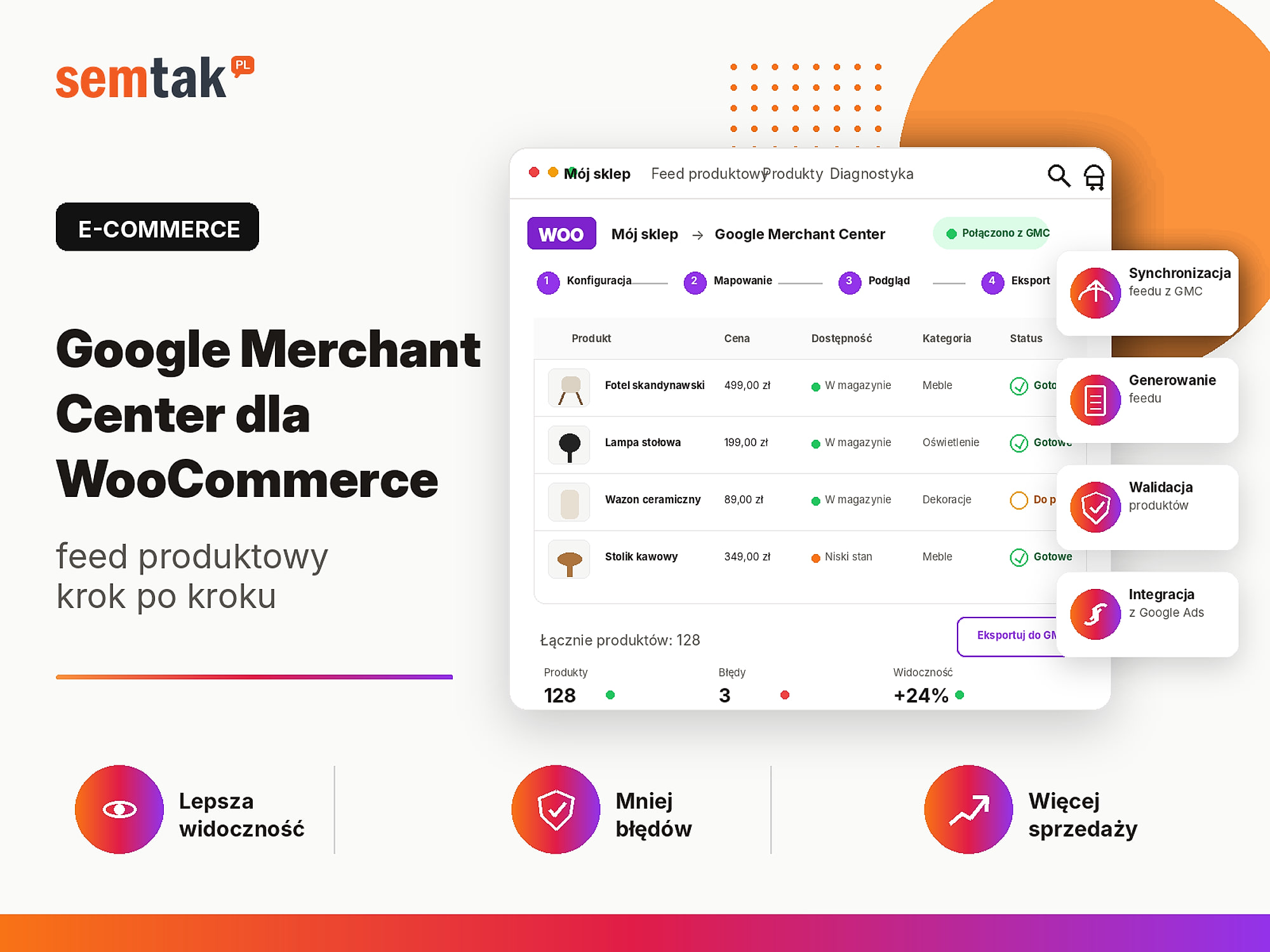
Google Merchant Center for WooCommerce — the product feed step by step

Your products are added correctly in WooCommerce, the prices match, the photos look good, and yet they still do not appear in Google Shopping. Some offers may be disapproved, others have missing identifiers, and the next ones show a message about a mismatched price or availability.
Most often the problem is not the Google Ads campaign itself. The problem sits earlier — in the data that the store passes to Google Merchant Center.
The product feed works like a catalogue describing your whole range. It contains product names, prices, photos, availability, brands, GTIN codes, variants and product page URLs. If this information is incomplete or does not match the store, Google may limit how your products are shown or reject them altogether.
In this guide we show you how to connect WooCommerce with Google Merchant Center, choose a method of transferring data, map the attributes correctly and check for errors before launching a product campaign.
In short
For most WooCommerce stores it is best to start with an automatic integration or an XML feed that Merchant Center fetches regularly. Before syncing, however, you need to tidy up your products: prices, stock levels, photos, brands, GTINs, variants and delivery rules. Simply installing a plugin will not fix faulty data in the store.
In short (TL;DR)
- Google Merchant Center stores product data used in free product listings and Google Shopping ads.
- The product feed can be sent through an integration, fetched from an XML file, maintained in Google Sheets or pushed via the API.
- Price, availability and variant must match across WooCommerce, the feed, the product page and the checkout.
- Each variant should have its own identifier, and the variants of one product should share an
item_group_id. - The most common errors involve missing GTINs, mismatched prices, poor photos, delivery costs and unclear business information.
- First fix the data source in WooCommerce, and only then sync the products again.
- Merchant Center does not replace Google Ads — it is the data source on which Shopping and Performance Max campaigns can be built.
What is Google Merchant Center?
Google Merchant Center is the panel in which you give Google information about the products sold in your store.
Thanks to this, Google can learn the product name, price, availability, photo, brand, GTIN or MPN code, product condition, variant, delivery cost and time, and the product page URL. Data from Merchant Center can be used, among other things, in free product listings, Google Shopping ads, Performance Max campaigns, dynamic remarketing and other Google product surfaces.
Merchant Center does not automatically pull all the information the way an ordinary search engine does — the store has to provide structured data through a product source. In its panel Google currently uses the term data source. In practice store owners, agencies and plugin authors still often simply say "product feed".
What is a product feed?
A product feed is a structured set of product data.
It can take the form of an automatic sync with WooCommerce, an XML file, a CSV or TSV file, a Google Sheet, or data sent via the API. Each product or variant is a separate item containing assigned fields. A simplified example:
ID: CREAM-50-NIGHT
Title: Regenerating face cream 50 ml for night use
Price: £15.99
Availability: in_stock
Brand: Dermaline
GTIN: 5901234567890
Image: https://store.com/wp-content/uploads/night-cream.jpg
Link: https://store.com/product/regenerating-night-cream/
Simplified, the process looks like this:
WooCommerce
      ↓
Product feed or integration
      ↓
Google Merchant Center
      ↓
Data checks and product approval
      ↓
Free listings / Google Shopping / Performance Max
The feed is not a file you can set up once and leave for a few months. The data has to be updated, because prices, promotions, stock levels, variants, photos, availability, product URLs and shipping rules change in the store. If a customer sees a price of £99 in Google and the product costs £119 once they reach the store, Google may disapprove the offer.
Product feed vs Google Shopping campaign — what is the difference?
The feed, Merchant Center and Google Ads are different elements of the process, even though the names are sometimes used interchangeably.
| Element | What is it for? |
|---|---|
| WooCommerce | Stores products, prices, variants and orders |
| Product feed | Transfers structured data about your range |
| Google Merchant Center | Receives, checks and stores product data |
| Google Ads | Used to create and bill campaigns |
| Google Shopping | Uses product data to display ads |
| Performance Max | Can use the feed and show products across various Google services |
Merchant Center can work without an active paid campaign — approved products may qualify for free product listings. To run ads, you additionally need to link Merchant Center with Google Ads, create a campaign and measure sales correctly. We covered the differences between the formats in more detail in the article Google product advertising for a store — Shopping and Performance Max.
What to prepare before connecting WooCommerce with Merchant Center?
Do not start by installing a plugin — first check whether the store itself is ready to be verified by Google.
Business information. The website should contain easily accessible information about the seller: company name, address, email address, phone number, registration details and contact information — consistent with the information entered in Merchant Center.
Terms, delivery and returns. The customer should easily find the store's terms and conditions, privacy policy, delivery rules, expected fulfilment time, shipping costs, return and complaint rules and the payment methods supported. It is not enough to enter this information only in Merchant Center — it should be clearly described on the store website.
A working purchase process. Before submitting products, place a full test order: open a product → add to basket → choose delivery → go to checkout → choose payment → place the order → check the emails → verify the change in stock level. If a customer cannot complete a purchase, fixing the feed alone will not solve the problem.
Correct product data. Every important product should have a unique name, a clear description, a current price, a correct stock level, a good-quality photo, an SKU, a brand, a GTIN or MPN (if the manufacturer assigned one), an assigned category and correct variants. If this data is missing in WooCommerce, it will also be incomplete in the feed.
How to transfer products from WooCommerce to Google Merchant Center?
There is no single method that is right for every store.
| Method | Who is it for? | Advantages | Limitations |
|---|---|---|---|
| Google for WooCommerce | Small and medium store | Simple connection and automatic sync | Less control over unusual rules |
| XML feed fetched from a URL | Medium and large store | Strong control over fields and schedule | Requires correct generator configuration |
| Google Sheets | Small catalogue or a test | Easy fixes without programming | Manual work and the risk of out-of-date data |
| Manual file upload | One-off tests | Quick start | No automatic updates |
| Merchant API | Large or non-standard store | Full control and frequent updates | Requires development work |
| Automatic detection by Google | An additional source | No need to create a file | Limited control over the catalogue |
When to choose the official Google for WooCommerce integration. This is a sensible option when you are just starting out, you have standard products, you use typical variants, prices and stock are in WooCommerce, you do not need complicated exclusion rules and you do not have several separate feeds for different markets. The integration can automatically send products and sync changes.
Keep an eye on WP-Cron and Action Scheduler
With an automatic integration you have to keep control of the background-task mechanisms: WP-Cron (the WordPress mechanism that runs scheduled tasks) and Action Scheduler (the task queue used, among others, by WooCommerce and its extensions). If these mechanisms stop, the store may still look normal, but new prices, stock levels and products will no longer reach Google — often without any visible error on the website.
When to choose an XML feed. An XML feed gives you more control: you can exclude specific products, change titles only in the feed, create separate sources for different countries, add campaign labels, create rules by category, split products by margin and control how often the file is generated. Merchant Center can regularly fetch such a file from a fixed URL — a good solution for a store with several hundred or several thousand products that needs deliberate work on the feed.
When Google Sheets is enough. A spreadsheet can be enough when you have a handful or a few dozen products, you are testing a new market, you are preparing a temporary source, you do not change prices often and you do not need automatic stock syncing. With a larger store, manually updating a spreadsheet quickly becomes risky — it only takes someone lowering a price in WooCommerce and forgetting to change it in the spreadsheet for the feed to start showing different data than the store.
When an API is needed. The Merchant API makes sense when the catalogue is very large, prices change many times a day, products come from an ERP or PIM, the store operates in several countries, the data has to be assembled from several systems, you need your own sync monitoring or you want to update individual products without generating the whole file. A PIM is a product information management system — it stores, among other things, names, descriptions, parameters, photos, translations and data intended for different channels. The Merchant API is the official successor to the Content API for Shopping; the Content API has been deprecated and, according to the current schedule, is due to be switched off in August 2026 — so new dedicated integrations should be designed with the Merchant API in mind.
Google Merchant Center for WooCommerce step by step
Step 1. Tidy up your products in WooCommerce. Start with the source data — a plugin that generates the feed will not guess that the SKU is saved in the description, that the brand is only in the name and that the variant colour was added as plain text. Above all, check product names, descriptions, regular prices, sale prices, stock levels, SKUs, GTINs or EANs, brands, categories, global attributes, variants and photos.
Use WooCommerce global attributes. Colour, size, material or pattern are best created as global WooCommerce attributes:
Global attribute: Colour
Values:
- black
- white
- natural oak
- navy
This makes later mapping easier: WooCommerce: pa_colour → Google: color. If the colour is entered only in the description or created differently for each product, automatic assignment may not work.
Step 2. Create or tidy up the Merchant Center account. During configuration, fill in the company name, country of operation, time zone, contact details, store address, countries of sale, delivery rules and returns policy. Do not set up several random Merchant Center accounts for one domain — first check whether the company does not already have an active account created by a previous agency, employee or integration. Save the IDs of the Merchant Center, Google Ads and Google Analytics accounts and the correct Google account used to manage the integration — this reduces the risk of connecting the store to the wrong account.
Step 3. Verify and claim the store domain. Google has to confirm that you have the right to manage the domain sending products. Verification can be done, among other ways, through Google Search Console, an HTML tag, Google Tag Manager, Google Analytics or the integration's automatic mechanism. Check the address variant carefully — https://store.com and https://www.store.com: the store should use one target variant, and the other should redirect correctly.
Step 4. Install the integration or the plugin that generates the feed. You have two basic scenarios.
Scenario A: Google for WooCommerce. In the WordPress panel: install the Google for WooCommerce plugin → connect the correct Google account → choose an existing Merchant Center account or create a new one → indicate the country and language of sale → configure shipping data → go to attribute mapping → run the sync. Once finished, do not assume everything works — log in directly to Merchant Center and check whether the correct data source appeared, how many products were sent, how many are approved, which have warnings and whether delivery is configured correctly. Also check the status of Action Scheduler tasks in WooCommerce — a large number of pending or failed tasks may mean the sync is not working properly.
Scenario B: XML feed. In the WooCommerce panel: install a plugin that generates the feed → create a new source for Merchant Center → choose the country and language → map the WooCommerce fields to the Google fields → add exclusion rules → generate the XML file → copy the public file URL → add the URL as a data source in Merchant Center → set up regular fetching. The feed URL should be accessible to Google without login, password protection, a redirect to the panel, a firewall block, a server error or any protection that limits downloading the file.
Step 5. Map the most important feed fields. Mapping means indicating where Google should take a particular piece of information from.
| Google field | What does it mean? | Example source in WooCommerce |
|---|---|---|
id | A stable identifier of the product or variant | SKU or variant ID |
title | Product title | Product name |
description | Product description | Main description or a prepared feed description |
link | Product page URL | Product URL |
image_link | Main photo | Product image |
additional_image_link | Additional photos | Product gallery |
price | Regular price | Gross product price |
sale_price | Sale price | Sale price |
availability | Availability | WooCommerce stock level |
condition | Product condition | new, used or refurbished |
brand | Brand | Brand taxonomy or a fixed value |
gtin | Global product code | EAN, UPC or ISBN |
mpn | Manufacturer part number | MPN field or manufacturer code |
google_product_category | Category according to Google | Google category assignment |
product_type | Your own store category | WooCommerce category path |
item_group_id | Shared identifier for variants | Parent product ID |
color | Colour | Global colour attribute |
size | Size | Global size attribute |
material | Material | Global material attribute |
Not every field is required for every product — the requirements depend, among other things, on the category, the market and the type of product.
A stable id identifier should be unique, stable, different for each variant and not changed without need. Do not build the identifier from the current price, the product's position, the sync date or a category that may change. If the id changes with every sync, Google may treat the same product as a new offer.
The product title should clearly describe what the customer is buying. Weak: "Marea". Better: "Black Marea G9 2-light wall sconce". The title can include the product type, brand or model, the most important variant, size, colour, material and use. Do not add artificial messages such as "CHEAPEST", "SUPER PROMO", "FREE DELIVERY", "HIT", "BUY NOW" — the title is meant to describe the product, not to replace the ad copy.
The product description should match what is on the product page. Do not paste HTML code, a long list of phrases, the store's terms and conditions, information about the whole company or content unrelated to the specific product into the feed. Put the most important features at the start of the description.
Price and availability in the feed MUST match the store
The price in the feed must match the price on the product page, the price after a variant is selected, the price in the basket and the price at checkout. In a B2C store, send the price the customer actually pays. For a markdown: price contains the regular price and sale_price the current sale price — do not enter the sale price as the regular price as well to make the offer look more attractive. Availability (in_stock, out_of_stock, preorder, backorder) must reflect the real stock level — do not send in_stock if the customer finds out after arriving that the product is unavailable. This is the most common cause of offer disapprovals.
Brand, GTIN and MPN. For a product sold under a manufacturer's brand, give the real brand. If the product has a GTIN code assigned by the manufacturer, you have to send it. If the product does not have a GTIN, you may need the brand, the MPN and information that the product has no standard identifier. An example of a handmade product:
Brand: workshop name
MPN: own model number
GTIN: none, if not assigned
Step 6. Configure variants correctly. Variants are a common source of problems. If you sell a T-shirt in three sizes and two colours (S/M/L × black/white), Google should receive six separate items.
Each variant: its own id, a shared item_group_id
Each variant should have its own id, its own SKU, its own price (if it differs), its own availability, its own colour, its own size, its own photo (if the variant looks different) and a shared item_group_id. Do not send all variants with an identical ID — Google will not tell the offers apart.
| Variant | ID | Item group ID | Colour | Size |
|---|---|---|---|---|
| Black S | TSH-BK-S | TSH-01 | black | S |
| Black M | TSH-BK-M | TSH-01 | black | M |
| White S | TSH-WH-S | TSH-01 | white | S |
Check the variant URL. After arriving from Google, the customer should see the correct version of the product. If the ad is about a red armchair but the page opens the blue variant by default, the user may decide they have landed on the wrong product. Check that the link selects the correct variant, that the photo matches the variant, that the price changes correctly and that the availability applies to the chosen version.
Step 7. Configure delivery and returns. The delivery costs and times in Merchant Center should match the information in the store. Check the country of sale, the delivery cost, the free delivery threshold, the order preparation time, the transit time, the minimum order value and the regions you do not ship to. Example:
Courier: £4.50
Locker: £3.50
Free shipping: from £60
If Merchant Center receives only the information "delivery £0", the data will not match the checkout for an order worth £25. With an automatic integration, verify which WooCommerce methods are actually supported — custom calculators, courier prices fetched dynamically, pallet shipping or complicated zones may require manual configuration. From 14 April 2026 Google expanded the product data specification with, among others, handling_cutoff_time (the order handling cut-off time) and minimum_order_value (the minimum order value required for shipping). Not every standard store has to send these fields at product level, but with complex logistics it is worth checking whether they are needed.
Step 8. Take care of product photos. The photo is one of the first elements visible in a product listing. It should show the correct product, have a good resolution, be sharp, contain no watermark or promotional messages, not be a thumbnail with a lot of empty space and work under a public HTTPS address. Do not place texts such as "-20%", "bestseller", "free delivery", "sale", "no. 1" on the main photo. For the additional photos you can use product details, other angles, the product in a setting, the packaging, the way it is used or its scale. Google announced that from 31 January 2027 all product photos will have to be at least 500 × 500 pixels — until then some categories are subject to lower minimums, but when preparing a feed in 2026 it is worth using larger images straight away. A sensible working standard will be photos of about 1500 × 1500 pixels, suitably compressed.
Step 9. Add the product source in Merchant Center. With an XML file, go to the data sources section and: add a new source → choose adding products from a file → indicate the feed URL → set the country, language and label → configure the fetch schedule → run the first fetch → check the processing result. Section names may change with updates; the most important thing is that the source points to the correct country, contains the correct language, has a regular schedule, fetches the file without errors and does not duplicate products from another source.
| Type of store | Sensible frequency |
|---|---|
| A dozen or so stable products | Once a day |
| Regular price and stock changes | Several times a day |
| Large store with fast rotation | Frequent sync or API |
| Made-to-order products | According to changes in availability and lead time |
| Sale or seasonal promotion | Before the start and during the campaign |
If a product's stock can change dozens of times a day, a single nightly fetch may be insufficient. Merchant Center can compare the information from the data source with the price and availability on the page — this helps with momentary differences, but it does not replace a correct sync. If the feed regularly contains wrong prices, you need to fix the data source.
Step 10. Check the diagnostics and fix the errors. After the first sync, products may have the status approved, pending, limited or disapproved. A disapproval means the product cannot be shown in a given place; a warning means the product can still work, but the data is incomplete or limits its potential. First fix the account-wide problems, then disapproved products, then errors affecting a large part of the catalogue, then warnings affecting data quality, and finally individual, less important gaps.
The most common WooCommerce product feed errors
| Problem | What it usually means | What to check |
|---|---|---|
| Price mismatch | The feed has a different price than the store | Variant, VAT, promotion, cache and currency |
| Availability mismatch | The feed shows the product as available but the store does not | Stock, backorder and ERP sync |
| Missing GTIN | The manufacturer code was not sent | The EAN of the product and variants |
| Invalid GTIN | The code has the wrong format or belongs to another product | The original manufacturer code |
| Missing brand | The product has a manufacturer but the field is empty | Brand taxonomy and mapping |
| Wrong photo | The image is unavailable or has an overlay | The URL, hotlink blocking and the image itself |
| No shipping costs | No country or rate configured | Delivery in WooCommerce and Merchant Center |
| Wrong landing page | The link returns an error or redirects | URL, HTTP status, variant and HTTPS |
| Invalid variants | No shared grouping | item_group_id, colour and size |
| Duplicated product | The same product comes from several sources | Data sources and identifiers |
| Restricted product | The category is subject to additional rules | Advertising policies and country of sale |
| Misrepresentation | Google does not trust the store or the information | Business data, delivery, returns and checkout |
A mismatched price — possible causes: the feed was generated before the price change, the cache shows the old price, the variant has a different price than the main product, the price in the feed is net while the page shows gross, a promotion expired in only one system, the price changes after logging in or depends on location or currency. Check the product as a logged-out user and go all the way to checkout.
A mismatched availability may result from a delayed warehouse sync, sales being enabled despite no stock, incorrect backorder mapping, a variant being unavailable while the main product is available, ERP integration errors or pending WP-Cron and Action Scheduler tasks.
Do not make up GTINs
First check whether the manufacturer actually assigned a code. Do not replace the GTIN with the store SKU, a random number, the WordPress product ID or the same code for all variants — each variant may have a different EAN. A wrong code is worse than a correctly marked lack of identifier.
Wrong business information. Merchant Center analyses not only the product file but also the store's credibility. Problems may stem from a lack of full contact details, different data in Merchant Center and on the website, unclear return rules, missing delivery costs, a broken checkout, inconsistent payment information, pages that are merely a mock-up of a store or misleading information. Do not send a request for re-review immediately after changing a single field — first check the whole store and remove all the related problems.
Fix the data at the source, not just in Merchant Center
A manual fix in the panel will be overwritten on the next sync
Suppose 500 products have no brand assigned. You can manually fix a few items in Merchant Center, but on the next sync the feed will overwrite the data with an empty value. The correct process is: error in Merchant Center → identify the source field → fix in WooCommerce or in the feed generator → regenerate the data → sync → check the result. An exception may be additional data sources or Merchant Center rules that deliberately supplement the feed — they should not, however, mask a mess in the main product database.
How to use an additional data source?
An additional source does not replace the primary feed — it can supplement or overwrite selected fields of existing products.
The main feed sends, for example, ID, title, description, price, availability and photo. An additional source can add a better campaign title, a margin label, seasonality, a bestseller group or a promotional category:
| ID | Custom label 0 | Custom label 1 |
|---|---|---|
| ARMCHAIR-001 | high_margin | bestseller |
| ARMCHAIR-002 | low_margin | standard |
| ARMCHAIR-003 | mid_margin | promo |
This lets you separate high-margin products, bestsellers, sales, seasonal products and goods that need a separate budget in your campaign. Do not put the margin directly in the product title — that is what custom labels are for.
The product feed and the SEO of product pages
Well-prepared product data helps not only ads — tidying up names, descriptions, variants, brands, GTINs, photos and availability often also improves the quality of the product pages themselves.
The feed does not, however, replace store SEO. A title prepared for Merchant Center does not have to be identical to the H1 heading on the page if the generator allows a separate field. Example — the name in the store: "Ergoflex Pro office chair"; the title in the feed: "Ergonomic Ergoflex Pro office chair, black, adjustable". Both describe the same product, but the feed contains additional features that help match the offer to shopping searches.
Does Product structured data replace the feed?
No. Product and Offer structured data help Google understand the product page and can support comparing the price and availability with the information sent to Merchant Center. They do not, however, replace a controlled feed, especially when you run product campaigns, want to use custom labels, separate markets, need control over titles, exclude part of the catalogue or have non-standard variants. The best arrangement is for all sources to agree:
WooCommerce
= Product feed
= Product structured data
= The visible product page
= Price and availability at checkout
What changed in Merchant Center in 2026?
Google regularly updates the product data specification.
From 14 April 2026 it introduced, among others, new options related to product-level delivery information: the order handling cut-off time, the minimum order value and more detailed logistics data. This does not mean that every store has to immediately add all the new fields manually. The owner of a standard store should above all take care of consistent prices, current availability, correct identifiers, transparent delivery rules, a working checkout and a regular sync. With development integrations, the technological change also matters: the Merchant API is the official successor to the Content API for Shopping, and the shutdown of the Content API is scheduled for August 2026. If you use a ready-made plugin, its author should handle this change; if you have your own integration, you need to check it with a developer.
How to monitor the feed after launch?
The feed is not a one-off task.
Daily or automatically monitor sync errors, a sudden disapproval of a large number of products, a broken feed URL, differences in prices and availability, warehouse integration errors and pending Action Scheduler tasks.
Once a week check the number of active products, disapproved products, new warnings, products without a GTIN, photo quality, missing attributes and changes in the number of clicks.
Once a month analyse the products generating sales, products spending budget without sales, titles with a low CTR, categories with a large number of disapprovals, margin and seasonality labels, the up-to-dateness of the feed rules and data consistency after WooCommerce updates.
After a larger store update, run an extra check — especially after changes to prices, the warehouse system, the feed plugin, the variant structure, the domain, product URLs, currency, taxes or shipping methods. When migrating a store, the feed and Merchant Center should be on a separate checklist. More in the guide store migration without losing rankings and sales.
The most common mistakes when implementing Merchant Center
The biggest problems are caused by: starting a campaign before products are approved, changing identifiers, sending the main product instead of variants and not controlling the background tasks.
Launching a campaign before products are approved. First check Merchant Center — a campaign will not fix disapproved offers.
No stable identifiers. Changing the id causes chaos in the history and in product recognition.
Sending the main product instead of variants. The customer sees a different price or colour than after arriving on the page.
Manually updating a large catalogue. With hundreds of products you need an automatic sync.
Using the manufacturer's name as your own brand. The brand in the feed should match the real manufacturer or your own brand.
Making up GTINs. A wrong code is worse than a correctly marked lack of identifier.
No delivery test. The cost in Merchant Center differs from the price shown at order time.
Relying solely on Google's automatic fixes. The mechanism can help temporarily, but it does not replace a correct source.
No control of WP-Cron and Action Scheduler. The store may work for customers even though the scheduled feed updates are queued or failing.
No check after a plugin update. The sync may stop working even though there is no visible error on the store website.
What can you check yourself?
You will detect most of the common problems without a specialist by comparing the feed, the store and the checkout.
- Log in to Merchant Center and check the number of approved and disapproved products.
- Open the section that needs attention and sort the problems by the number of products.
- Check which source the data comes from.
- Verify the date of the last sync.
- Open the public feed URL in incognito mode.
- Compare the product price in the feed, the store and the checkout.
- Check the availability of a few variants.
- Verify that each variant has a separate SKU.
- Check that the variants share an
item_group_id. - Inspect the brand, GTIN and MPN.
- Open the main product photo directly from the URL.
- Check that the photo contains no promotional text.
- Compare the delivery costs in the store and Merchant Center.
- Place a full test order.
- Check the business data, contact details, terms and returns policy.
- Verify that WP-Cron and Action Scheduler run the tasks without errors.
- Check that Merchant Center is linked to the correct Google Ads account.
- Make sure that GA4 and Google Ads record the purchase together with the transaction value.
When is it worth handing this to a specialist?
Setting it up yourself makes sense with a few dozen simple products; with a large catalogue, an ERP and several markets it is better to outsource the implementation.
Setting it up yourself is enough when the store has a few dozen simple products, the products do not have many variants, you use standard delivery, the data is complete, the official integration works without errors and you do not sell across several markets. A specialist's help is worth considering when Merchant Center has been suspended, a large part of the products is disapproved, prices or stock do not update, the store has thousands of products, the data comes from an ERP or PIM, you sell in several countries, you need several different feeds, variants are grouped incorrectly, you have complex shipping rules, campaigns spend budget but the products are poorly described, you do not know which integration is overwriting the data, you need labels by margin or seasonality or you are planning your own connection via the Merchant API. In that case it is not enough to fix a single error — you have to analyse the whole flow:
ERP, PIM or WooCommerce
        ↓
Feed generator or API
        ↓
Merchant Center
        ↓
Google Ads
        ↓
Conversion and sales measurement
If you want to use your products in paid campaigns, see how we run Google Shopping campaigns — from Merchant Center configuration and feed repair to campaign structure and ROAS measurement. It is worth setting up sales and conversion measurement as part of analytics and conversion tracking.
Frequently asked questions
Is Google Merchant Center free?
Yes. You do not pay for the Merchant Center account itself or for sending products. Costs appear when you use paid Google Ads campaigns or paid plugins and implementation services.
Does WooCommerce automatically create a product feed?
WooCommerce itself stores product data, but to pass it to Merchant Center you need an integration, a feed generator, a spreadsheet or a connection via the API.
Which plugin for Google Merchant Center for WooCommerce?
For a simple store you can start with Google for WooCommerce. For more control over titles, rules, exclusions and labels, a separate XML feed generator may be better.
How often should the product feed be updated?
With a stable catalogue, an update once a day is usually enough. If prices and stock change frequently, you need a more frequent sync or a connection via the API.
Does every product have to have a GTIN?
Not every product has a GTIN. If the manufacturer assigned a code, you have to send it. If the product really has no GTIN, you have to provide the other available identifiers and mark their absence correctly.
Why does Google disapprove a product because of the price?
Most often the price in the feed differs from the price on the product page, the variant or the checkout. The cause may also be the cache, an out-of-date promotion, tax or a delayed sync.
Can products appear in Google without paid ads?
Approved products may qualify for free product listings. This does not, however, guarantee impressions or sales.
Does Merchant Center replace Google Ads?
No. Merchant Center stores and checks product data. Google Ads is used to create paid campaigns and manage the budget.
The feed is the foundation, not a technical add-on to the campaign
A product campaign can be configured correctly, but it will not reach its full potential if Google receives poor data.
First you have to take care of complete products in WooCommerce, correct variants, consistent prices and stock, good photos, the brand and identifiers, delivery and returns, a regular sync and Merchant Center diagnostics. Only on this basis is it worth building the campaign structure, splitting products by margin, analysing ROAS and increasing the budget.
If products are being disapproved, prices do not sync or you do not know whether the current feed handles variants correctly, we can analyse Merchant Center, WooCommerce and the data source:
- Google Shopping campaigns — Merchant Center configuration, feed repair, campaign structure and ROAS measurement.
- Google product advertising — Shopping and Performance Max — the differences between the formats.
- How to start an online store on WooCommerce and category architecture for SEO — when the store is only just being built.