

WooCommerce SEO does not start with installing a plugin and typing a few keywords into product descriptions. A plugin can help you set the meta title, the sitemap or redirects, but it will not plan your category structure, filter indexing or sales priorities for you.
The most common problem looks rather different: the store has hundreds of products, Google indexes random URLs, the categories are too general, and the descriptions have been copied from the manufacturer. The owner publishes one article after another but sees no increase in sales from organic traffic.
In this guide we will show you where to start WooCommerce SEO and in what order to carry out the work — without randomly fixing everything at once.
In short
Start by checking whether Google is indexing the right categories and products. Then put the store's structure in order, assign keywords to specific URLs, and only then develop descriptions, internal linking and blog content. If the technical foundation is wrong, even good copy may bring no effect. Separately, we cover how to write meta titles and descriptions for CTR.
In a nutshell (TL;DR)
- Start by checking the data in Google Search Console, not by rewriting all your product descriptions.
- First make sure Google can find and index the right categories and products.
- Plan the structure of categories, subcategories, attributes and filters before the store starts generating thousands of URLs.
- Assign your most important sales keywords to categories, and detailed queries to products and guides.
- Improve business-critical pages first: high-margin categories, bestsellers and seasonal products.
- Measure not only rankings but also clicks, organic sales and the revenue generated by individual pages.
What does WooCommerce SEO actually involve?
WooCommerce SEO means organising the store so that Google finds the most important pages, understands what you sell, and the traffic from search leads to sales.
In practice it is about making sure categories answer shopping queries, products appear for detailed keywords, unnecessary filters and parameters do not clutter the index, and the user quickly finds the right product. This is not a one-off entering of keywords in the plugin settings — effective work covers several areas:
| Area | What do you check? | Example problem |
|---|---|---|
| Indexing | Does Google see the right pages? | Products are blocked by noindex |
| Architecture | Do categories and filters have a logical layout? | The same product sits in several similar categories |
| Content | Does the page answer the customer's intent? | The category description contains generic sentences without specifics |
| Technical | Do URLs, canonicals and redirects work correctly? | Changing a category creates 404 errors |
| Speed | Does the store work smoothly on a phone? | Heavy images delay the display of the product |
| Product data | Does Google understand the price and availability? | Structured data shows a different price than the product page |
| Linking | Do important pages receive internal links? | The category exists but neither the menu nor the blog links to it |
Order matters. Writing articles will not help if Google cannot index the store correctly. Speeding up the site, on the other hand, will not fix poorly planned categories.
Step 1. Decide which parts of the store matter most
Don't start by fixing every product in turn — first establish your business priorities. In a store with several thousand products, this approach can take many weeks, and the first changes will cover goods that barely sell.
Choose your most important categories. Prepare a list of categories that generate the most sales, have a high margin, cover a permanently available range, have seasonal potential and answer specific customer needs. For example, a lighting store might have the categories: pendant lamps, living-room lamps, over-table lamps, bathroom wall lights, low-ceiling flush mounts. The "Lighting" category is too general to base an entire strategy on it — the customer usually looks for a specific type of lamp, room, style or use.
Choose priority products. Not every product requires the same amount of work. To begin with, pick the bestsellers, high-margin products, products available all year round, products with many variants, goods that set you apart from the competition, and products that already get impressions in Google. This way your first actions cover pages that genuinely matter for sales.
Record the starting point. Before you implement changes, record the number of clicks from organic results, the number of store impressions in Google, the queries leading to categories and products, the most visible pages, the number of orders from organic traffic, the revenue from the organic channel and the most common indexing errors. Without a reference point, it is hard to later assess whether the work has had any effect.
Step 2. Check what Google is indexing in the store
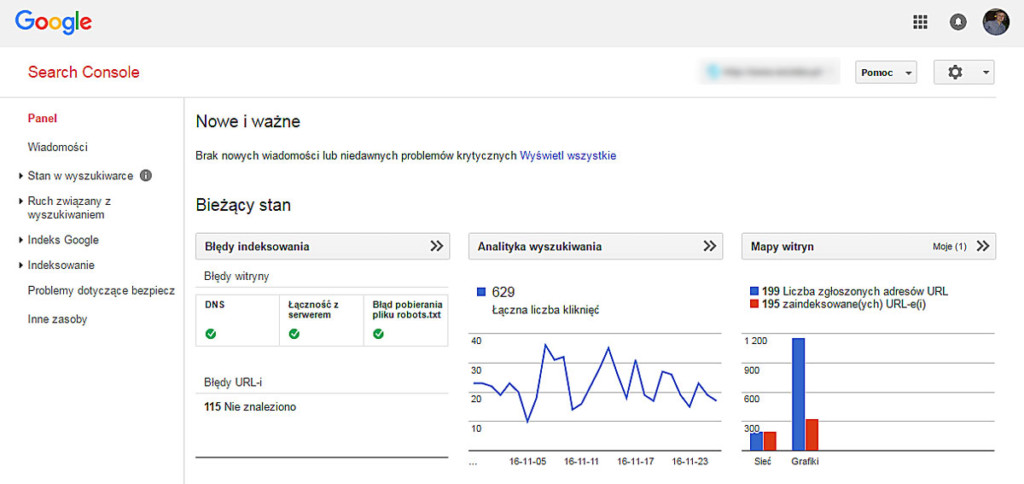
Before you start changing content, check in Google Search Console whether the search engine sees the right pages.
In the indexing report you will find, among other things, pages that are correctly indexed, pages excluded by noindex, URLs with redirect errors, duplicate pages, URLs that have been crawled but not yet indexed, URLs blocked by robots.txt and server errors. The site:yourstore.com operator can help with a quick overview, but it does not show the full indexing status — to diagnose a specific URL, use the URL inspection tool in Search Console.
What should usually be indexed:
| Page type | Most common decision |
|---|---|
| Home page | Index |
| Important categories | Index |
| Valuable subcategories | Index |
| Available products | Index |
| Brand pages with offer and content | Often index |
| Selected filter pages with potential | Only after deliberate analysis |
| Guides and rankings | Index |
What usually should not go into the index:
| Page type | Most common decision |
|---|---|
| Cart | Noindex |
| Checkout | Noindex |
| Customer account | Noindex |
| Internal search results | Noindex |
| Random filter combinations | Noindex |
| Sorting parameters | Noindex or appropriate technical handling |
| Empty product tags | Noindex or removal |
| Technical plugin pages | Noindex |
Do not treat this table as a rule to be applied automatically in every store. Some filters may have SEO potential, for example "black pendant lamps" or "creams for dry skin" — but they should work like polished landing pages, not the random result of ticking a few boxes.
robots.txt and noindex are NOT the same thing
The robots.txt file controls the robot's access to URLs — it is not a tool for removing pages from Google's results. For a page to disappear from the index, the robot usually has to be able to visit it and read the noindex tag; blocking it in robots.txt may make it impossible to read that information. So do not copy ready-made rules from a random guide — in a store with extensive filters, one wrong rule can block important categories, files needed to render the page, or whole groups of products.
Check the XML sitemap. The sitemap should contain, above all, URLs that return a 200 status code, are meant to be indexed, have the correct canonical address, do not pass through a redirect, are not a 404 error and present valuable content. Once the sitemap has been generated, submit it in Google Search Console and check whether Google reports any errors while processing it.
Step 3. Put your category, attribute and filter structure in order
The store's structure should be understandable both for the customer and for Google. The problem starts when every product feature becomes a separate category — after a few months the store has dozens of similar pages showing almost the same range.
Category, attribute or filter? This distinction determines the whole architecture:
| Element | What is it for? | Example |
|---|---|---|
| Category | Groups products by their main need | Pendant lamps |
| Subcategory | Narrows down an important group of products | Living-room pendant lamps |
| Attribute | Describes a product feature | Colour: black |
| Filter | Lets the user narrow the list | Black + metal + 3 light sources |
| Tag | Additionally groups products | Spring collection |
Not every filter combination should get a separate URL indexed in Google. In a store with filters for colour, material, style, manufacturer, price and number of light points, a customer can create hundreds or thousands of combinations. If each one is available to Google as a separate URL, the search engine wastes time crawling pages with no value of their own. More on planning categories in the guide categories in a WooCommerce store — SEO architecture.
An example of a simple architecture:
Lighting
├── Pendant lamps
│   ├── Living-room pendant lamps
│   ├── Over-table lamps
│   └── Kitchen pendant lamps
├── Wall lights
│   ├── Bathroom wall lights
│   └── Bedroom wall lights
└── Flush mounts
    ├── LED flush mounts
    └── Bathroom flush mounts
Colour, material, style and the number of light sources can remain attributes and filters. An exception may be a filter that users frequently search for and that covers a sufficient number of products, for example "black pendant lamps" — in that case you can prepare a controlled landing page with its own URL, heading, meta data and description.
Check the user's journey. The customer should be able to move easily from the home page to a category, from a category to a subcategory, from a subcategory to a product, and from a product to a related category. Main menus, breadcrumbs, links to subcategories, related-product sections, links in category descriptions and links from guides all help with this. Do not hide important categories only in the sitemap — if a category is meant to generate sales, the user should be able to find it through normal navigation.
Step 4. Assign keywords to the right pages
A keyword should lead to a page that answers the user's intent. Someone typing "living-room pendant lamps" probably wants to see several models and compare the offer — so a category will be a better result than a single product or a long article.
| Query type | Best page type |
|---|---|
| pendant lamps | Category |
| living-room pendant lamps | Subcategory |
| black 3-point pendant lamp | Product or precise category |
| how to choose an over-table lamp | Guide |
| what height for a lamp over the table | Guide or FAQ section |
| Marea black lamp | Specific product page |
| brand X lamps | Brand page |
Prepare a simple map in the format keyword → intent → target URL → page type → priority:
over-table lamps → transactional → /over-table-lamps/ → category → high
how to choose an over-table lamp → informational → /blog/how-to-choose-over-table-lamp/ → guide → medium
black Marea lamp → transactional → /product/marea-lamp-black/ → product → high
Watch out for cannibalisation
Cannibalisation occurs when several pages try to answer a very similar query — e.g. /living-room-lamps/, /lounge-lamps/, /lighting-for-living-room/, /pendant-lamps-living-room/. If they show similar products and have similar content, Google may struggle to choose the right result. The solution is not always to add more keywords — often you need to merge similar categories, redirect the unnecessary URL, separate intents, change the range of products, improve internal linking or designate a single main page for a given topic.
Step 5. Improve your most important WooCommerce categories
Categories often have greater SEO potential than individual products. A product may be discontinued, whereas a well-planned category can grow its visibility for many years.
What a good category should contain: a clear H1 heading, a short intro above the product list, well-chosen products, the ability to filter sensibly, a description that helps with the choice, links to subcategories, answers to frequently asked questions, a unique meta title, an enticing meta description, breadcrumbs and a readable URL.
How to write a category description. Do not start with a sentence in the style of:
In our rich offer you will find a wide selection of top-quality products that will meet the expectations of even the most demanding customers.
Such a sentence could be pasted into almost any category in any store — it does not help choose a product and does not demonstrate specialist knowledge. A better description answers specific questions: what use these products are for, how the variants differ, which parameters to pay attention to, what will suit a small room, how to avoid a poor choice and which features affect the price. Example:
When choosing a pendant lamp over the table, check above all the length of the tabletop and the number of light points. Over a table for four people, a single lamp or a model with three light sources placed close together is often enough. For a long table, linear lamps that light the whole surface evenly work better.
This is content useful both for the customer and for the search engine. Place a short intro above the products and the expanded part below the list — that way the user sees the offer straight away but can still find the guide-like part of the page. Do not hide the entire description in a collapsible element and do not place several thousand characters before the products if that forces the customer to scroll for a long time.
Step 6. Tidy up your product pages
A good product page at once answers a detailed query, explains the differences between variants, makes the decision easier, passes complete data to Google and leads to a purchase.
The product name should be understandable without knowing the internal codes. Instead of "Model MX-184-B", better "Black Marea 3-point pendant lamp". The product code can be in the specification or the SKU field, but it should not replace clear information.
The short description should answer the question: why might this product suit my use? Do not just repeat the list of parameters — point out the most important benefit, the intended use and the distinguishing feature.
The main description may cover the intended use, the most important benefits, materials, dimensions, mounting, compatibility, care, the contents of the set, warranty information and answers to frequently asked questions. There is no need to write a long text for a simple product — the description should be as detailed as the purchase decision requires.
Technical parameters are worth presenting in a clear table. The customer should not have to hunt for dimensions, material or power across several paragraphs of text.
Images. Check whether they are sharp, whether they show the product from several sides, whether the files are not unnecessarily heavy, whether the file names are readable, whether the alternative text describes the content and whether the main image is of an appropriate size. Alternative text is not the place for a list of keywords — it should describe what is on the image.
The price and availability visible to the user should match the information in the structured data and the product feed. Related products (similar items, accessories, set complements) support both sales and internal linking. More in the guide product descriptions for SEO — how to write so they sell and rank.
Do not copy manufacturer descriptions without changes
The same description may appear in dozens of stores — it gives the customer no extra information and does not set your offer apart from the competition. This does not mean you have to rewrite 10,000 products straight away. Start with: (1) bestsellers, (2) high-margin products, (3) products getting impressions, (4) products with long-tail potential, (5) products that set the store apart.
Step 7. Check the basics of technical WooCommerce SEO
First check whether the store has errors that affect whole groups of products and categories — do not manually analyse every single parameter.
The most important areas are: readable and stable URLs, 301 redirects after URL changes, 404 errors, canonical addresses, the XML sitemap, the indexing of filters and parameters, product structured data, and consistency of price and availability between the page, the schema and the feed.
Trap: changing a category changes the product URL
If the product URL structure contains %product_cat%, the product's URL may depend on the assigned category. From WooCommerce 10.5, the system selects the deepest category assigned to the product when generating such an address. So after an update or a category change, check: whether the product URL has changed, whether the old URL has a 301 redirect, whether the sitemap contains the new URL, whether internal links lead directly to the right page, whether the product feed is not sending the old URL, and whether Search Console is not showing new 404 errors. This is a problem that expanding the product description will not fix.
You will find the full control list in the guide technical WooCommerce SEO — checklist. This article shows the order of actions, while the dedicated checklist expands on indexing, canonicals, filters, redirects and product data.
Step 8. Check speed and Core Web Vitals
Store speed affects not only SEO — a slow product page makes it harder to browse images, choose a variant and add the product to the cart.
Core Web Vitals — metrics and thresholds
LCP — how quickly the page's main element appears (good: up to 2.5 s). INP — how quickly the page responds to user actions (up to 200 ms). CLS — whether elements do not shift while loading (up to 0.1). These three metrics describe the real user experience, not just an abstract test score.
Example: if the main product image weighs several megabytes and loads as the largest element of the page, it can worsen LCP. Simply installing yet another cache plugin will not always solve the problem — you need to check the image size, the file format, the loading method and the server performance. Test at least the home page, a category, a simple product, a product with variants, the cart and the checkout. The detailed process is in the guides how to speed up a WooCommerce store and Core Web Vitals in a WooCommerce store.
Step 9. Develop content and internal linking
The blog should support categories and products, not compete with them.
If you sell over-table lamps, you can create articles such as: "How to choose the right lamp size for a table?", "At what height should you hang a lamp over the table?", "One or three lamps over a kitchen island?", "What light to choose for a dining room?", "Glass or metal lamp — which works better in the kitchen?". In each guide you can naturally lead the user to the right category or group of products.
An example of a simple content cluster:
Category: Over-table lamps
├── How to choose an over-table lamp?
├── At what height should you hang a lamp?
├── How to light a long table?
└── Lamp over a round table — which model to choose?
The article answers the question, the category presents the offer, and the product allows the purchase.
Rules of good internal linking: use anchors that describe the target page, link from guides to categories, link from categories to subcategories, show similar and complementary products, update old articles, do not create dozens of identical links in the footer and do not hide important pages only in the XML sitemap. Example of a natural link: before expanding the menu, it is worth first planning the WooCommerce category architecture, so as not to create several pages answering the same query. If you need ongoing development of categories, products and content, see what online store SEO looks like.
Where to start WooCommerce SEO in the first month?
Do not try to fix the entire store in a week — set the order and see each stage through to the end.
Week 1: data and indexing. Set up or check Google Search Console, verify the sitemap, review the indexing report, analyse the most important categories and products, find accidentally indexed filters and record the starting point.
Week 2: store structure. Put the categories and subcategories in order, separate categories from attributes, choose filters with SEO potential, find similar pages competing with each other, plan the menu and breadcrumbs and prepare a map of keywords and URLs.
Week 3: categories and products. Improve a few of the most important categories, prepare unique meta titles, add short and helpful descriptions, improve the bestseller pages, check the images, parameters and product data, and add linking between related pages.
Week 4: technical work and development. Check for 404 errors, review redirects and canonicals, test the structured data, measure Core Web Vitals, prepare the first guides supporting the categories and set a plan of action for the next three months.
After a month you do not need to have the whole store fixed. You should, however, know what is blocking visibility, which categories have the greatest potential, which URLs to tidy up, which products to improve first, what work requires a developer and what content is worth preparing.
The most common mistakes at the start of WooCommerce SEO
The most damage is done by: too many SEO plugins, a lack of priorities, indexing every filter and changing URLs without redirects.
Installing many SEO plugins. A greater number of plugins does not mean better SEO — two can simultaneously generate sitemaps, structured data, meta tags or redirects.
Fixing all products without priorities. Rewriting thousands of descriptions can be expensive and bring no quick effect if the biggest problem is indexing or category structure.
Indexing every filter. A filter is useful for the customer, but not every combination of it deserves a separate page in Google.
Creating a category for every keyword. Two similar keywords do not always require two pages — first check whether they have a different intent and a different range of products.
Changing URLs without redirects. Changing the category structure, the domain or the permalinks without a redirect map can lead to loss of traffic and a large number of 404 errors.
Focusing solely on a keyword's ranking. A ranking does not tell you whether the user bought the product — also analyse clicks, the add-to-cart rate, orders and revenue.
Publishing articles unrelated to the offer. Heavy traffic from a guide does not always have sales value — the blog should lead to a category, products or a purchase decision.
What can you check yourself?
The following check will not replace a full audit, but it will let you find the basic problems.
- Open Google Search Console and check the indexing report.
- Verify a few of the most important products with the URL inspection tool.
- Open the sitemap and check whether it contains only the right URLs.
- Search Google for the name of your most important category together with the store name.
- Check whether each important category has a unique H1.
- Compare the category names and find pages with a very similar meaning.
- Switch on a few filters and see whether new URLs are created.
- Check whether random filter combinations can be found in Google.
- Open a few products and check the price, availability, images and parameters.
- Test the product's structured data.
- Check a category and a product page in PageSpeed Insights.
- Review 404 errors and old redirects.
- Check whether the guides link to the right categories.
- Verify that organic sales are measured correctly in analytics.
- Prepare a list of five categories to start the work with.
If you are not sure whether the problem concerns indexing, content or WooCommerce itself, an SEO audit of the store will help. It should end with a list of problems, priorities and specific recommendations, not just an export of errors from a tool.
When is it worth hiring a specialist?
Doing it yourself makes sense when the store is small, the structure is simple, and the number of products and filters is limited.
Technical help or an audit will be sensible when the store has several thousand products, filters generate a large number of URLs, Google indexes random parameters, traffic has dropped after a migration or update, you are changing the category or permalink structure, important products do not appear in Google, Search Console reports problems with canonicals, structured data shows errors, the store runs slowly on phones, it is unclear which plugins generate the sitemap and schema, you are planning to merge or remove many categories, or you are not sure how to measure organic sales.
In such cases, simply improving the descriptions may not solve the problem — first you have to find the cause and set the order of implementation. For problems with indexing, redirects, speed or structured data, it is worth considering technical store SEO. For ongoing development of categories, products, content and visibility, a better solution may be regular online store SEO.
Frequently asked questions
Is WooCommerce good for SEO?
Yes. WooCommerce gives you a lot of control over categories, products, URLs, content and structured data. It does, however, require correct configuration, especially as regards filters, attributes, speed and indexing.
Is it enough to install Yoast SEO or Rank Math?
No. The plugin helps manage meta data, the sitemap and part of the technical settings, but it will not replace a category strategy, keyword analysis, content, linking or improving the store's speed.
Where should you start WooCommerce SEO?
With data and indexing. First check Search Console, the sitemap, the important categories, products, filters and technical errors. Only then expand the descriptions and the blog.
Does every WooCommerce category need a description?
The most important categories should have unique content that helps the customer choose. Empty, technical or minor categories do not always require an extensive description. First determine their role.
Does every product need a unique description?
Ultimately it is worth avoiding copying descriptions from the manufacturer, but in a large store it is best to work in stages. Start with bestsellers, high-margin products and pages with SEO potential.
Should product filters be indexed?
Only selected ones. A filter can be indexed if it answers a real query, shows an appropriate number of products and has value of its own. Random combinations should usually not go into the index.
How long does WooCommerce SEO take?
There is no single fixed answer. The time depends on the technical condition of the store, the competition, the domain's history, the size of the range and the speed of implementing changes. First you need to assess whether the store needs its basics fixed or further development.
Does WooCommerce speed affect SEO?
Yes. Speed and ease of use are elements of site quality. A slow store can also make it harder for customers to view products, use filters and place orders.
Start with the problems that block the whole store
WooCommerce SEO does not require fixing everything at once. The best results come from this order: indexing, structure, the most important categories, products, technical work, speed, content and linking.
If you want to check what is currently blocking your store's visibility, we can analyse its structure, indexing, filters, products and technical data — you will receive a concrete list of problems and an order of actions, without fixing random elements just because one tool flagged them:
- SEO audit of the store — diagnosis of the causes and a list of priorities.
- Technical SEO — fixing indexing, canonicals, redirects and structured data.
- Online store SEO — ongoing development of categories, products, content and visibility.
- Technical WooCommerce SEO — checklist and SEO category architecture.